Windows
Moving, maximizing and snapping windows, snap layouts, Snap Assist, shortcuts and Task Manager.
A window
The title bar has the app's icon at the left, then the title; at the right, the Minimize, Maximize and Close buttons.
- Drag the title bar to move the window; double-click it to maximize or restore.
- Drag an edge or a corner to resize.
- Alt + dragging with the left button moves the window from anywhere; Alt + dragging with the right button resizes it.
- A click on the icon, a right click on the title bar or Alt+Space opens the window's menu.
- Alt+Tab goes to the next window, Alt+Shift+Tab to the previous one, Alt+F4 closes the active window.
Snapping a window
Snapping puts a window into a part of the screen so that you have two or three side by side.
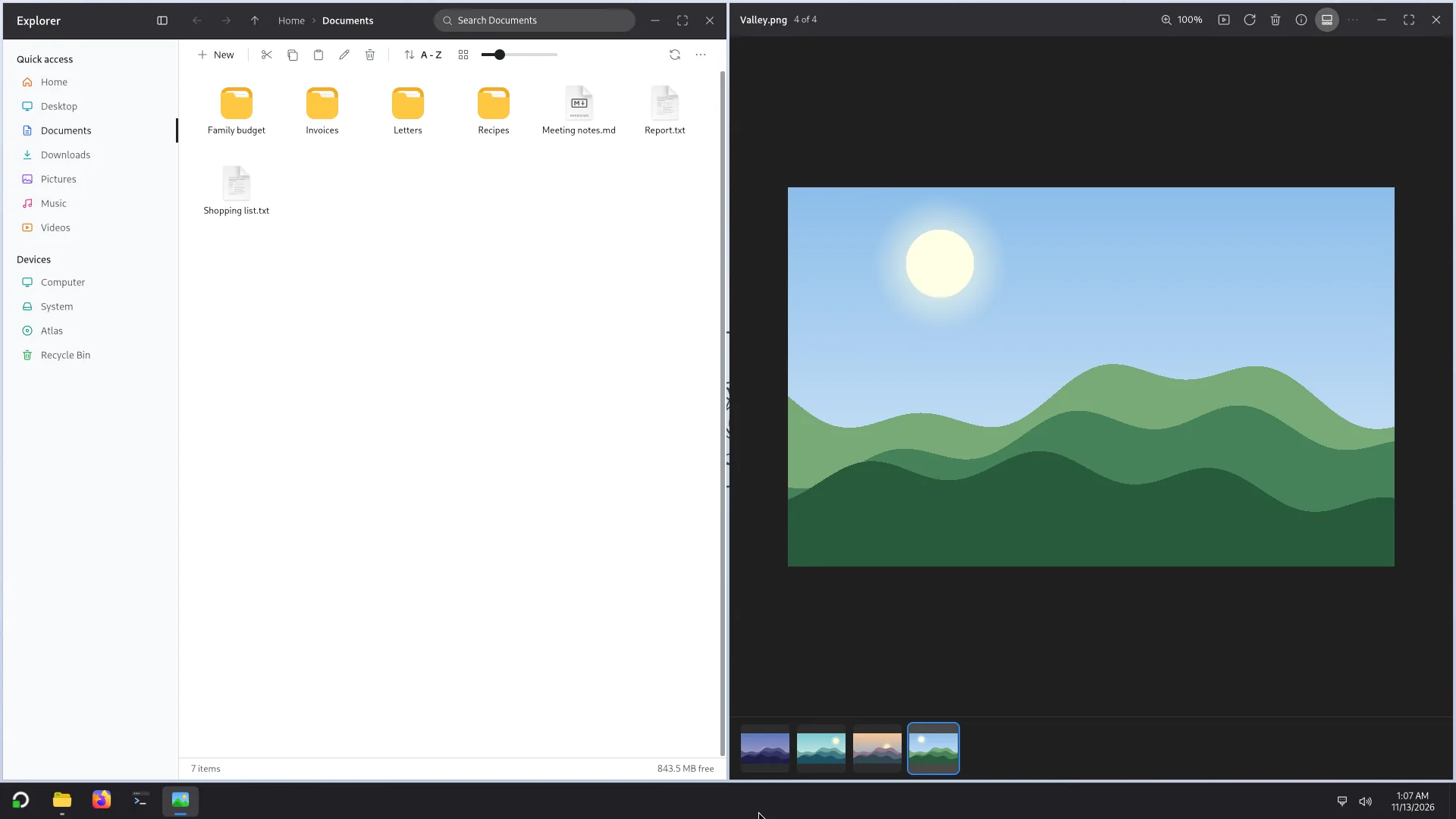
- By dragging: take the window to the left or right edge of the screen and it takes one half; to the top edge, it maximizes. An outline shows where it will go.
- With the keyboard: Super with the arrow keys (table below).
- With layouts: hover over a window's Maximize button, or press Super+Z. A flyout offers layouts (two halves, three thirds, two thirds and one third, 25 / 50 / 25, four quarters...); click the zone where the window should go.
Snap Assist
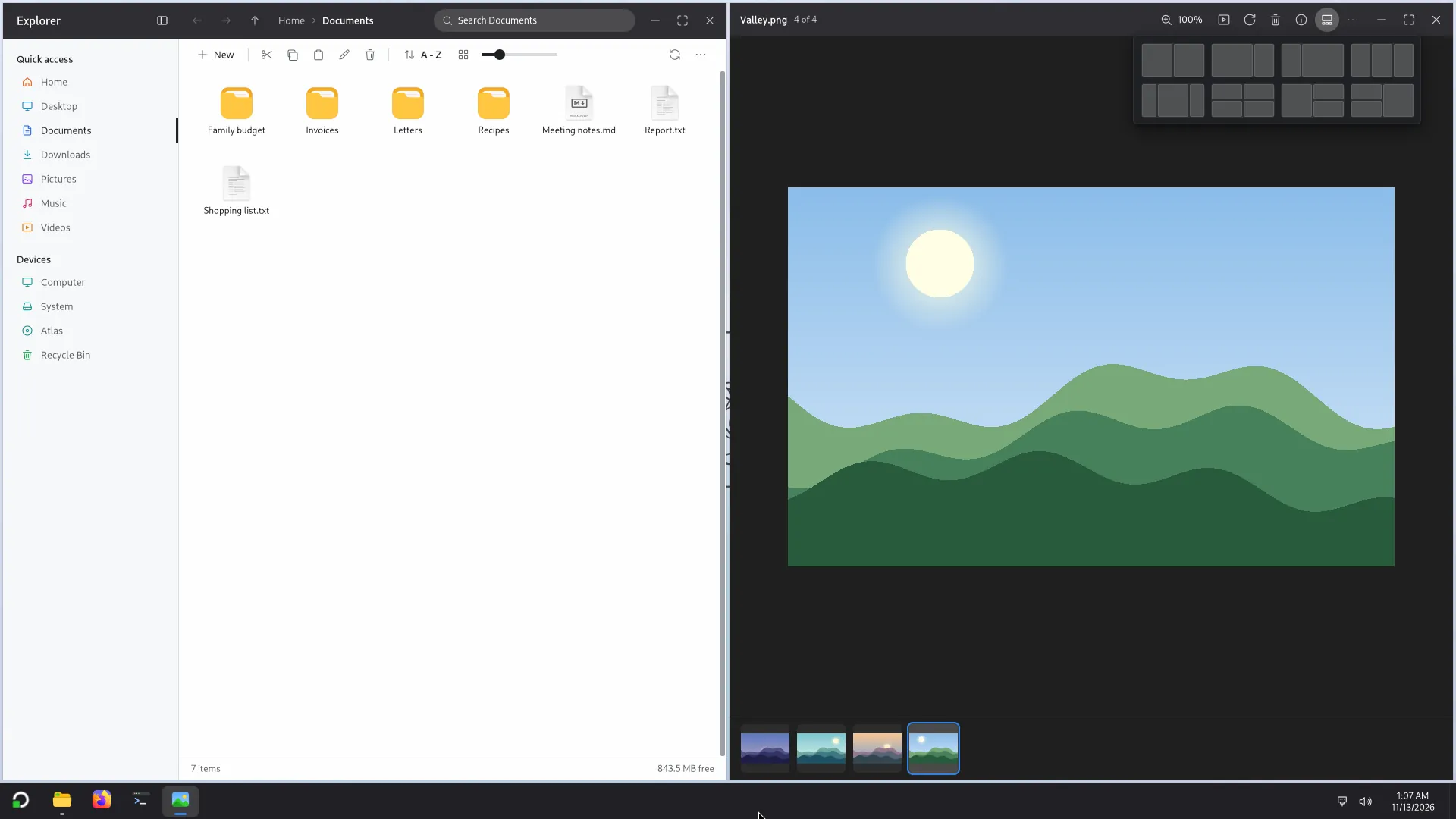
After you snap a window, Atlas offers your other open windows for the space that is left: Pick a window for this space. Click the one you want.
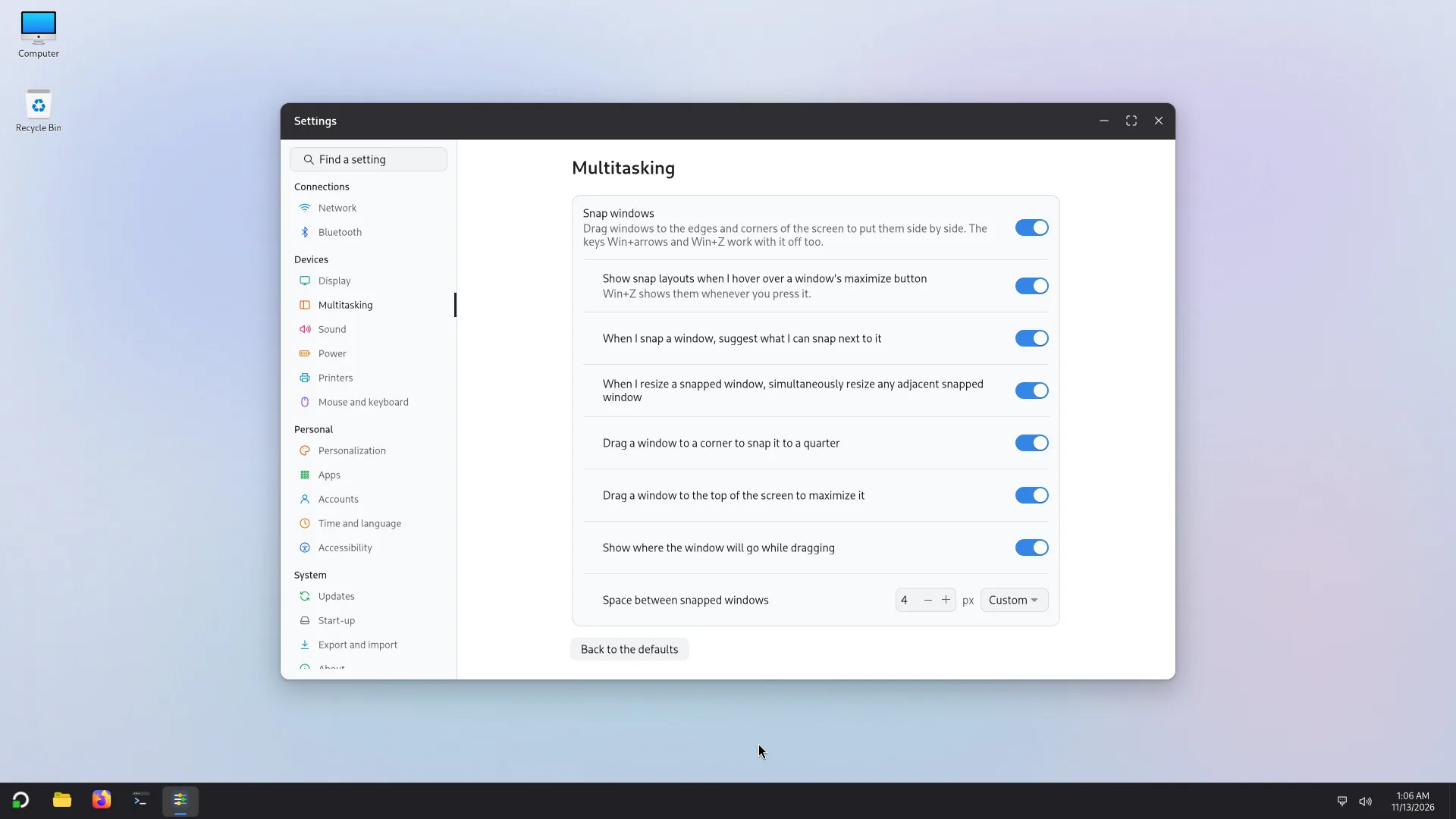
The settings: Settings > Multitasking
Snap windows turns snapping by dragging on or off (the Super keys and Super+Z still work when it is off). Around it: show the layouts when hovering over the Maximize button, suggest what can be snapped next to a window, resize adjacent snapped windows together, drag to a corner to snap to a quarter, drag to the top to maximize, and show where the window will go while dragging. Space between snapped windows: None, Small (the original setting), Medium, Large or Custom (0 to 32 pixels). Fill the space, shown when the space is not None: Show the background (the default) or A colour, with a colour and Transparency (0 % is solid, 100 % lets the background show). It covers the area the snapped windows share, follows as you drag the line between them, and is hidden when the space is None. Back to the defaults resets everything.
The Super + arrow keys
As in Windows, each press changes the state of the active window:
| The window is | Super+← | Super+→ | Super+↑ | Super+↓ |
|---|---|---|---|---|
| free | left half | right half | maximized | minimized |
| maximized | left half | right half | (nothing) | restored |
| left half | right half | restored | top left quarter | bottom left quarter |
| right half | restored | left half | top right quarter | bottom right quarter |
| top left quarter | (stays) | top right quarter | maximized | left half |
| top right quarter | top left quarter | (stays) | maximized | right half |
| bottom left quarter | (stays) | bottom right quarter | left half | minimized |
| bottom right quarter | bottom left quarter | (stays) | right half | minimized |
Other keys: Super+Shift+← or → sends the window to the next screen; Super+Shift+↑ stretches it to the full height; Super+D shows the desktop; Super+M minimizes everything. The full list is in the keyboard shortcuts.
Task Manager
Ctrl+Shift+Esc opens it, or right-click the taskbar, Task Manager.
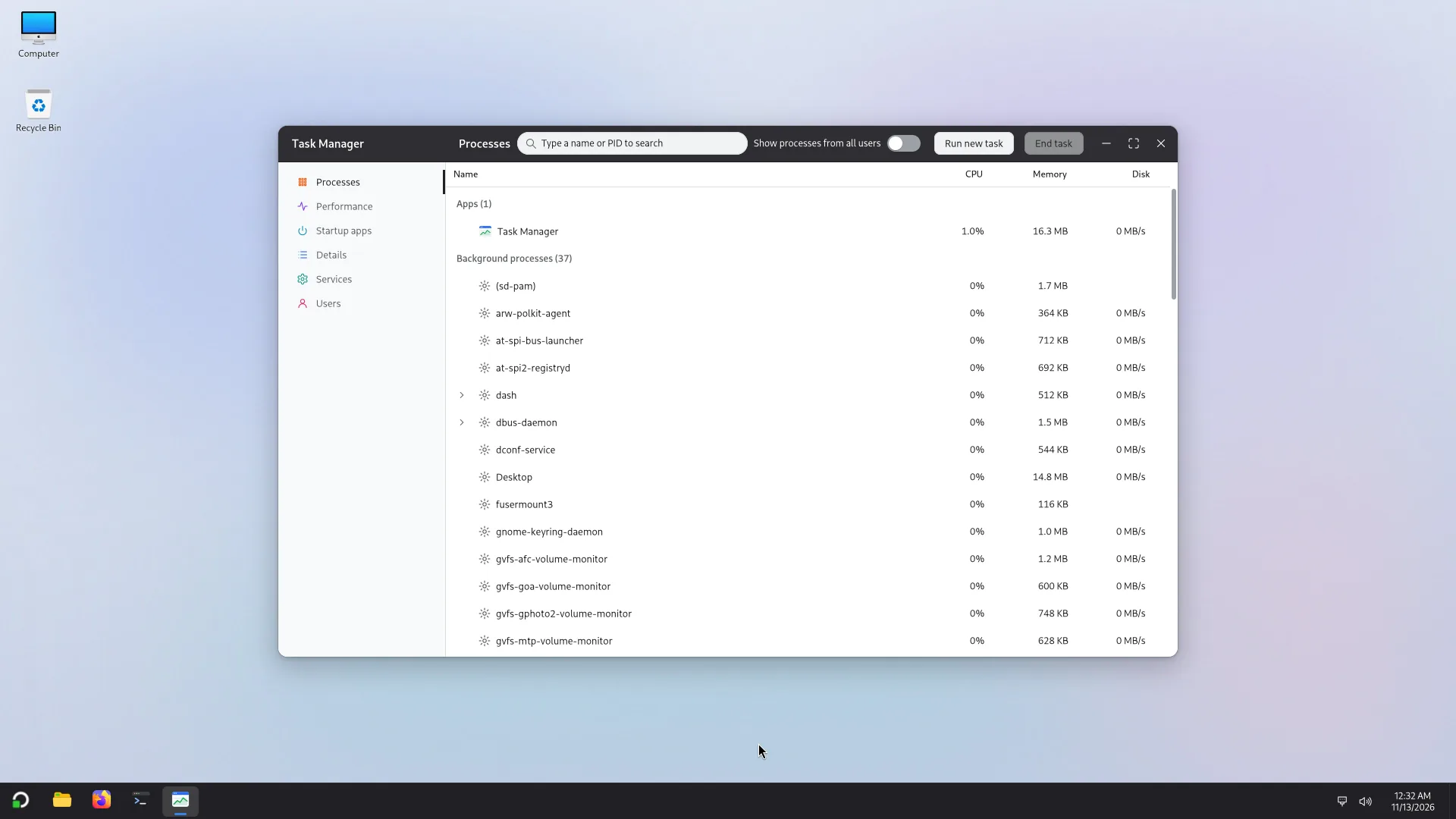
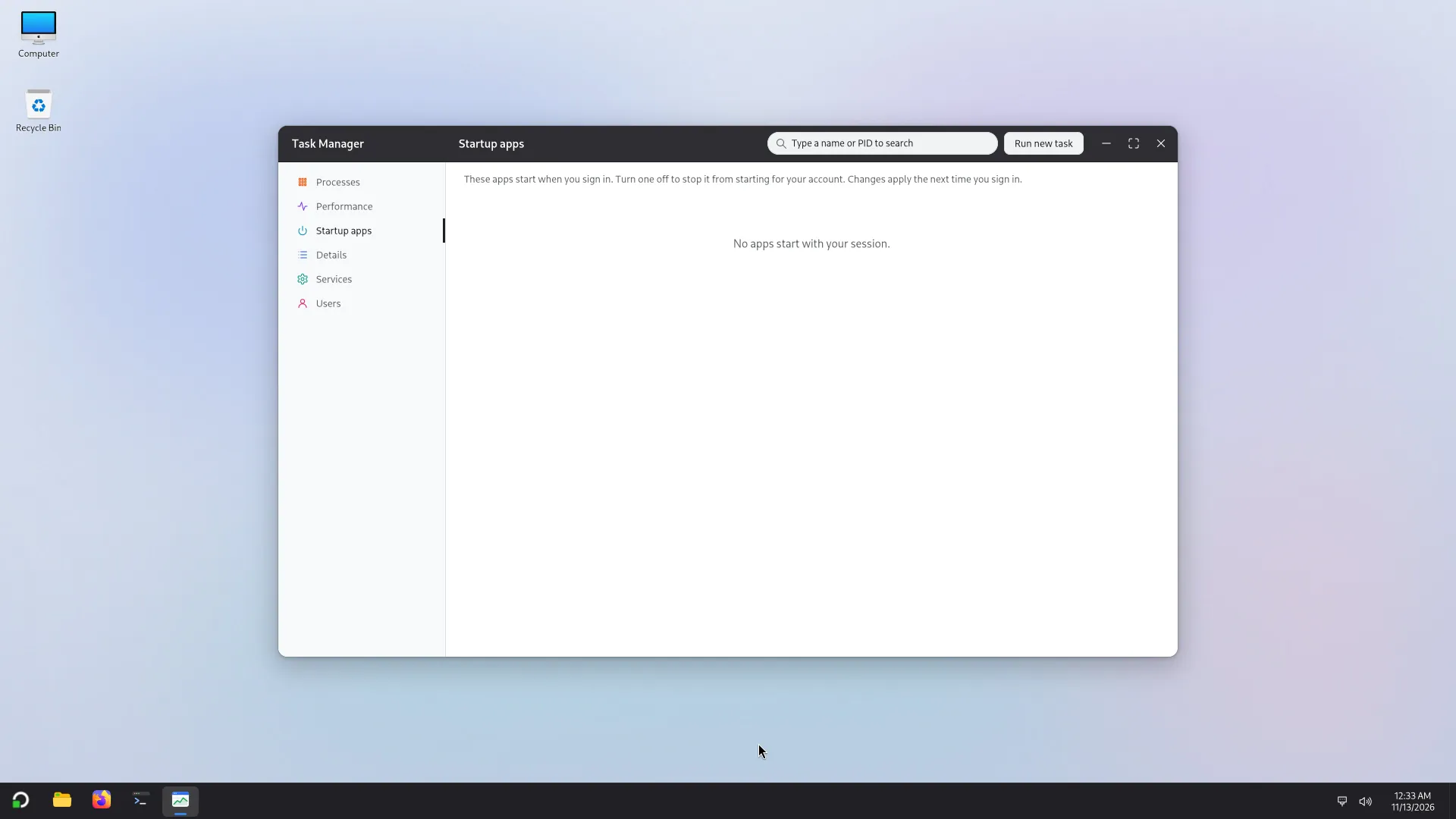
It has pages (Ctrl+1, Ctrl+2... switch between them): Processes (Apps, Background processes, and for an administrator the other accounts and the system), Performance (processor, memory with the compressed zram memory, disk, network), Startup apps, Services, Users and Details.
- Closing an app that does not respond: select it, then End task (or the Delete key). If it does not stop, Atlas offers Force end: what is not saved in it is lost.
- Run new task (Ctrl+N) starts a program, a folder or a document by its name.
- Ctrl+F searches by name or by PID.
- A right click on a row offers Set priority, Turn on efficiency mode, Open file location. A standard account can lower a program's priority but not raise it again: that needs an administrator.
- Startup apps lists the apps that start when you sign in and lets you turn some off (from the next time).
- You can only end your own apps. The processes of other accounts and of the system cannot be ended from here (an administrator can manage other accounts, see Open as).