Start-up
The start-up order, the systems list and the chooser, Repair, another system taking the first place, and Restart to...
This page is for a PC that has Atlas and another system (usually Windows), or one whose start-up order has changed. For the look of the chooser, see The start-up chooser. Everything here is in Settings > Start-up, on the Systems tab. Everyone can look at the page; changing anything needs an administrator, and Atlas asks for the administrator's password (one password covers the changes of a session).
How the PC starts
- The firmware starts Atlas's boot loader, from the start-up entry named Atlas.
- If Atlas is the only system on the PC, it starts at once and the chooser does not show: "Atlas is the only system on this PC, so it starts at once and the chooser does not show."
- If another system is there, Atlas shows its start-up chooser: a tile per system and a countdown. When the countdown ends, the default system starts.
Atlas also keeps itself findable. Unless you turned it off at install (Keep Atlas findable after firmware resets, on by default), it keeps an "Atlas (backup)" entry in the firmware and a backup copy of its loader on the start-up disk, in the place the firmware looks when its own list is empty. So Atlas is found again after a Windows update or a firmware reset.
On a PC that starts the old way (BIOS) there is no firmware order to change, and Atlas's own menu starts the other systems.
Systems and the chooser
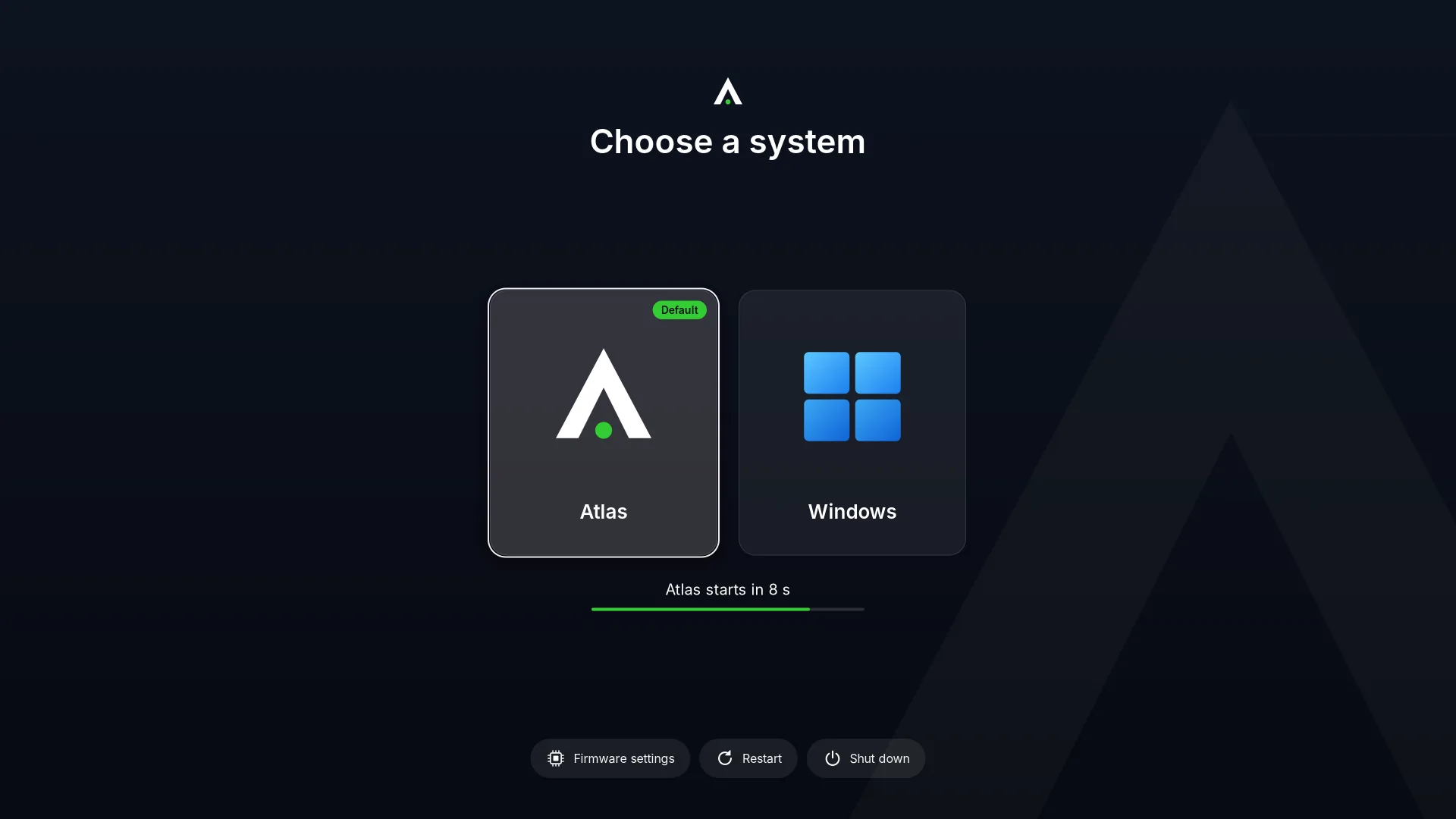
Under Systems on this PC, each system has a row. You can rename it, hide it from the chooser or show it again, move it up or down, and choose it as the one that starts by default. Find other systems looks at the PC's disks for Windows and other Linux systems. A system on an encrypted disk cannot be listed. A system whose disk is gone shows as Not found any more.
Under Start-up chooser:
- Show the chooser: When another system is there (the default), Always or Never. With Never, Atlas starts at once and the other systems start from Restart to…, here or in the power menu.
- Countdown: the seconds before the default system starts. 0 waits until someone chooses.
- Start by default: Atlas, The one used last, or another system. If the system chosen before is hidden or gone, Atlas starts.
Restart to…
Under Restart to…, choose a system and press Restart. Atlas asks "Restart to NAME now?" and warns that open apps will be closed. The PC starts that system once, at the restart; the next start is the default again. "Atlas starts again the next time."
When another system takes the first place
A Windows update, for example, can put Windows ahead of Atlas in the firmware's start-up order. Atlas never puts itself back first by itself. It notices, and asks:
- When an administrator signs in, a window says Atlas is not first at start-up: "SYSTEM put itself first in the start-up order, ahead of Atlas (after an update, most likely)." Its buttons are Put Atlas first, Not now and Don't ask again.
- If a start-up entry or a backup copy has gone, the window says Atlas's start-up needs repair, with the same buttons.
- The setting Ask when the order changes ("A window at sign-in, when another system put itself first or a backup copy was removed") turns these windows off; Don't ask again does the same.
Under Start-up order and backup copies the page shows the same facts at any time: whether Atlas starts first, the firmware's order, and the state of each part (Atlas's start-up entry, the Atlas (backup) entry, the Backup copy on the start-up disk, each In place or Missing: Repair puts it back).
- Put Atlas first: "Putting Atlas first makes this PC start Atlas, with its chooser for the other systems."
- Repair: "Repair puts Atlas's entry and backup copies back." It makes a missing entry again and puts back the backup copy and the second entry.
- Keep backup copies of Atlas: the switch for the backup entry and copy.
Nothing is changed unless you choose it.
If the PC has no Atlas entry at all, the page says "Atlas has no start-up entry in the firmware yet. 'Repair' makes one." If Atlas's start-up files are not on the EFI partition, there is nothing to put back, and Repair says so.