Using Atlas
Accessibility
Text and pointer size, focus rings, the on-screen keyboard and the screen reader.
Settings > Accessibility, or the Accessibility tile of quick settings.
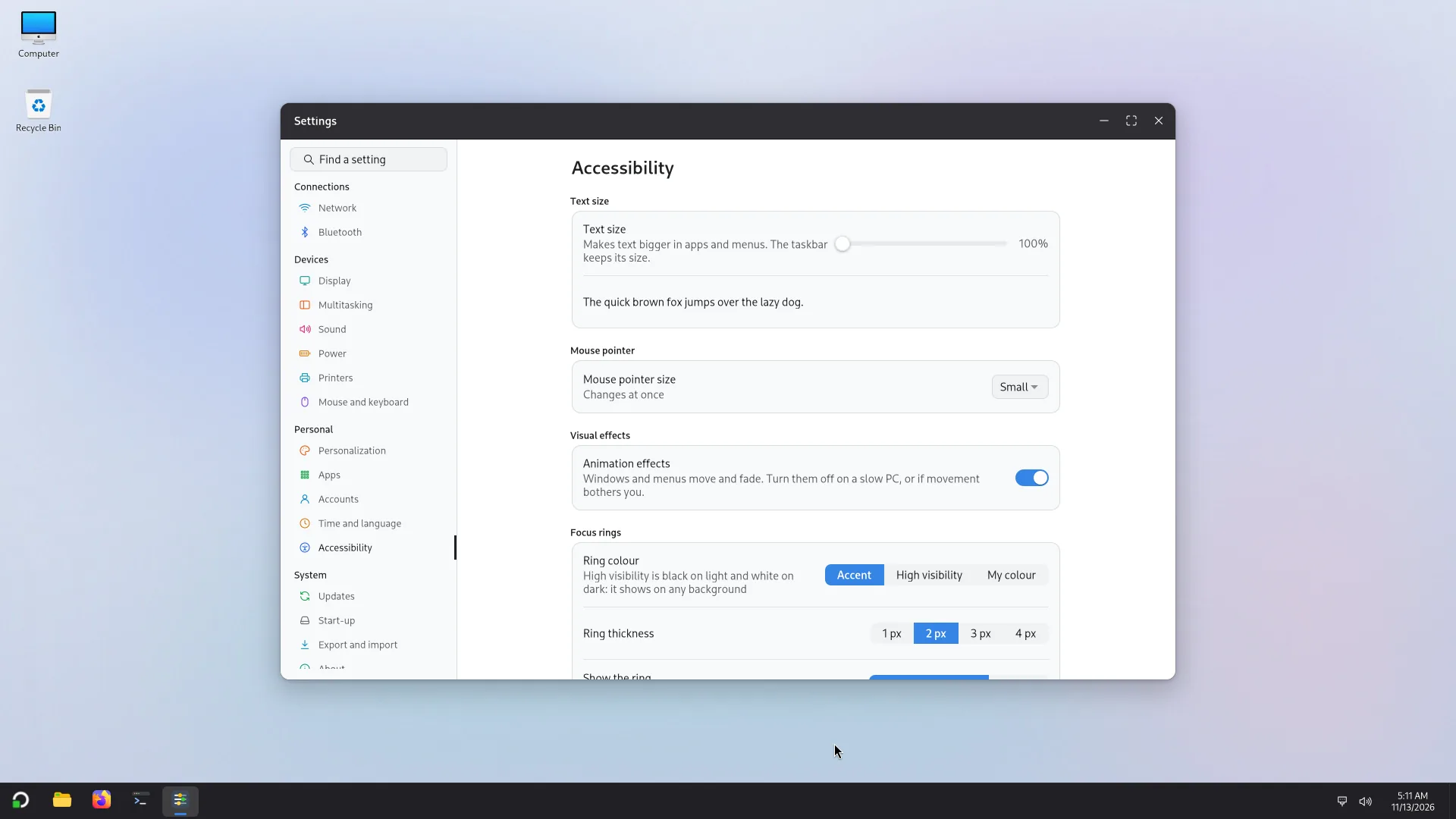
What the page offers
- Text size: Small, Medium, Large, Extra large or Huge. Text grows in apps and menus; the taskbar keeps its size. A preview shows the effect.
- Mouse pointer size: changes at once.
- Animation effects: windows and menus move and fade. Turn them off on a slow PC, or if movement bothers you.
- Focus rings: the outline that shows which item receives the keyboard. You choose its colour (Accent, High visibility (black on light, white on dark) or My colour), its Ring thickness, and when to Show the ring: After keyboard use or Always. Atlas's apps change at once, other apps the next time they open; the sign-in screen keeps its own rings.
- On-screen keyboard: type by touching or clicking the keys. Open the keyboard when I tap a text field opens it by itself in apps that support it.
In quick settings
The Accessibility tile opens a list:
- Large text: makes text 25% bigger in apps;
- High contrast;
- Screen reader: Orca reads the screen aloud;
- On-screen keyboard.
Super+Alt+S starts or stops the screen reader.
The on-screen keyboard
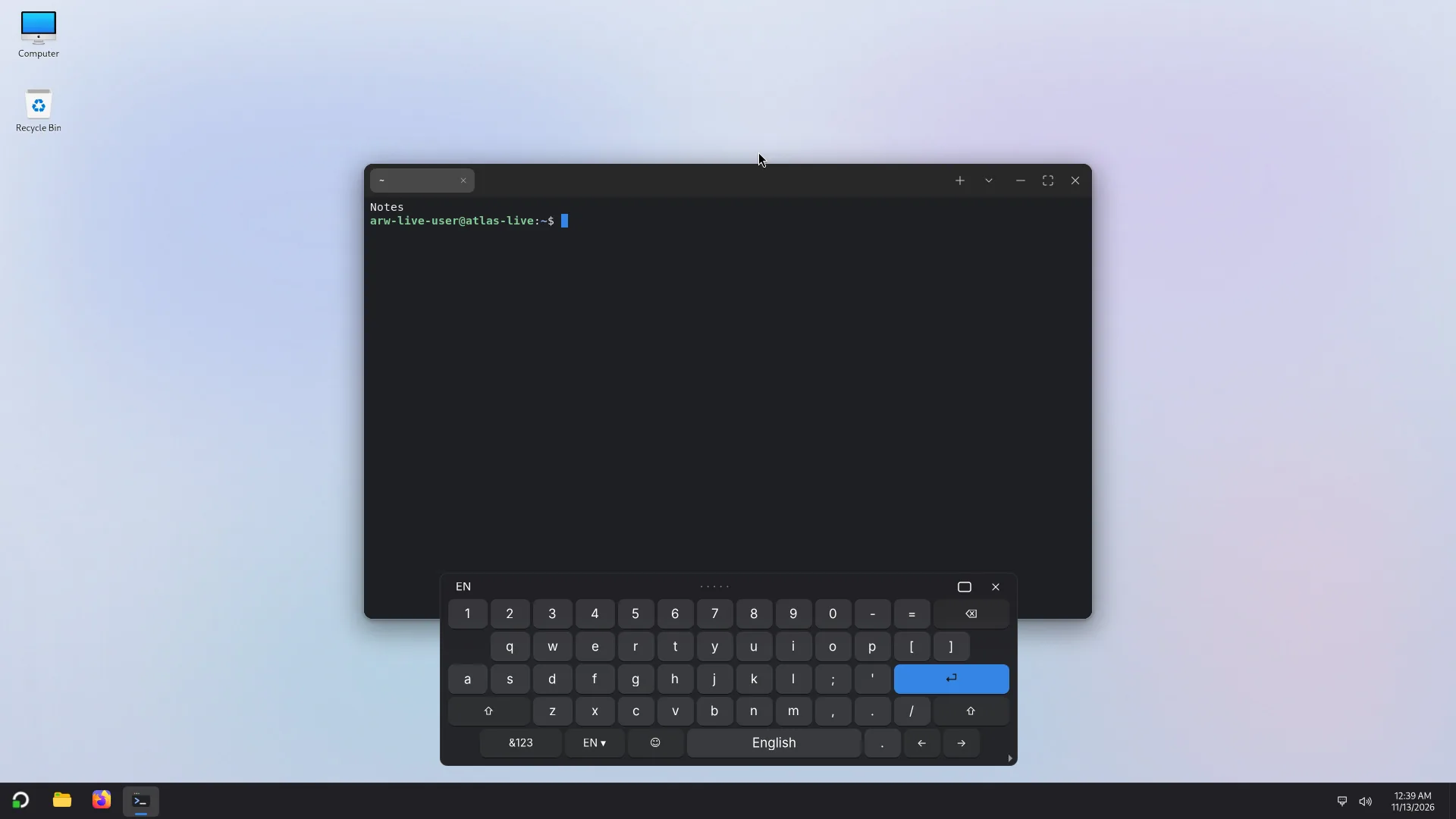
It opens from the Accessibility tile, from the Settings page, or from the keyboard button on the taskbar if that button is shown. It sits above the taskbar (windows move up), can be moved and resized, and offers French, Arabic, English, Tifinagh, symbols and emoji. A long press (or a right click) on a letter gives its accents.
The screen reader (Orca) has not been tried with Atlas's apps yet, and the on-screen keyboard has not yet been tried on a touch screen. See the known issues.
Other aids
- Keyboard: the shortcuts give the list. Settings > Mouse and keyboard sets the repeat delay and rate of a held key.
- Language and writing direction: the interface comes in French, Arabic (right to left) and English: Settings > Time and language.