Features
What Atlas does today, and what we are working on.
A familiar desktop
Atlas is Debian 13 underneath, with a Windows-like desktop of its own on a light Wayland compositor (labwc). The desktop programs are Atlas's own, so the whole system looks and behaves as one.
- A taskbar at the bottom with Start, open windows, the clock and quick settings.
- Desktop icons such as Computer and the Recycle Bin.
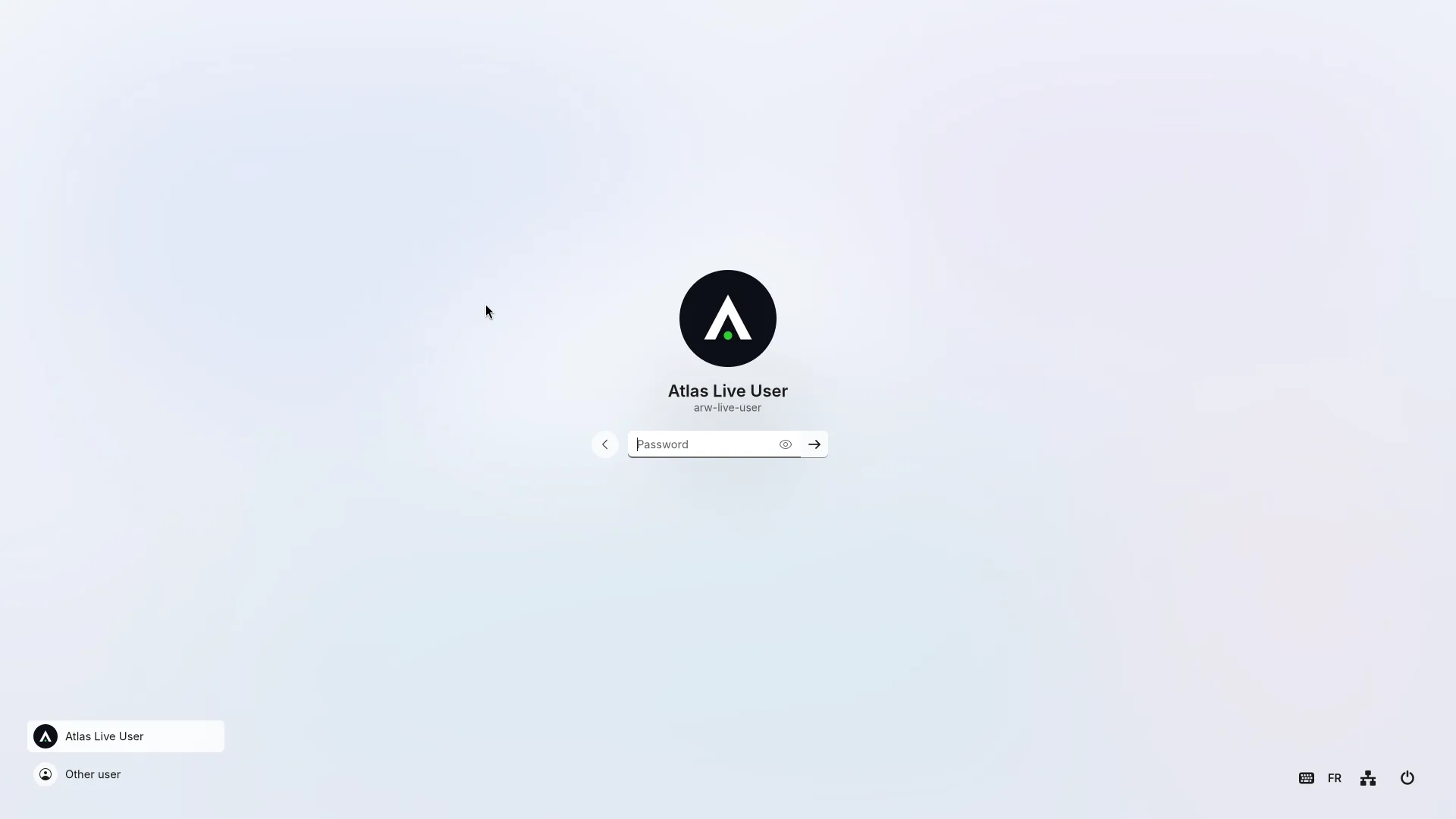
- A sign-in screen with account pictures, and a lock screen.
- Notifications, screenshots, and Firefox as the browser.
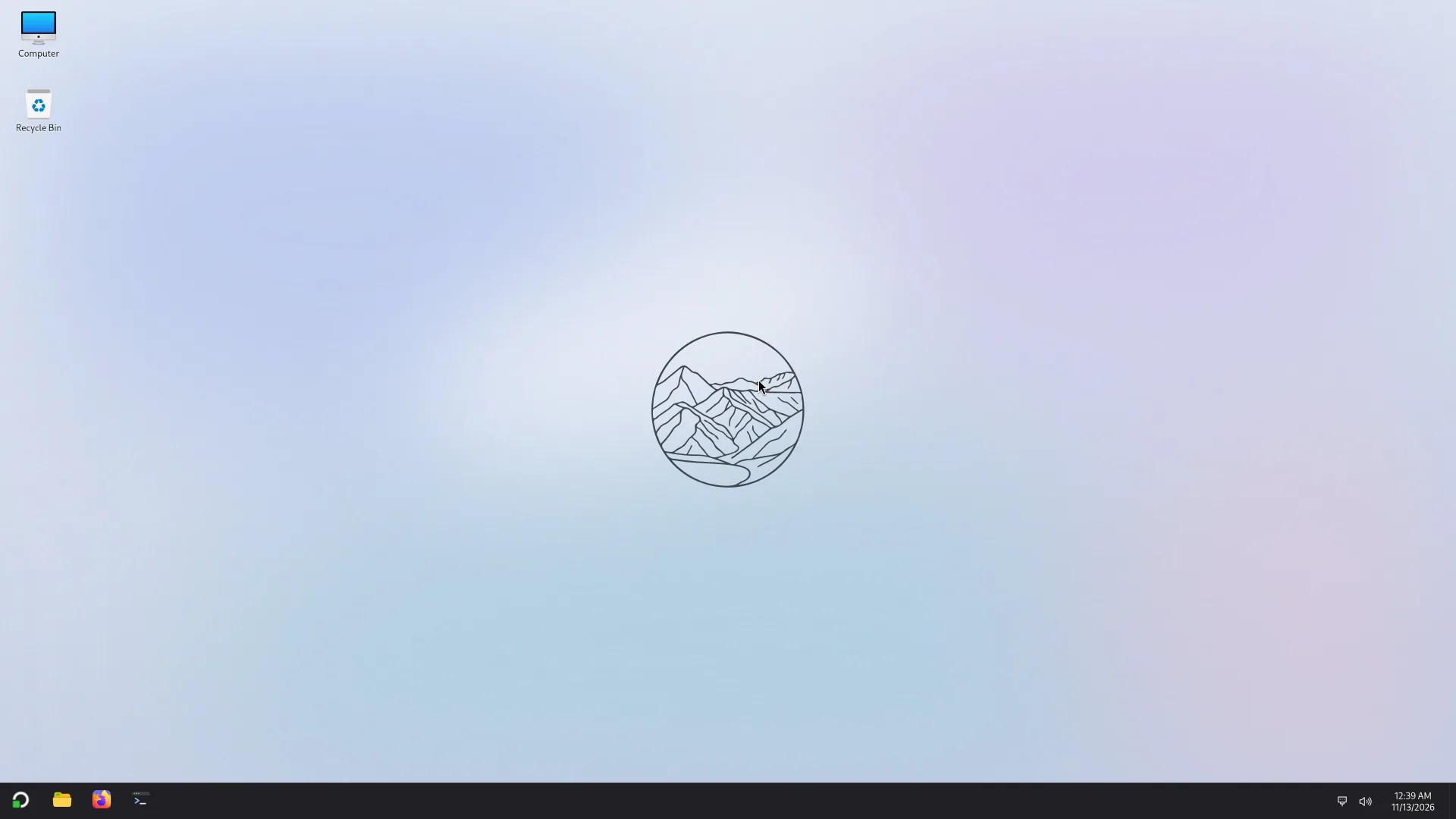
Start and quick settings
Start opens with the Super key or the Start button. Quick settings sit next to the clock.
- Search for apps from Start, pinned apps, and the list of all apps.
- Your folders, and lock, sign out, sleep, restart and shut down from the power button.
- Quick settings for sound, accessibility, energy saver and dark style (and Wi-Fi and Bluetooth where the computer has them).
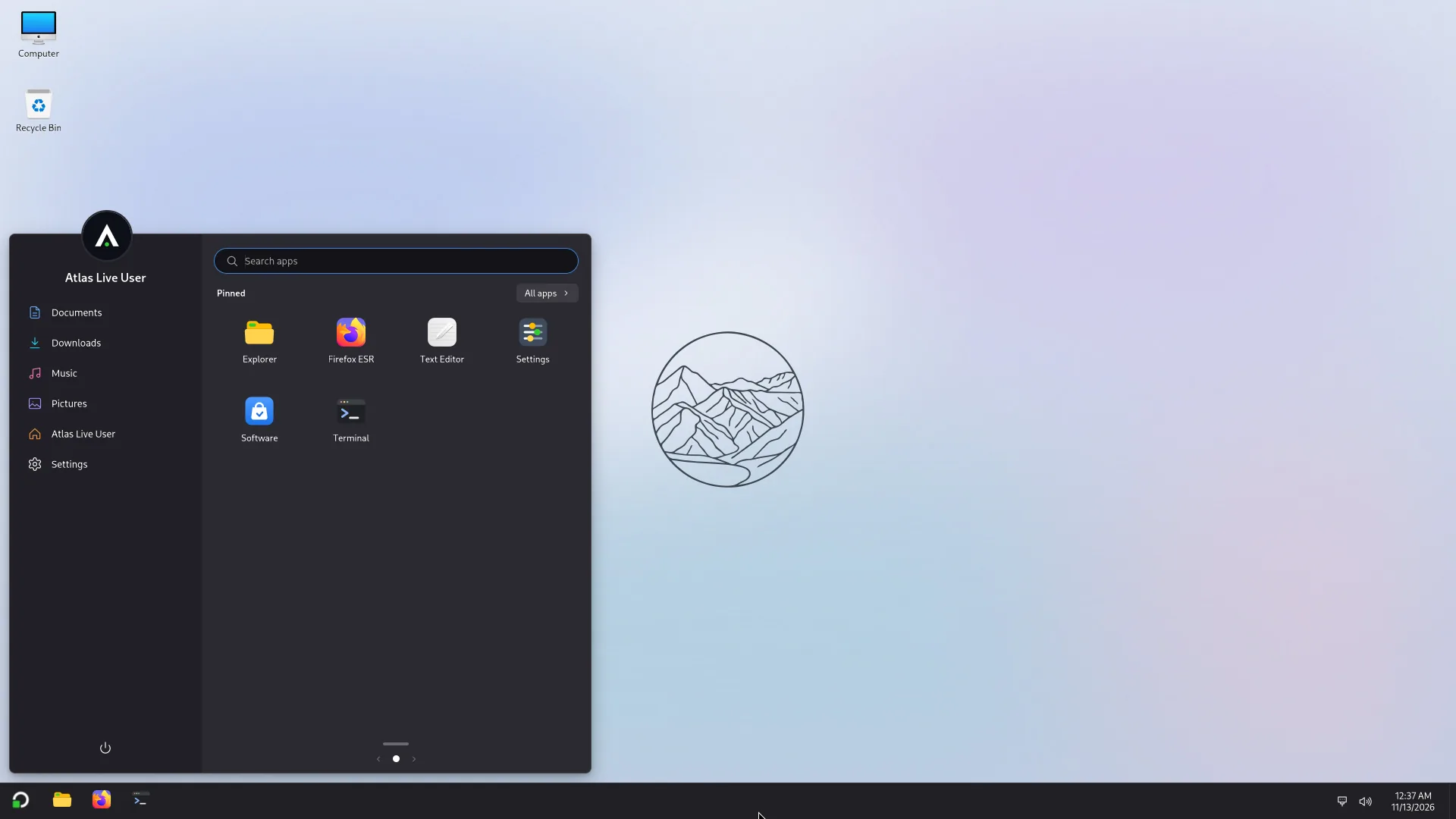
Explorer
Explorer is the file manager: a native program, so it stays light.
- Quick access, drives and the Recycle Bin in one sidebar, and a Computer page.
- Tabs, copy, move, trash, thumbnails and Open with.
- USB sticks open with a notification. Windows drives open too, and BitLocker-locked ones can be unlocked with their key.
- Right-to-left languages mirror the layout.
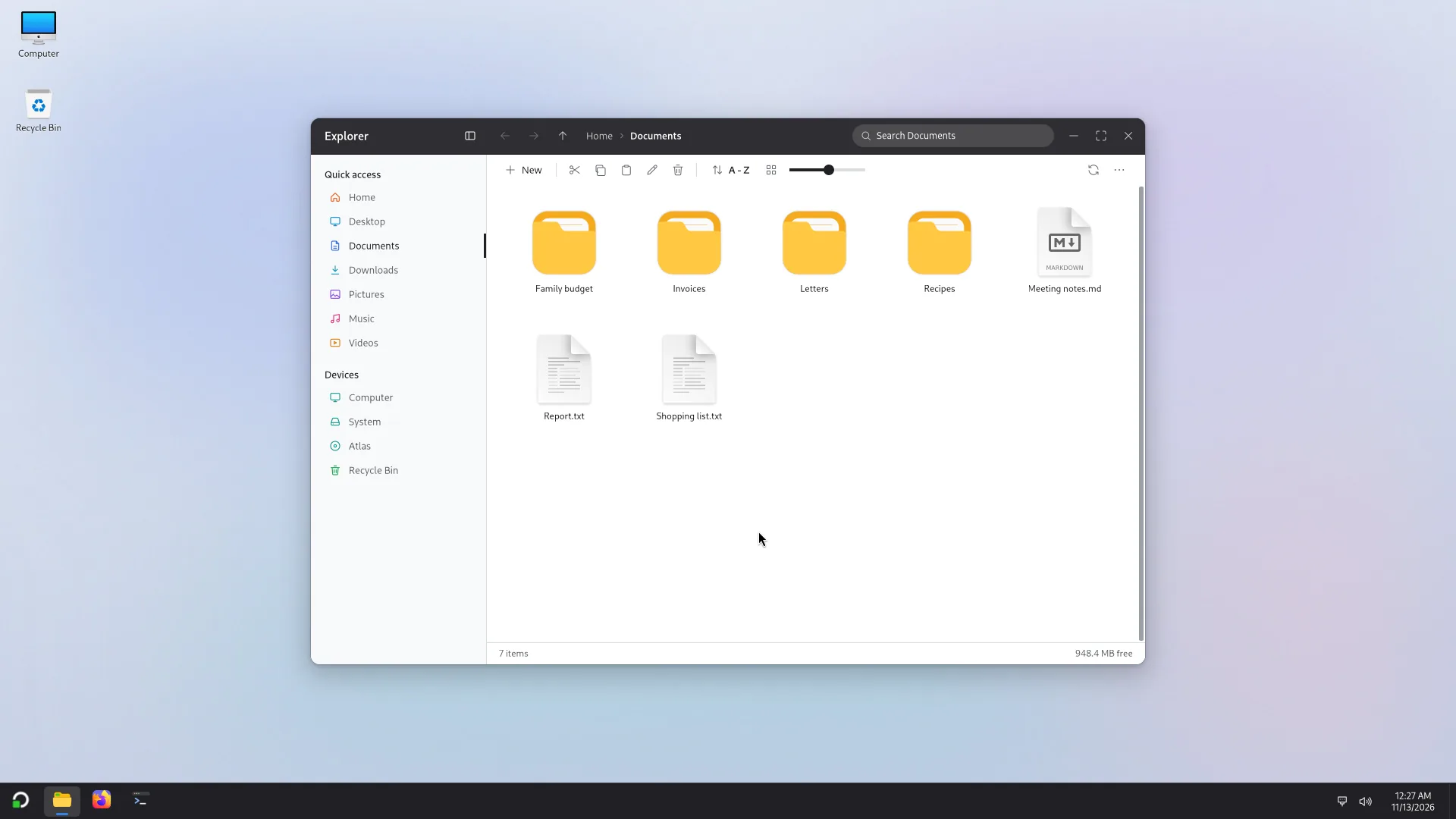
Windows that snap
Windows snap to edges and corners as in Windows, with the same keys.
- Drag a window to a side for a half, to a corner for a quarter, to the top to maximise it.
- Win + arrows walk a window through halves, quarters and maximised; Win + Z opens the layouts.
- Snap Assist offers the other open windows for the free space.
- Snapped windows resize together, and you choose the gap between them.
- Every switch is in Settings > Multitasking.
Settings
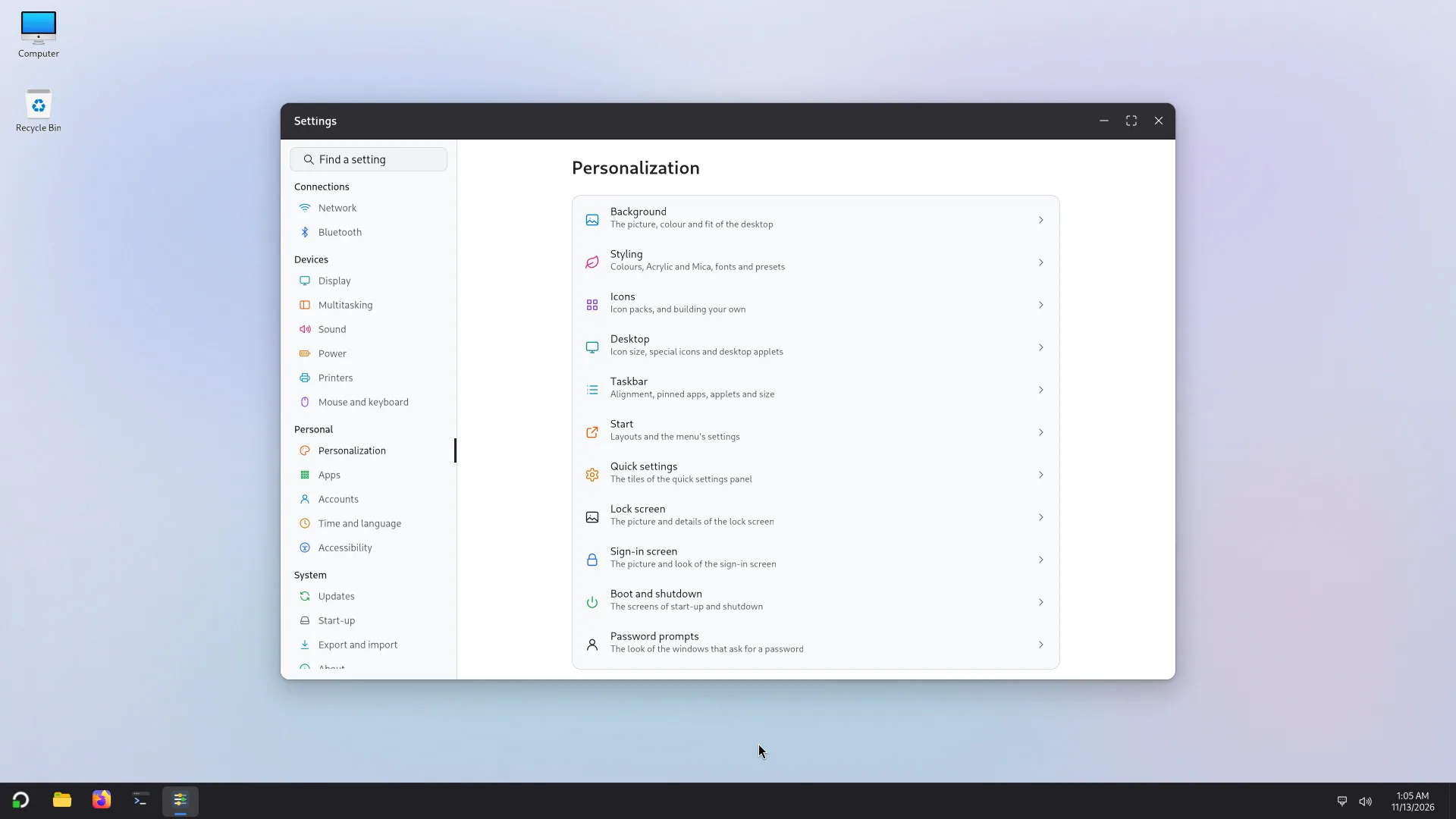
Settings is where the computer is set up, one page per subject.
- Network, Bluetooth, Display, Multitasking, Sound, Power, Printers, Mouse and keyboard.
- Personalization: background, styling (light or dark), icon packs, taskbar, Start, lock and sign-in screens.
- Accounts, time and language, accessibility, and updates.
Software and updates
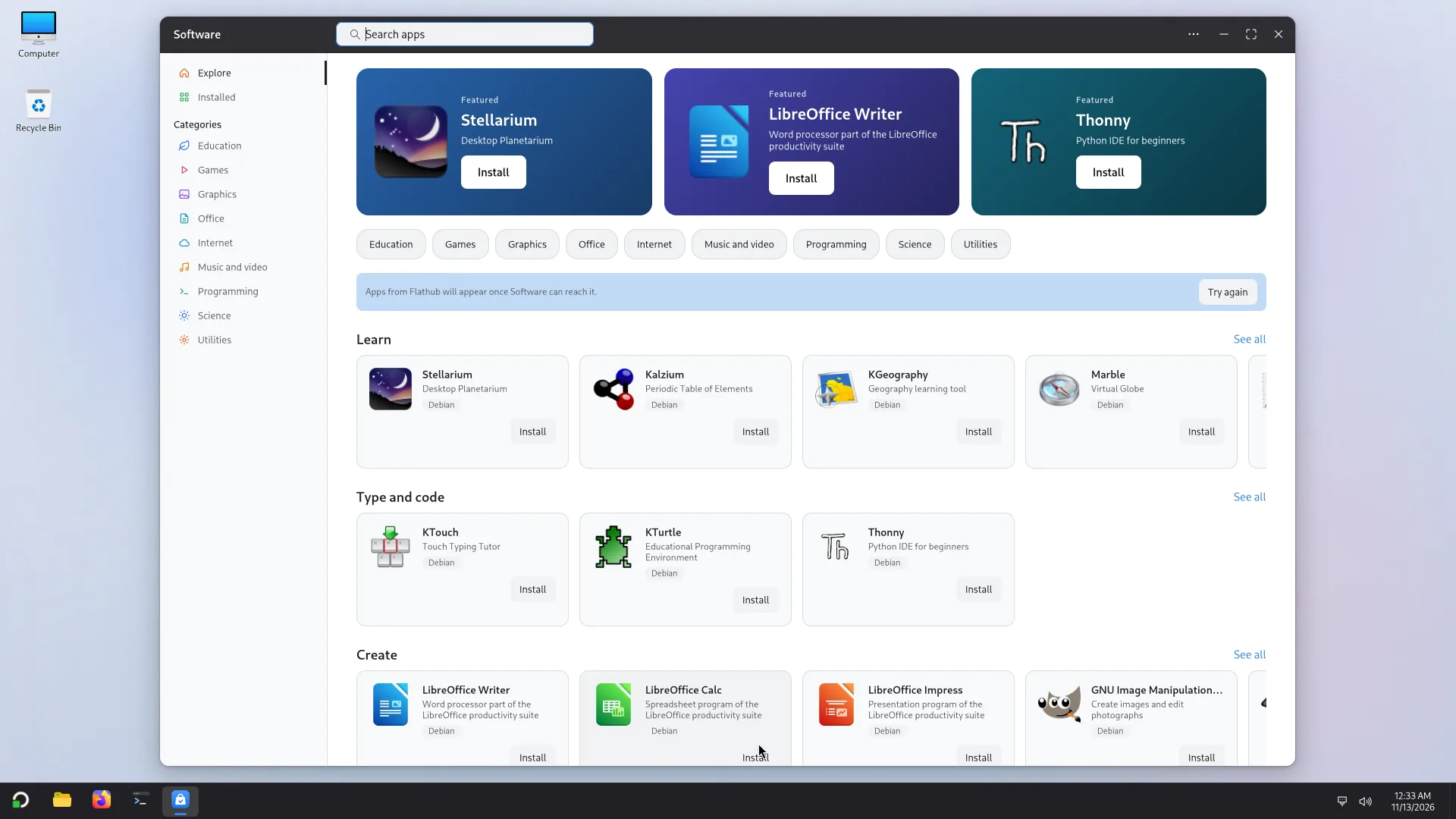
Software is where you find apps; Settings > Updates keeps the system current.
- Apps from Debian and from Flathub, in categories, with a search. LibreOffice is one click away.
- Updates: Debian's security updates and Atlas's own packages, in Settings > Updates.
Several accounts
More than one person can use the computer, each with their own account.
- Add accounts in Settings > Accounts.
- Switch user from the lock screen, without closing the other person's apps.
- Choose when the computer asks for the password again.
Everyday tools
The small programs you need are there from the start.
- Terminal, with tabs.
- Photos, to view pictures in a folder.
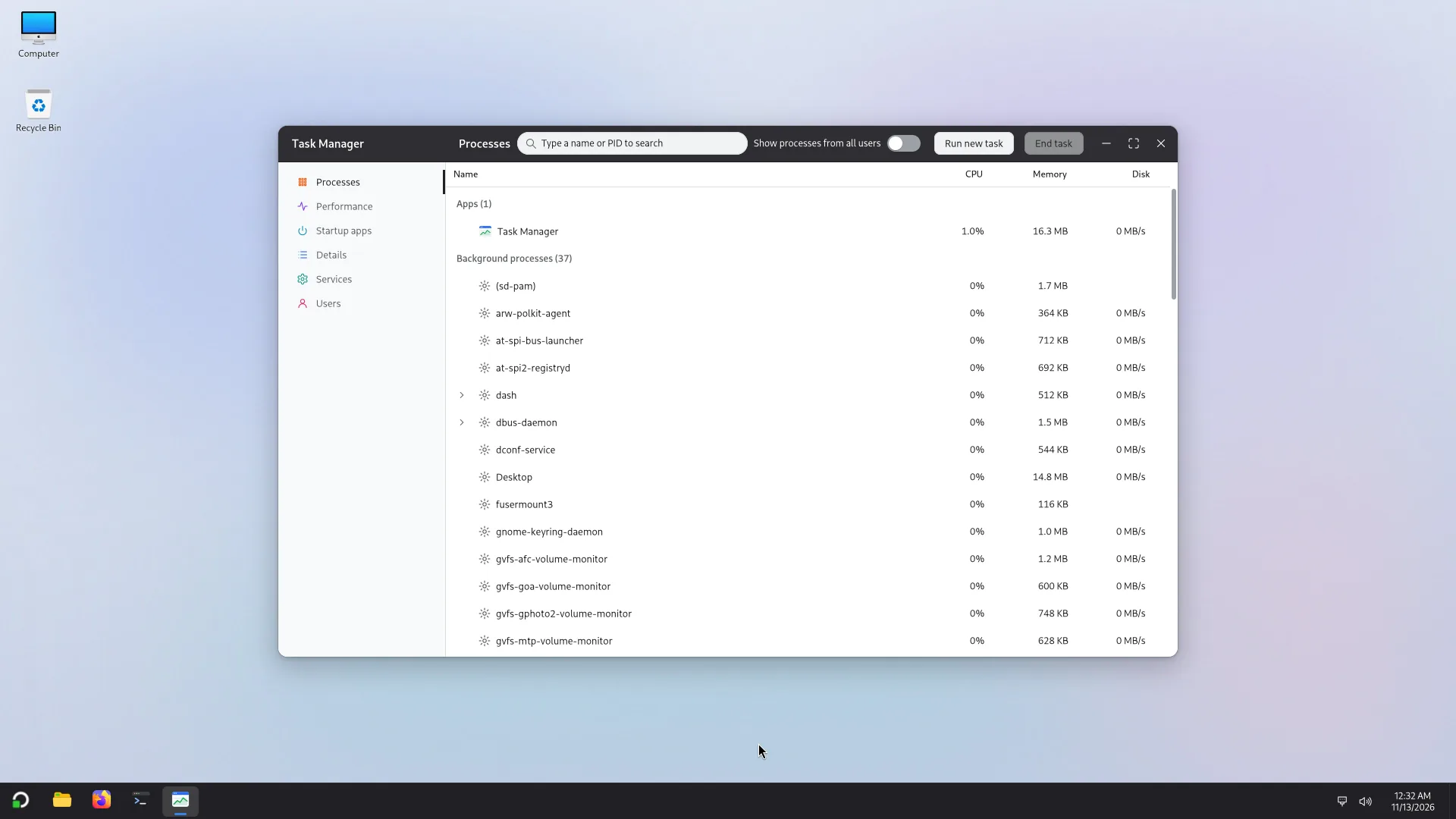
- Task Manager: processes, performance, start-up apps and services.
- An on-screen keyboard for touch screens.
Atlas Setup
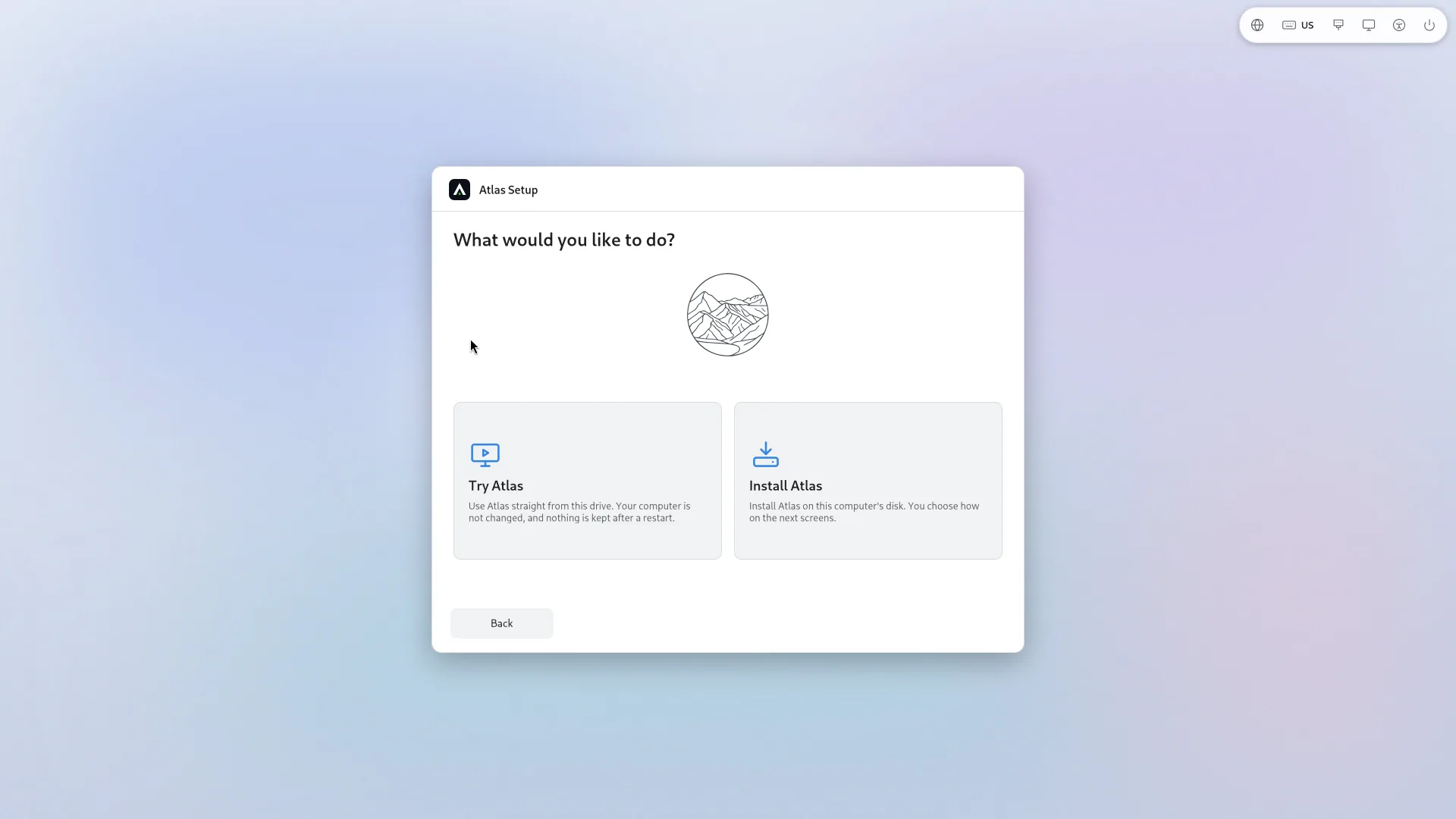
Atlas Setup runs from the USB stick. You can try Atlas without changing the computer, or install it.
- Install on the whole disk, or next to Windows: Setup makes room by shrinking Windows.
- Encrypt Atlas's partition if you wish.
- A chooser at start-up between Atlas and Windows, and a repair.
- Setup speaks French, Arabic and English.
Languages and right to left
Atlas follows the language of the session and falls back to English when a translation is missing. Arabic is laid out right to left.
- French, Arabic and English today. Amazigh later.
- The taskbar, the desktop and Explorer mirror their layout in Arabic.
- Switch the keyboard layout with Super + Space.
Private by default
Atlas collects nothing about you.
- No telemetry and no tracking.
- Nothing is sent unless you send it.
Icon packs
ARW Labs also runs a catalogue of free icon packs for Atlas, with the licence, source and checksum of each pack.
Visit icons.arw-labs.comKeyboard shortcuts
- Open Start
- Super
- Open files
- Super + E
- Lock the screen
- Super + L
- Switch the keyboard layout
- Super + Space
- Snap a window to the left or right
- Super + ← / →
- Maximise; restore or minimise
- Super + ↑ / ↓
- Open the snap layouts
- Super + Z
- Switch between windows
- Alt + Tab
- Take a screenshot
- Print or Super + Shift + S
- Open a terminal
- Super + Enter
More to come
Atlas is still being tested on real computers. Amazigh, our own notification centre and more will be added here when they work.