Several accounts, one screen.
In Atlas your apps can run as other accounts, right next to each other on the same screen. Each window carries a small mark that says whose it is, and each account is sealed off from the others: its own files, its own passwords, its own settings. No mainstream desktop has this built in. Atlas is built around it.
Each account is sealed off from the others.
Two ways to put other accounts on your screen
Sub-accounts: your own extra accounts
A sub-account is a real account that belongs to you: work, personal, a test, one per AI agent. It has its own files, its own keyring of saved passwords and its own app data. You open its apps on your screen with no password. It never appears on the sign-in screen and nobody can sign in as it: it only exists inside your session, and only you can open it. Each sub-account also gets its own tab in Start, listing the apps installed for it.
- Made in Settings > Accounts, with a name like Work or Agent. Removing a sub-account removes its files.
- Off by default. An administrator turns sub-accounts on in Settings and sets how many each person may have.
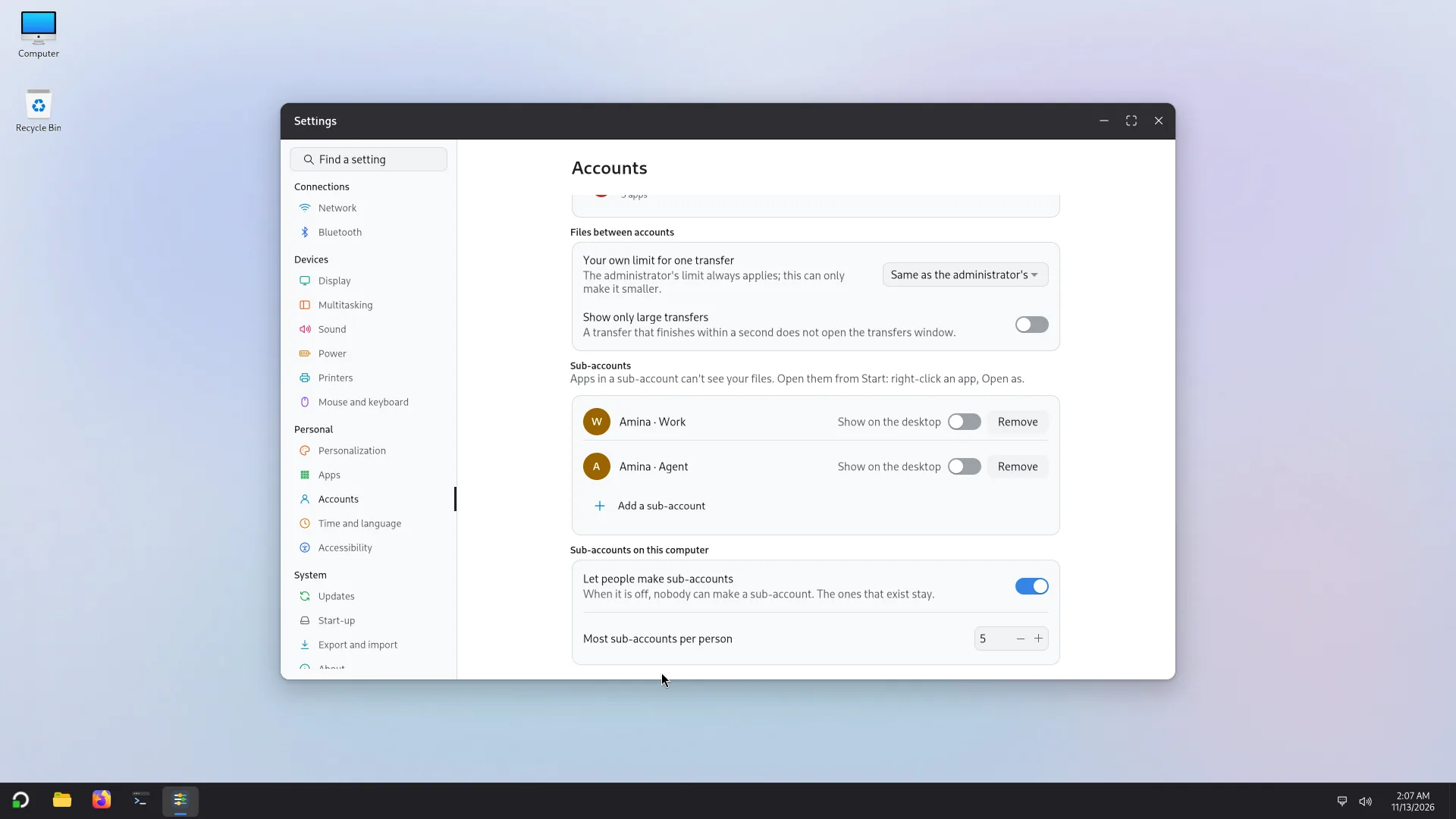
Open as: any app, as any account
Right-click an app in Start, choose Open as, then the account. The app opens on your screen, tiled beside your own windows, but runs as that account: its files, its settings, its signed-in websites. Its window carries that account's mark, and so does its taskbar button, so you always know whose window is whose. Two copies of the same app as two accounts are two taskbar buttons, never one.
- Your own sub-accounts open with no password. Another person's account asks for its password the first time, and administrators decide whether even that is needed.
- In Settings you choose the mark: Name (the default), Square, Tab or None, and where it sits on the window.
What keeps them apart, and what doesn't
Each account is a separate account underneath, as on any Linux system, and Atlas adds what a desktop needs on top. Here is what that means, plainly.

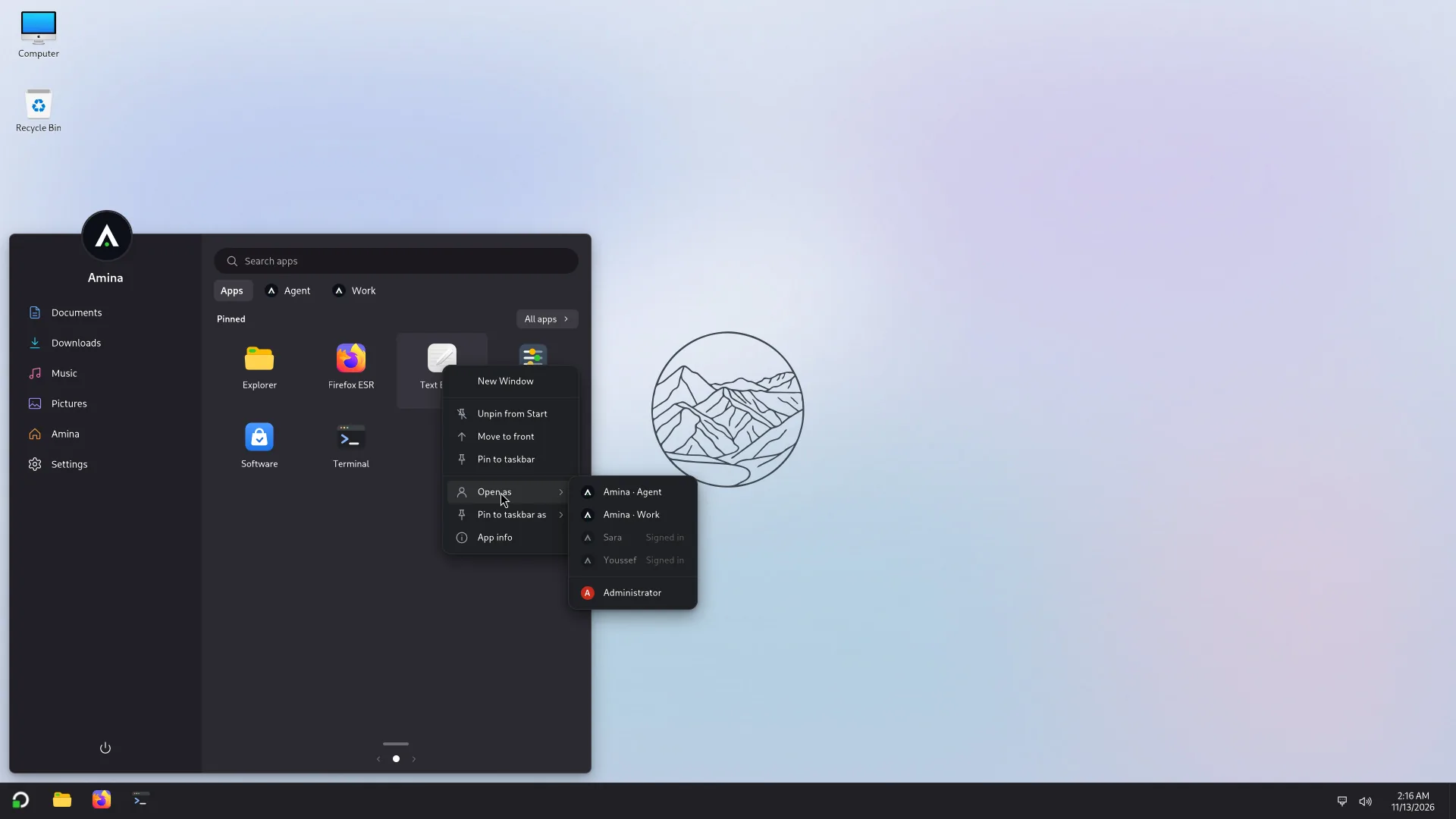
In the screenshot
- 1Work sub-account: its mark says whose window it is.
- 2AI agent sub-account: its own mark on its own window.
- 3Permission denied: the agent can't open your folder.
- 4Your own windows carry no mark.
Kept apart
- An account can't read another account's files: each home folder is private to its owner.
- An app opened as another account can't capture your screen, read your clipboard or type into your other windows (tested in a VM).
- A sub-account can't read its parent's files, nor another sub-account's.
- Each account has its own keyring: passwords saved in one are not available in another.
- A sub-account has no way in of its own: no sign-in screen, no terminal login, no SSH unless its owner turns that on.
Not kept apart
- A parent can open its sub-accounts, so whatever runs as you can also open them. A sub-account protects you from the app inside it, not the other way round.
- Accounts share the PC's network and its ports: a server one account starts on localhost can be reached by the others. A network for each account is planned, not built.
- Services that run once for the whole PC (printing, Docker if you install it) are shared. Docker's engine, if you give an account access to it, is as powerful as an administrator.
- Memory and the processor are shared; Atlas limits what one account can take so that it can't starve the others, but a small PC is still a small PC.
What people do with it
Everything below happens on one screen, with the windows side by side.
01
Several AI agents, each in its own sub-account
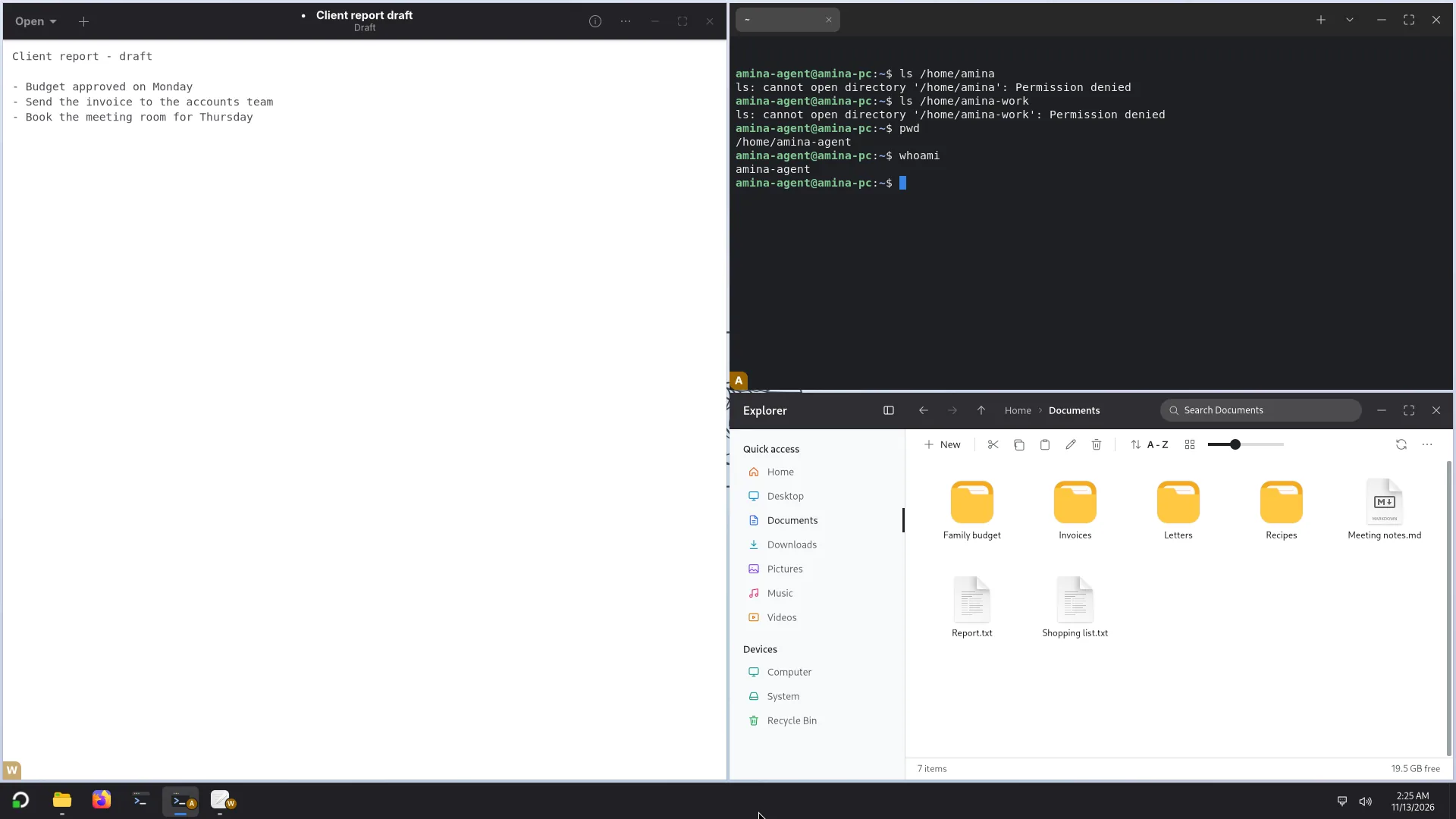
A coding agent or an assistant that runs commands on your computer should not see everything you own. Give each agent its own sub-account: it works in its own home folder and can't read your files, your passwords, or what another agent is doing. In the picture, the agent's Terminal is refused when it tries to list its owner's folders. You watch its windows beside yours, and when you are done you remove the sub-account and its files go with it. Atlas doesn't ship an agent; it gives yours a room of its own.
02
Two code editors, two identities
Open your editor as yourself and again as a sub-account: each has its own settings, extensions, signed-in accounts (two different GitHub accounts, say), git configuration and SSH keys, so a personal project and a client's never mix. Atlas is built so that Electron apps such as VS Code run under Open as; check your own app before relying on it.
03
Work and personal browsers, each with its own logins
Firefox as you, Firefox as Work: two different sets of cookies, logins and saved passwords, side by side. No profile switching, no private windows where you keep signing in and out.
04
An app you don't trust, in a throwaway sub-account
A game from a stranger, an app of unknown origin: open it as a sub-account made for it. If it misbehaves, it only reaches that account's files, and removing the account removes everything it did.
05
A test account to try things without touching yours
Try a setting, a theme or a new app in a sub-account first. It has its own configuration, so your own stays as it is, and you can remove the test account when you have seen enough.
06
Several anything
Anything that keeps its settings in the account can run twice: two chat apps with two identities, two mail accounts, a test copy of an app next to the one you rely on. If it runs as an account, you can open it as another.
Who decides, and what each account gets
On a shared PC the people who look after it set the rules, in Settings.
Administrators set the rules
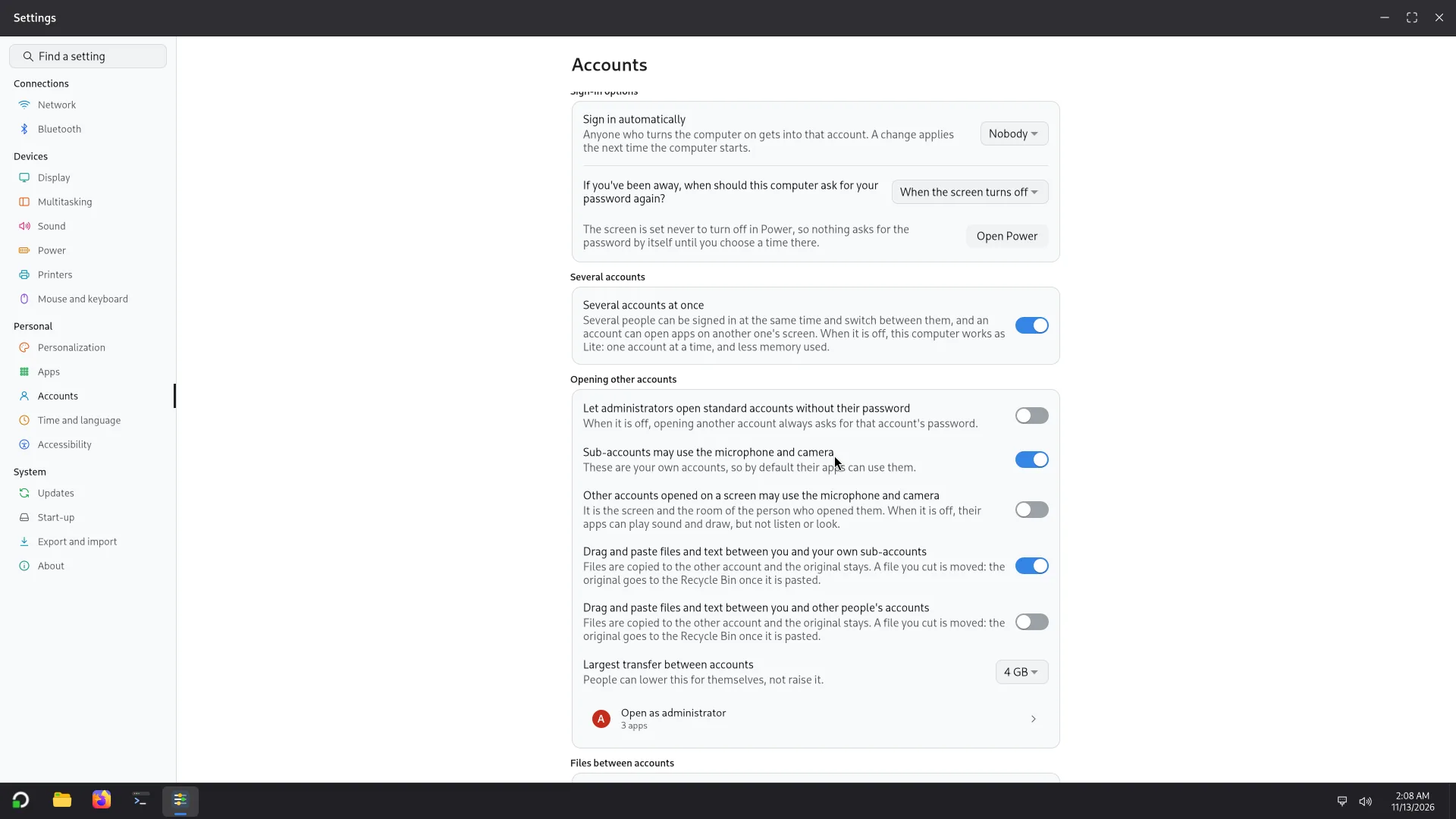
Whether sub-accounts are on, and how many each person may have; whether an administrator may open a standard account without its password; which apps may be opened as administrator; whether other accounts' apps may use the microphone and the camera; whether files and text may be dragged and pasted between accounts, and how large a transfer may be. Everyone else sees these settings read-only. An administrator can also remove anyone's sub-accounts.
Limits for every account
Each account has a ceiling on processes and on memory, so one runaway program can't freeze the PC for everyone: past a share of the PC's memory it is slowed down, and the biggest program of an account is ended before the PC stalls. Wrong passwords are limited too: five in fifteen minutes lock that account's checks for two minutes.
Task Manager by account
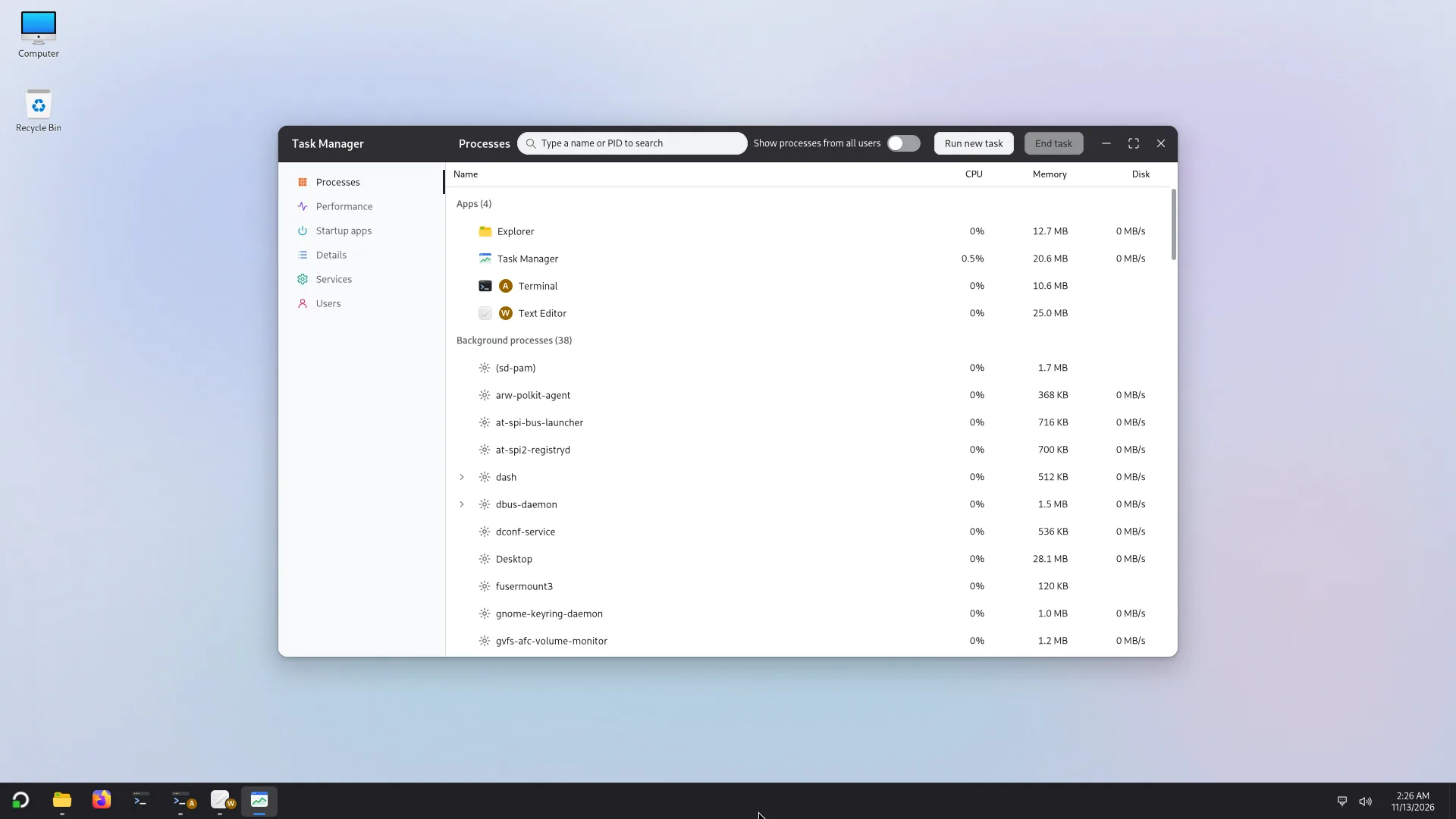
Task Manager shows your processes and the apps of the accounts opened on your screen, each with its badge, and never other people's. An administrator sees everything, has a Users page, and can end another person's process or sign them out, after typing an administrator's password.
And several people on one PC
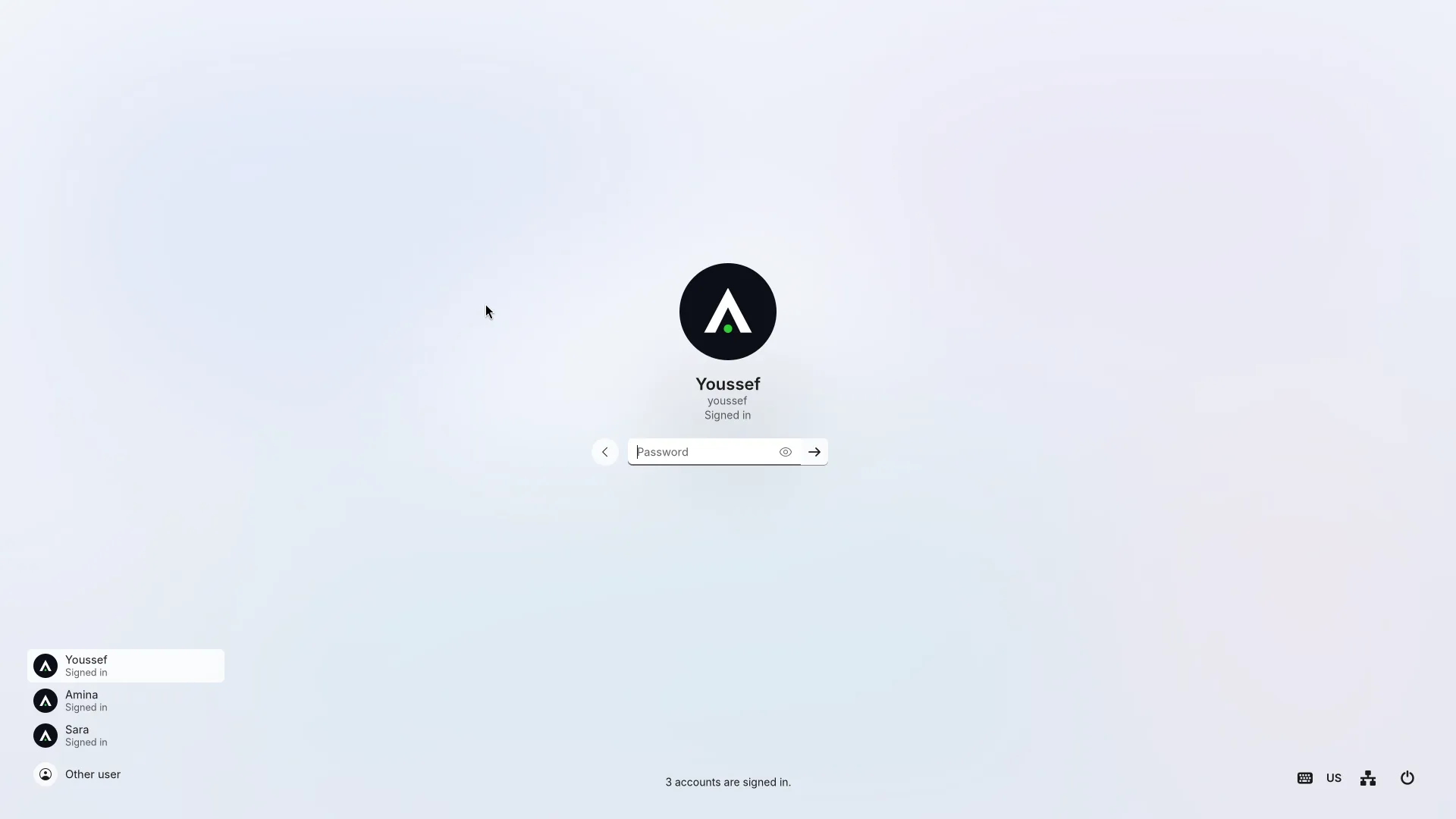
Accounts can also be signed in at the same time, as on Windows. Switch user locks your session and takes you to the sign-in screen; the other person's apps keep running, and when you come back you are exactly where you left off. The sign-in screen says who is signed in, and warns when the PC runs short of memory.
- Every open account costs memory: about 150 MB while idle, more with its apps. 4 GB is a comfortable start for two or three people.
- An account is open in one place at a time: signed in on its own screen, or opened on someone else's, never both.
No mainstream desktop has this built in
Most desktop systems let several people share a PC. None of the mainstream ones lets you run apps from several accounts side by side on one screen, give each person private extra accounts, and mark every window with whose it is. The few systems that come close use a virtual machine for each compartment, which needs a powerful PC. Atlas does it with plain accounts, so it works on ordinary computers, with no commands to type.
Try it from a USB stick.
Atlas starts from the stick without installing anything. Make a sub-account and see.
This is a testing build: several accounts have been tried in virtual machines, and real PCs are being tested. Atlas 0.1 is planned for early 2027.