Several accounts on one screen
Run apps as other accounts, side by side on the same screen: Open as and sub-accounts.
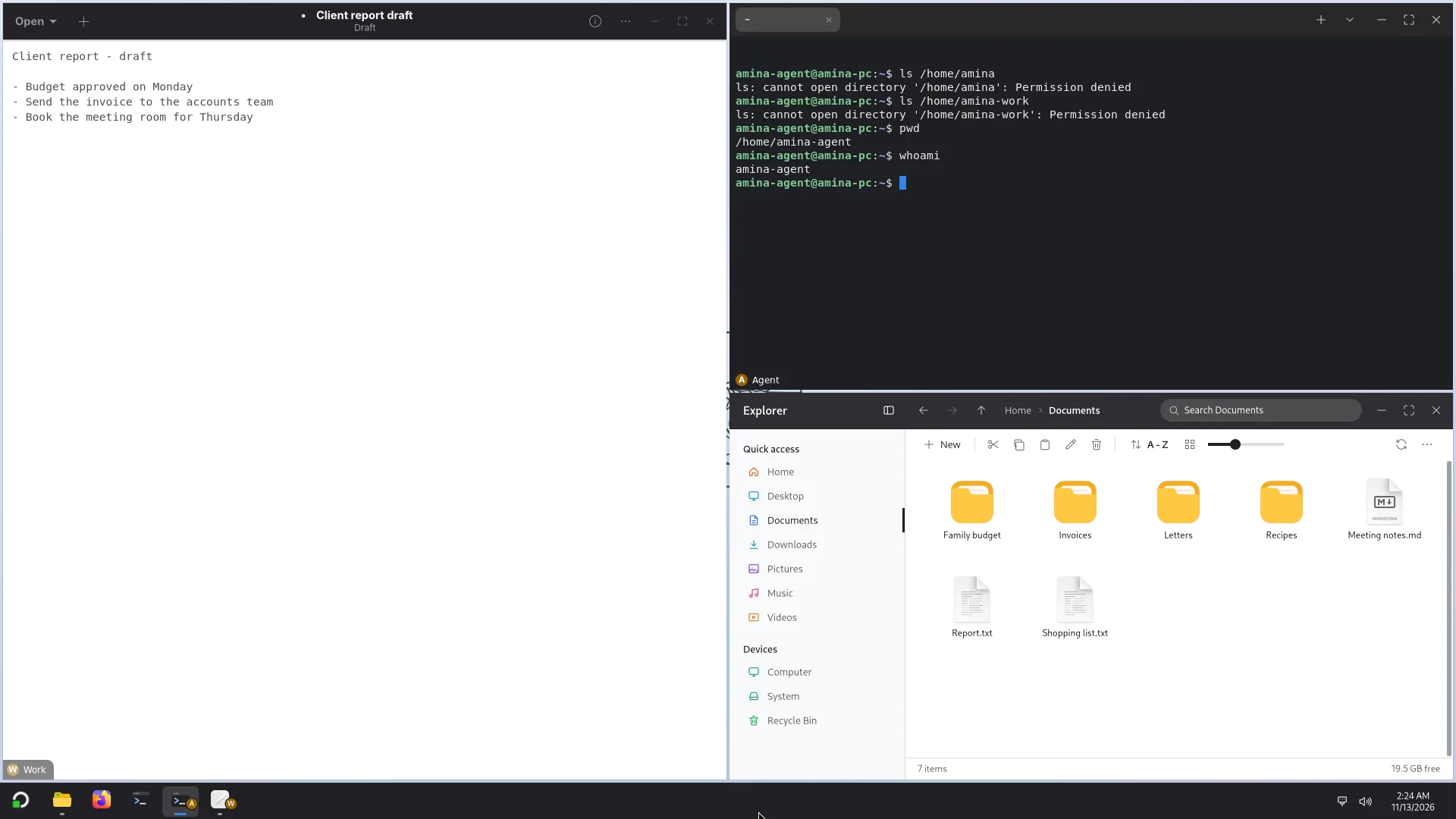
In Atlas your apps can run as other accounts, right next to each other on the same screen. Each window carries a small mark that says whose it is, and each account is sealed off from the others: its own files, its own passwords, its own settings. Few desktop systems do this; Atlas is built around it.
This page is an overview. The detail, with examples and the limits, is on the site's Several accounts page.
Like all of Atlas for now, this is a testing build: several accounts have been tried in virtual machines, and real PCs are being tested. Atlas 0.1 is planned for early 2027.
Two ways to put other accounts on your screen
- Sub-accounts: real accounts that belong to you (work, a test, one per AI agent). They have their own files, their own keyring of passwords and their own app data. You open their apps on your screen with no password. A sub-account never appears on the sign-in screen: it only exists inside your session.
- Open as: right-click an app in Start, then the account. The app opens on your screen but runs as that account. It works for your sub-accounts, and, if an administrator allows it, for another person's account.
And several people on one PC
Accounts can also be signed in at the same time, as on Windows. Switch user locks your session and opens the sign-in screen; the other person's apps keep running, and when you come back you are exactly where you left off. The sign-in screen says who is signed in.
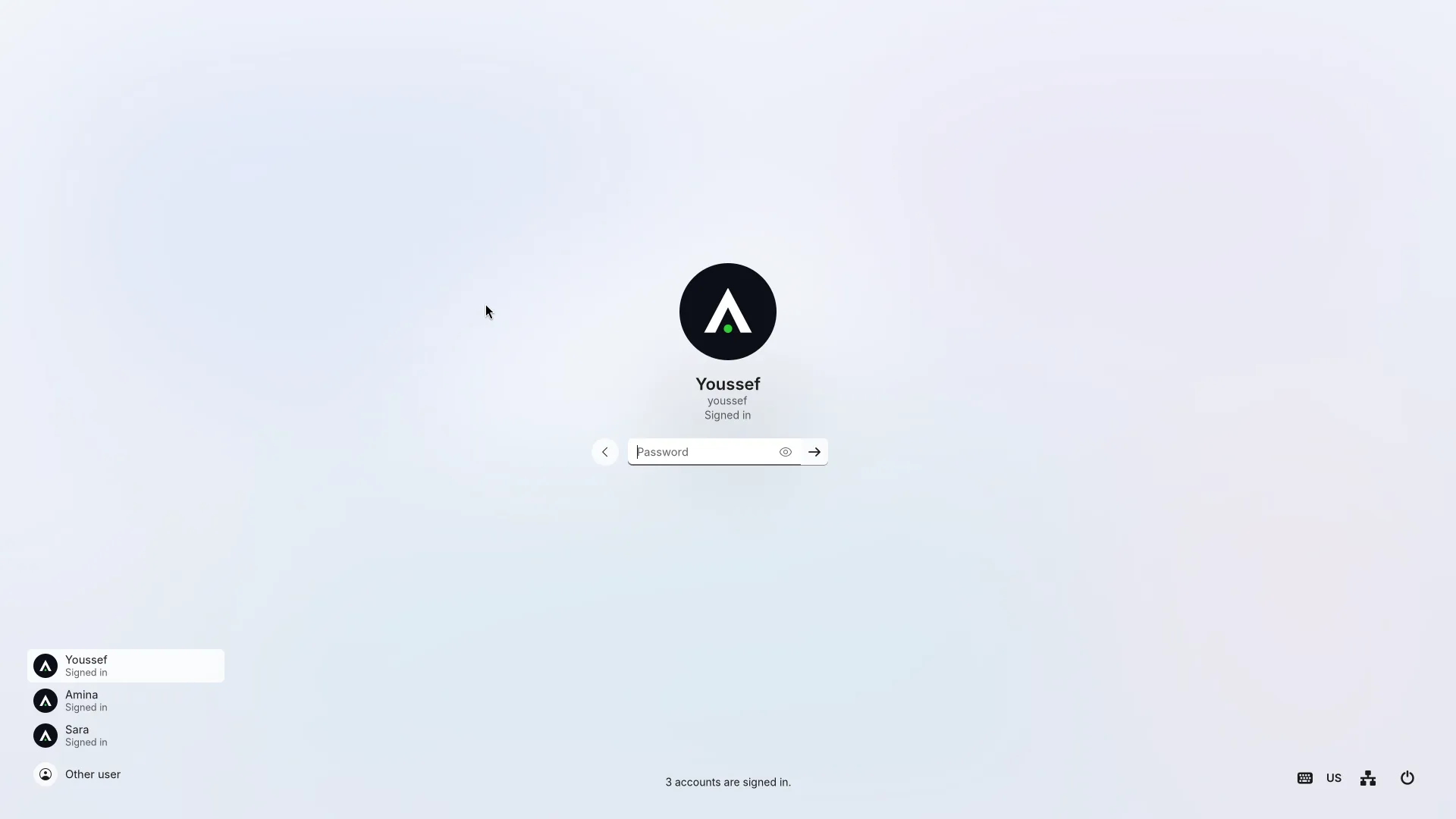
- An account is open in one place at a time: signed in on its own screen, or opened on someone else's, never both.
- Every open account costs memory: about 130 MB while idle, more with its apps. 4 GB is a comfortable start for two or three people.
Who decides
On a shared PC, administrators set the rules in Settings > Accounts: whether sub-accounts are allowed and how many each person may have, whether an administrator may open a standard account without its password, which apps may be opened as administrator, whether other accounts' apps may use the microphone and camera, and whether files and text may be dragged or pasted between accounts. Everyone else sees these settings read-only.
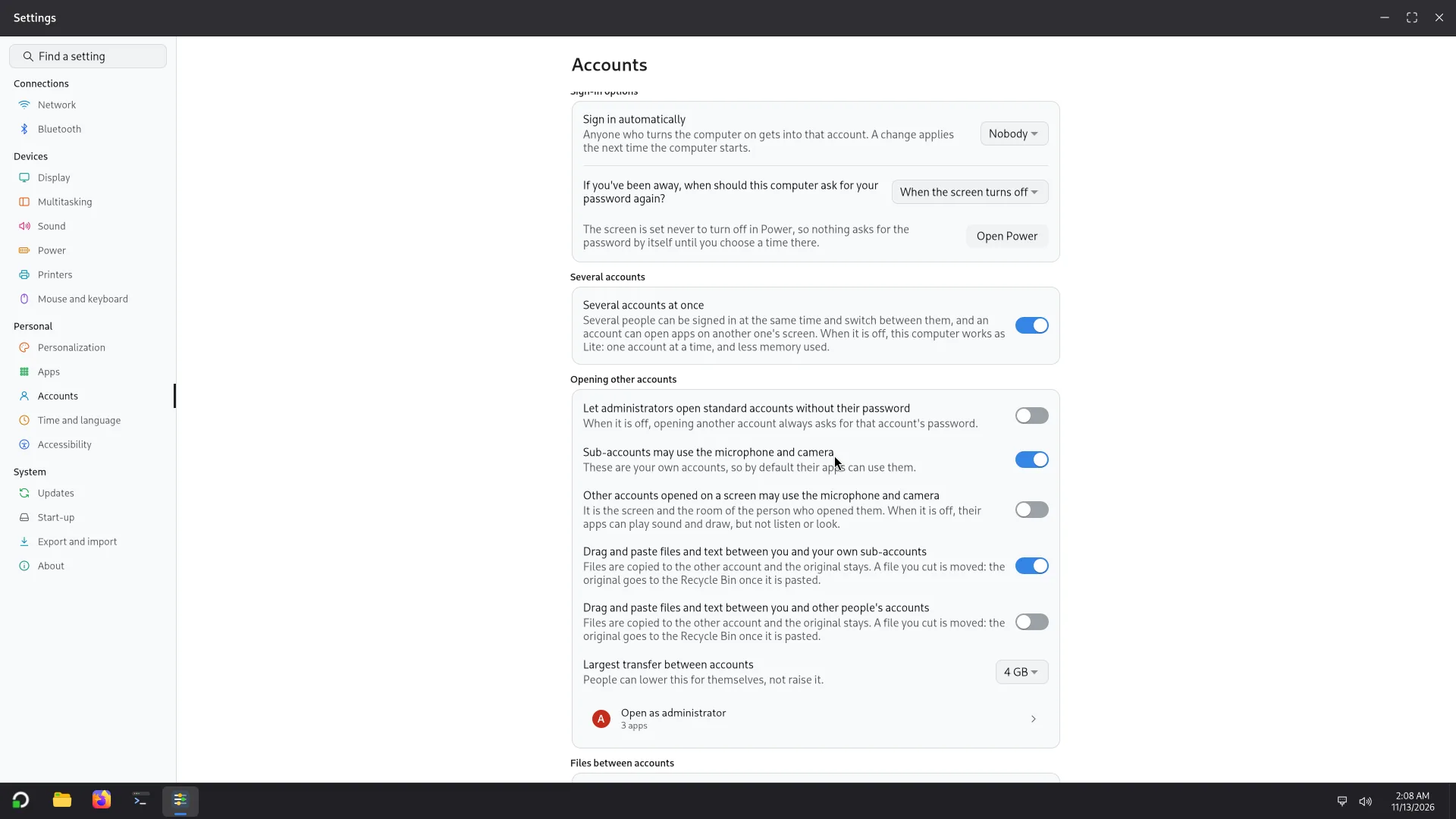
An administrator can also turn Several accounts at once off completely in Settings > Accounts: Atlas then works with one account at a time, like an ordinary system.
In this version, sub-accounts are off by default: an administrator has to turn them on in Settings > Accounts before anyone can make one. See Sub-accounts.
Where next
- Sub-accounts: turning them on, making one, opening apps in it, what is sealed off and what is not.
- Open as: from Start, and the marks on windows.