Moving your settings
Export your settings to one file and import them on another PC, for yourself or for every account.
Settings > Export and import saves how an account looks and works in one file that you can open on another computer: the same settings on every PC of an office, a friend's colours, your own set-up after a reinstall.
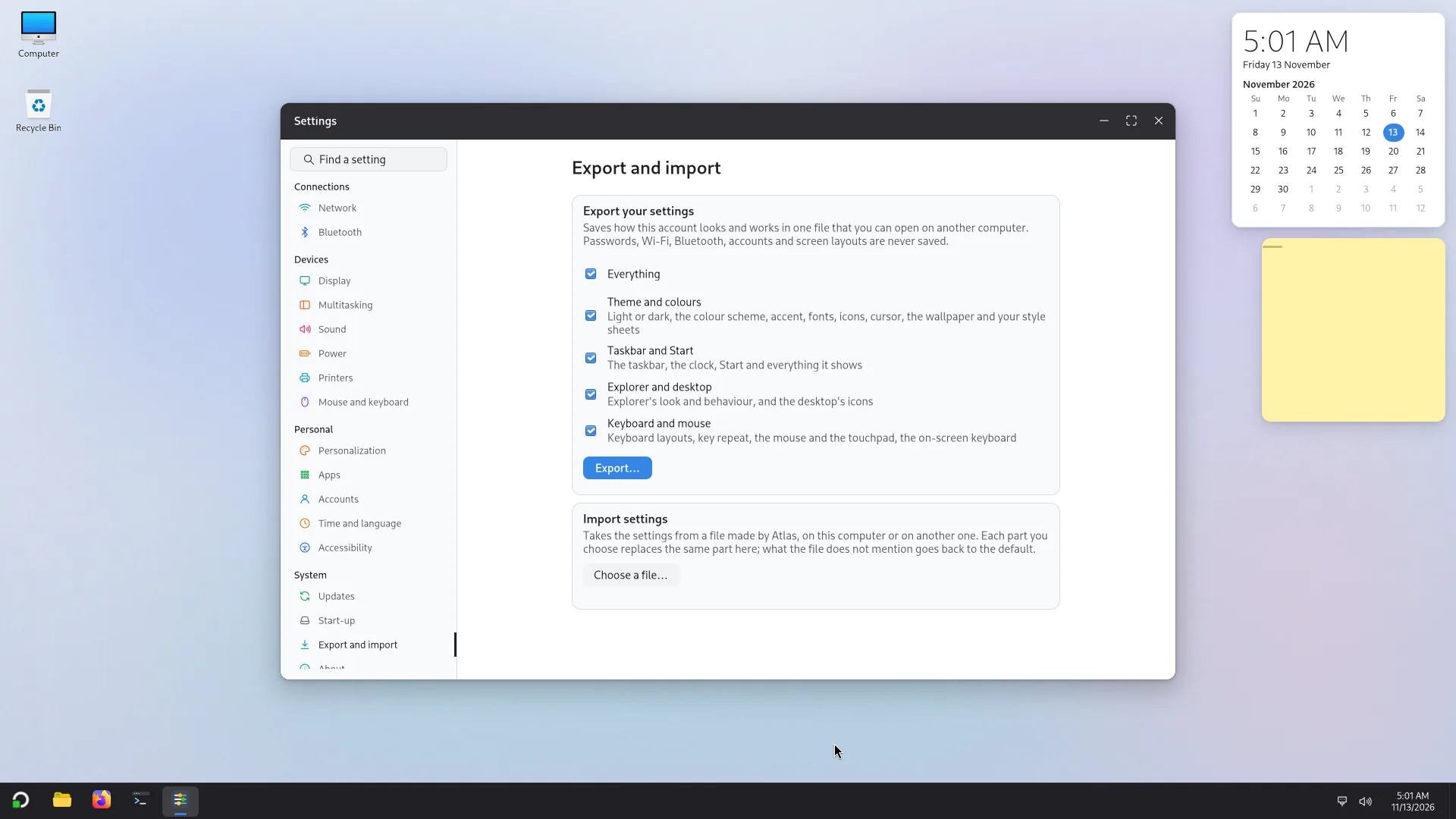
What the file carries
You choose the parts. Each is a checkbox, and Everything ticks them all.
- Theme and colours: light or dark, the colour scheme, the accent, fonts, icons, the cursor, the wallpaper and your style sheets.
- Taskbar and Start: the taskbar, the clock, Start and everything it shows.
- Explorer and desktop: Explorer's look and behaviour, and the desktop's icons.
- Keyboard and mouse: keyboard layouts, key repeat, the mouse and the touchpad, the on-screen keyboard.
Never in the file: passwords, Wi-Fi keys, Bluetooth pairings, accounts, screen layouts, or anything else that belongs to one machine.
An icon pack you built is carried as its recipe, and is made again on the other PC if the packs it uses are installed there; if one is missing, that part is skipped and listed.
Export
Atlas settings <computer> <date>.atlas.Import
On the other PC, under Import settings, press Choose a file… and pick the .atlas file.
Atlas reads it and tells you where it comes from ("From COMPUTER, made on DATE.") and what it holds. Choose what to bring in.
Press Import for me. Each part you chose replaces the same part on this PC. A setting of a chosen part that the file does not mention goes back to its default, so the result is the exporting account's.
For yourself or for every account
An administrator can instead press Import for every account…. Atlas asks "Make these the defaults of every account?": new accounts start with these settings, and accounts that have not changed a setting get the new one. The administrator's password is asked next. Icon packs made from recipes are left out of the defaults.
This is the way to set up several PCs alike: set up one, export, then import on the others for every account. Only an administrator can do it; for anyone else Settings says "Only an administrator can make settings the defaults of every account."
What is checked
The file comes from another computer, so Atlas checks it before it applies anything. What it cannot accept is skipped and listed, not applied: a setting it does not know, a value outside what the setting allows, a picture that is not a picture, a file that is too big. A file made by a newer Atlas than yours is refused, with a message that asks you to update this computer. A file that is not an Atlas settings file is refused too. After the import, Settings tells you how many settings were set, how many went back to the default and how many files were written.
Colour schemes and icon packs also travel on their own: a colour scheme as a .json file, an icon pack as a .zip or .tar.xz (see Appearance and Icons).