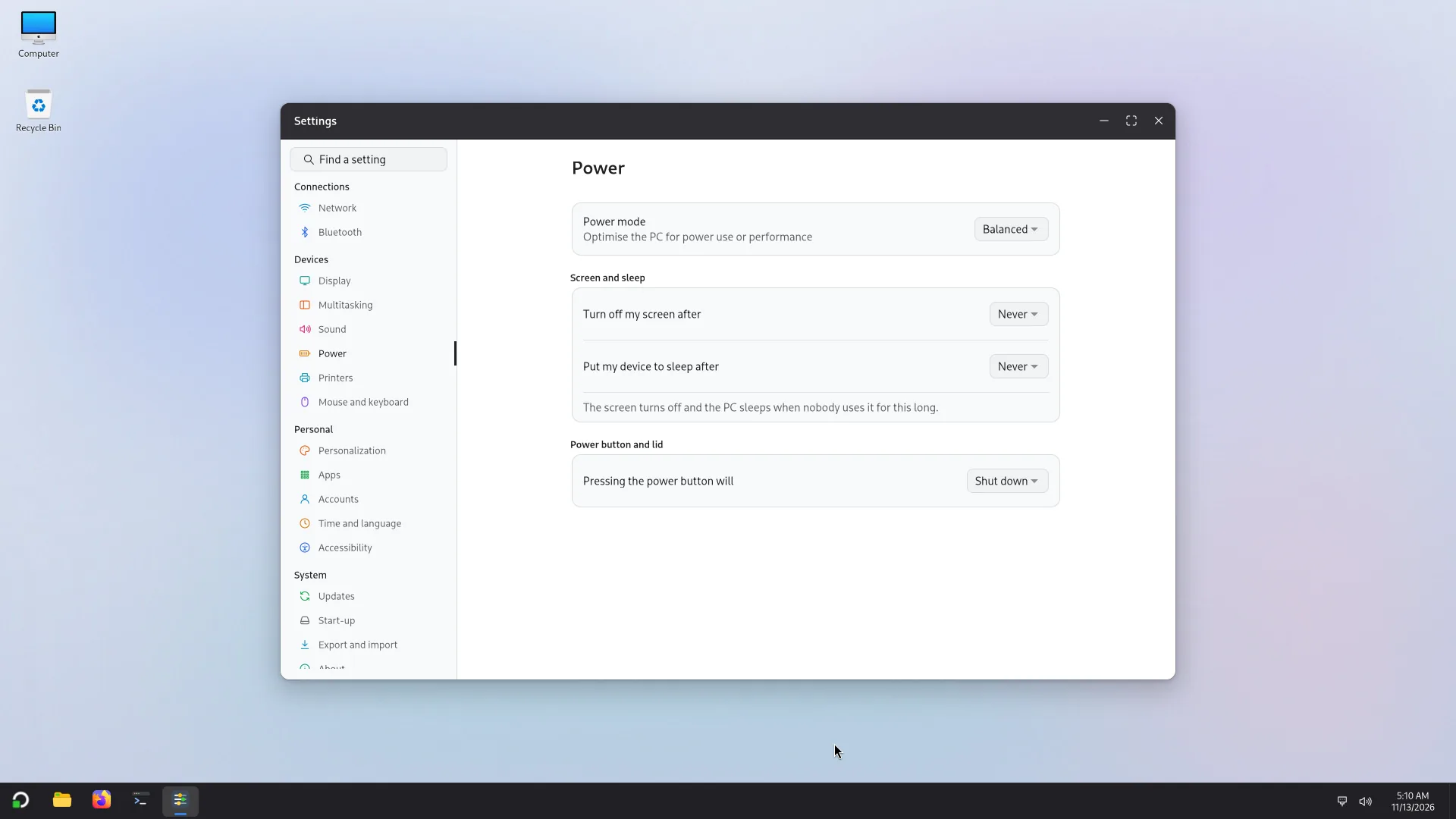
Network and devices
Wi-Fi, wired network, Bluetooth, printing, sound and display: where to set them and what you can do there.
Almost everything can be done two ways: quickly, in quick settings (the taskbar's status button or Super+A), or in detail in Settings.
Wi-Fi, Bluetooth, sound, brightness, the battery and sleep were tried in virtual machines, not yet on real PCs. Depending on your computer's chip, a function may be missing: tell us the model (see Reporting a problem).
Wi-Fi
- If Wi-Fi is off, the list says Wi-Fi is off: turn the tile on.
- Could not connect. Check the password and try again.: the key is wrong.
- A network that needs more than a password shows This network needs more setup than a password and a button that opens the network settings.
In Settings > Network:
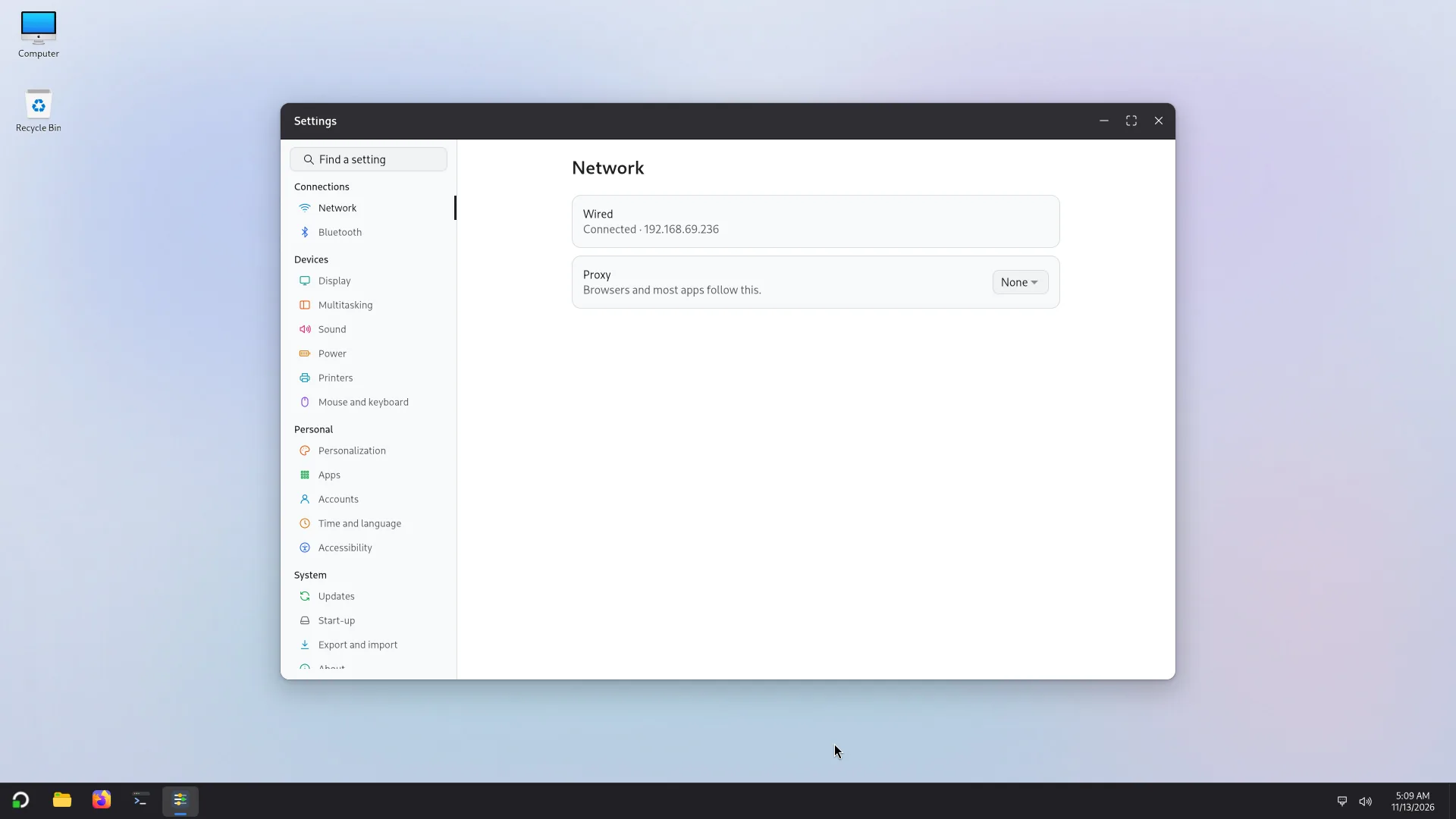
- Wi-Fi: the list of networks. Details gives the security, the IP address and the MAC address; Disconnect; Forget this network removes its password and the PC no longer joins it by itself.
- Join a hidden network: type the Network name and its key.
- Another option joins a network that asks for a user name, a password and a certificate (a file you choose). Without a certificate, Atlas warns that anyone could pretend to be this network and read your password.
- Wired: the Ethernet cable connects by itself; the page shows the state and the details.
- Airplane mode: turns off Wi-Fi and Bluetooth.
- Proxy: a server and a port, or the address of a configuration script (starting with
http://orhttps://). Browsers and most apps follow it.
If the PC has no Wi-Fi or wired network adapter that Atlas recognizes, the page says: No Wi-Fi or wired network adapter was found on this computer.
Bluetooth
Settings > Bluetooth (or the Bluetooth tile of quick settings to turn it on and see the devices already paired).
- Put the device in pairing mode.
- Add a device, then Look for devices.
- Choose it in the list, then Pair. If both devices show a code, check that it is the same.
Paired devices are in Your devices, with their battery when it is known. Forget this device removes one (you will need to pair it again). No answer? Is the device on and close by?
Printing
Settings > Printers.
- Find printers finds the ones nearby, on the network and on USB. A network printer is marked Network printer, no driver needed; another may say Needs a driver.
- Add adds it; Set as default makes it the default; Remove removes it.
- For each printer: Open the queue (with Cancel printing for a document), Resume printing if it is paused, Print a test page.
- More printer settings opens the system's full configuration tool.
- Some actions need an administrator, for example cancelling other people's documents.
- If the page says Printing is not available: the print service is not running., tell us (see Reporting a problem).
Sound
Settings > Sound, or the slider in quick settings.
- Output: the Output device, the volume, Mute and Test (plays a test sound).
- Input: the Input device (microphone) and its Level.
- Apps: the volume of each app that plays sound.
- The keyboard's volume keys change the volume by 5%; the mute key mutes.
- No sound card found or No microphone found: Atlas does not see any audio hardware.
Display
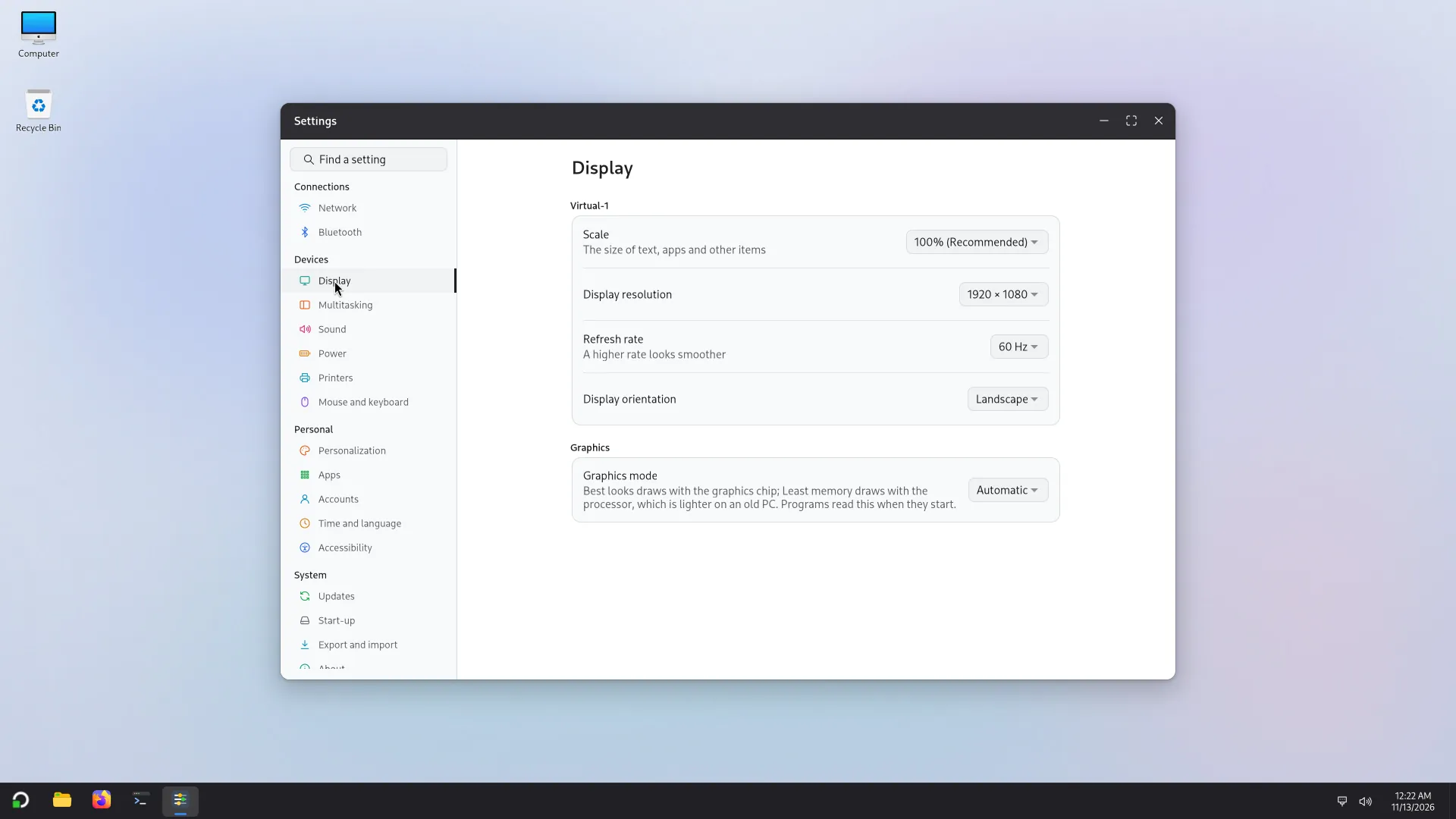
Settings > Display.
- Display resolution, Scale (the size of text, apps and other items), Display orientation (Landscape, Portrait, and their flipped versions) and Refresh rate (a higher rate looks smoother). Recommended marks the advised setting.
- After a change, Atlas asks: Keep these display settings? Choose Keep changes or Revert. With no answer in 15 seconds, it goes back to the old setting by itself: a mode the screen cannot show never leaves you in front of a black screen.
- Brightness: a slider; the keyboard's brightness keys change it by 10% (laptops).
- Multiple displays: drag the displays to arrange them as on your desk, then Extend these displays or Duplicate these displays. Two displays with no resolution in common cannot show the same picture.
- Several screens and projectors, Windows+P: Super+P (or the Project tile in quick settings) opens the Project panel at the screen's edge, with four choices: PC screen only, Duplicate, Extend, Second screen only. Press Super+P again to move to the next choice, Enter to apply it, Esc to close. With one screen, the panel says no second screen is connected. Duplicate needs a resolution that both screens have. The choice is remembered: it comes back when the same screens are connected again, and Settings > Display shows it.
- Graphics mode: Automatic, Best looks (draws with the graphics chip) or Least memory (draws with the processor, lighter on an old PC). Programs read it when they start. To see the graphics card, its driver and whether it draws the screen: Settings > Graphics.
Power
Settings > Power sets the mode, when the screen turns off, sleep, the energy saver, the lid and the power button: see Settings. Atlas does not hibernate: memory is compressed (zram), but the PC does not hibernate.