Accounts
Administrators and standard accounts, making and removing accounts, automatic sign-in and saved passwords.
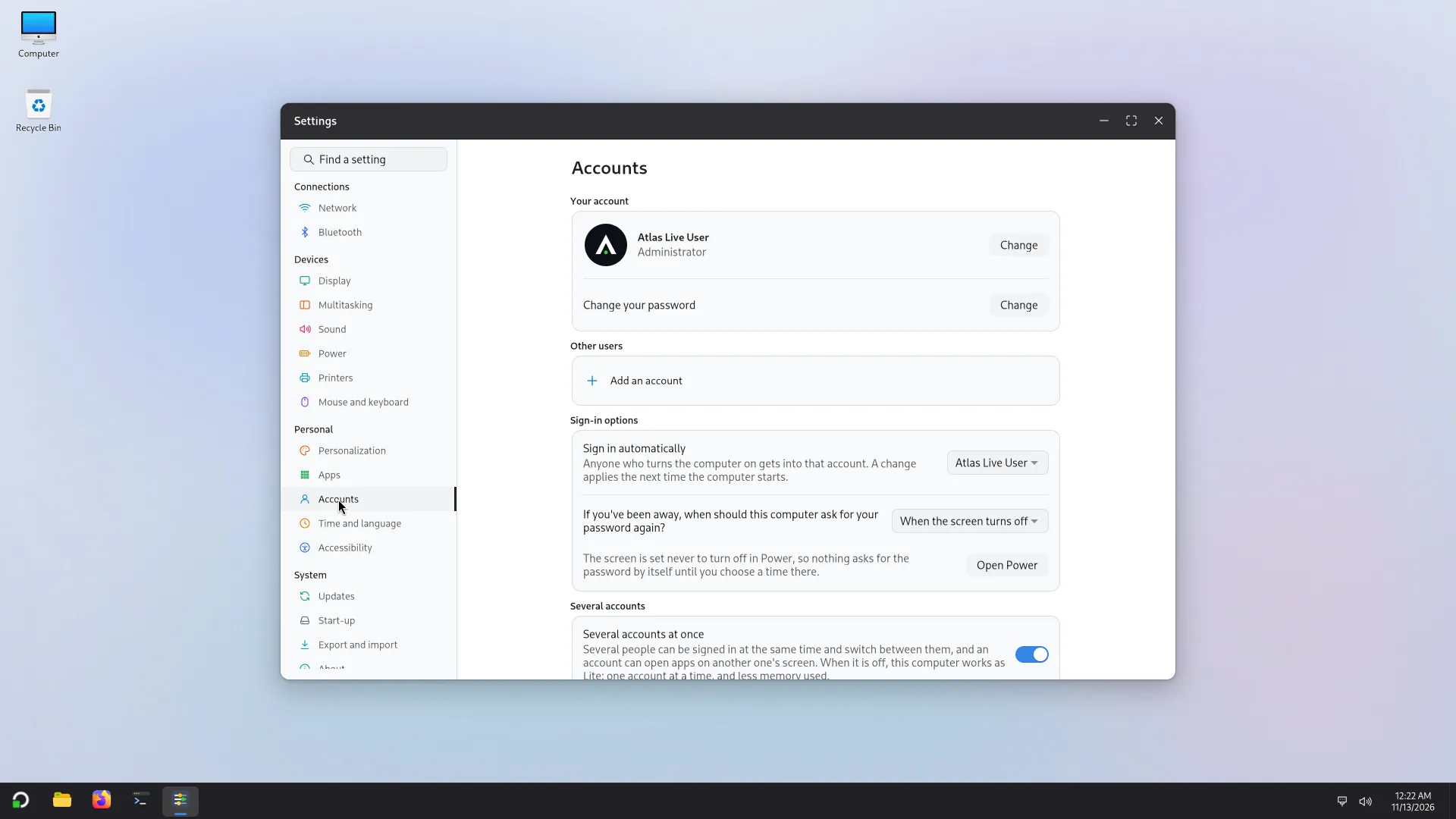
Accounts are in Settings > Accounts. This page is about the accounts of a PC. The rules for running apps as other accounts, and for sub-accounts, are in Several accounts.
Administrators and standard accounts
There are two kinds of account:
- Administrator: "Can install apps and change the settings for everyone." It can make and remove accounts, install updates, and change what belongs to the whole PC (the sign-in screen, the start-up). Behind the name, administrators are the members of the
sudogroup. - Standard account: everything for itself (files, look, apps it can use), but no change that touches the others. When a standard account needs such a change, Atlas asks for an administrator's password.
The account Atlas Setup made is an administrator. There is no root account: see Security.
Keep a second administrator
If the only administrator forgets its password, Settings cannot reset it: a password is reset by another administrator. Atlas also refuses to remove or demote the only administrator ("This is the only administrator. Make another account an administrator first."). On a PC that matters, make a second administrator and keep its password somewhere safe.
Making an account
Fill in:
- Account type: Administrator or Standard account.
- Full name.
- Account name: at most 32 characters, starting with a lower-case letter, with only lower-case letters, digits,
-and_. Another account or group must not already have it. - Password, typed twice. Show the passwords lets you check what you typed.
The new person signs in from the sign-in screen with that account and its password. They can change their own picture, name and password in Settings > Accounts.
Changing and removing an account
Each account under Other users can be changed by an administrator:
- Account type: make it an administrator or a standard account.
- Reset the password: choose a new password for that account.
- Remove this account: Atlas asks "Remove NAME?" and tells you that their files are in
/home/NAME. Choose Keep the files or Delete the files. Deleting cannot be undone. Removing an account also removes the sub-accounts that belong to it, after asking.
You change your own password with Change your password: your current password, the new one, twice. Settings turns a new password down when it is too short, too simple ("Add letters, digits or symbols"), too close to the old one or too common.
Signing in automatically
Settings > Accounts, under Sign-in options, Sign in automatically: choose an account, or Nobody. "Anyone who turns the computer on gets into that account. A change applies the next time the computer starts." Changing it asks for an administrator's password.
Think before you turn it on: with automatic sign-in, nobody types a password at start-up, and anyone with the PC in their hands can use that account's files. Atlas Setup offers the same choice as Sign in automatically. Under it, If you've been away, when should this computer ask for your password again? sets when the lock screen asks: Never, When the PC wakes from sleep or When the screen turns off. The last one depends on the time set in Settings > Power: if the screen is set never to turn off, nothing asks by itself, and the page offers Open Power.
What it means for saved passwords
Apps (a browser, an e-mail or messaging app) save passwords in the account's login keyring, which your account password normally protects. With automatic sign-in no password reaches the system, so the keyring has none: Atlas makes the account's login keyring itself, silently, with an empty password, so that no program asks you to "Choose password for new keyring". Passwords saved this way are stored in the account's home folder, protected by the file permissions and, if you encrypted the disk, by the disk's encryption, but not by the account's password.
Settings says so under the switch: "While automatic sign-in is on, the passwords that apps save on this PC are not protected by the account's password."
- Turning automatic sign-in on for your own account asks for your password, then gives the keyring an empty password: "Apps save passwords in a keyring that your password protects. With automatic sign-in nothing asks for your password, so the keyring has none."
- Turning it off for your own account asks for your password again, and the keyring is protected by it once more: "Your password protects the passwords that apps save on this PC again."
- An administrator who changes another account's automatic sign-in touches no keyring of that account: a keyring can only be reached from its own session.
An existing login keyring is never replaced by Atlas itself.
Several accounts at once
On a PC with the several accounts edition, an administrator sees a Several accounts at once switch: several people signed in at the same time, switching between them, and an account opening apps on another's screen. When it is off, the PC works as Lite: one account at a time, and less memory used. Each person signed in uses more memory, so a small PC feels it. After changing it, sign out and in again (Sign out now).
The other rules an administrator sets in Settings > Accounts, such as whether sub-accounts are allowed, whether administrators may open a standard account without its password, and whether files may be dragged between accounts, are described in Several accounts and Sub-accounts.