The start-up chooser
The screen that lists Atlas and the other systems at start-up: its look, its templates, the template editor and the boot screens.
When another system (Windows, another Linux) is on the PC next to Atlas, Atlas shows a full-screen start-up chooser early in the start: one tile per system and a countdown that starts the default one. This page is about how it looks. What starts first, the countdown and the repair are in Start-up.
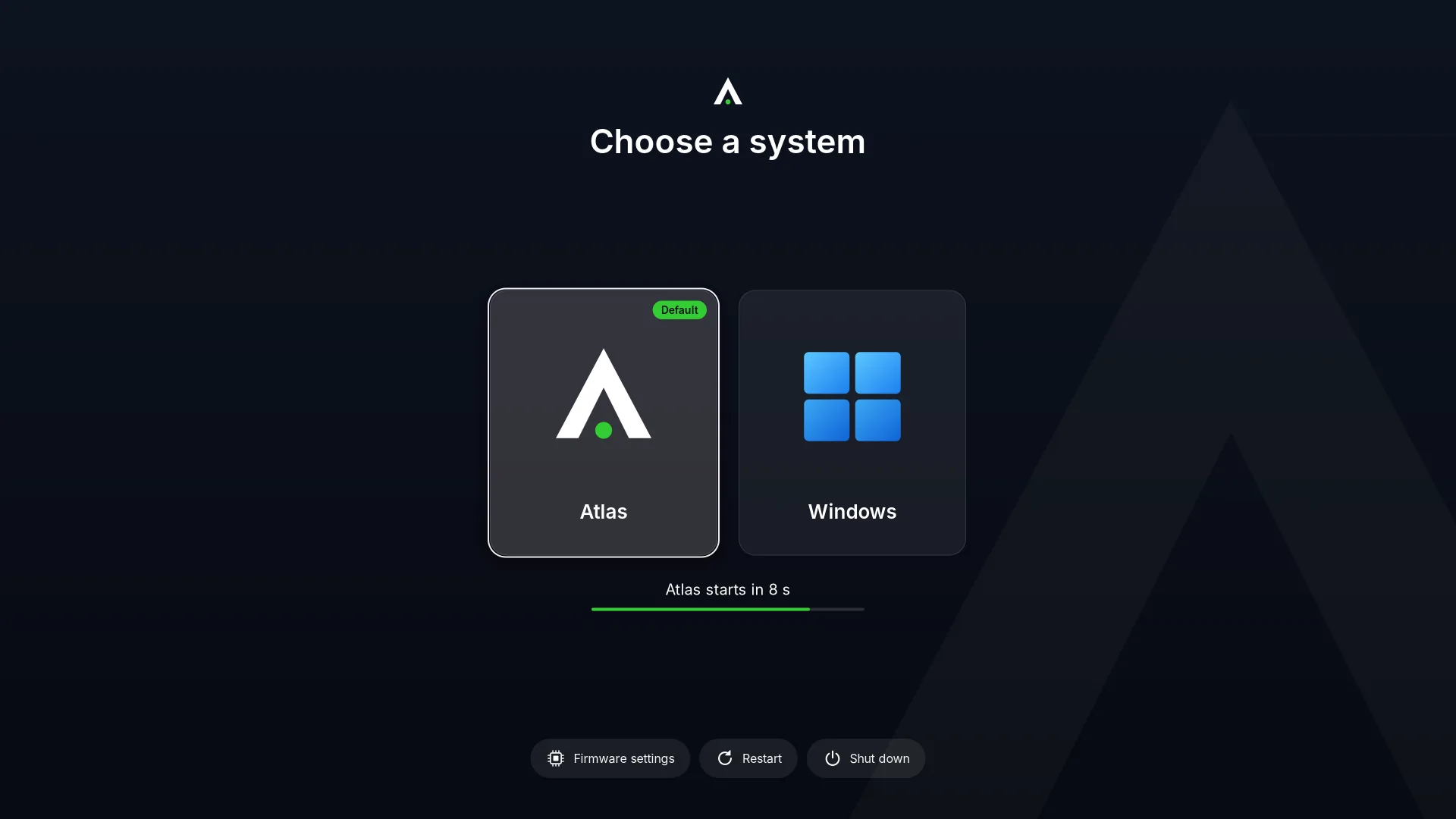
When Atlas is alone on the PC, the chooser does not show and costs no time.
The look is Settings > Start-up, on the Templates tab (the other tab, Systems, is the list of systems). Everyone can look at the page; only an administrator changes anything.
Templates
A template is the whole look of the chooser. Atlas has three built in:
- Atlas: tiles in a row (the default).
- Atlas list: a list.
- Atlas hero: one large tile for the chosen system, the others in a strip.
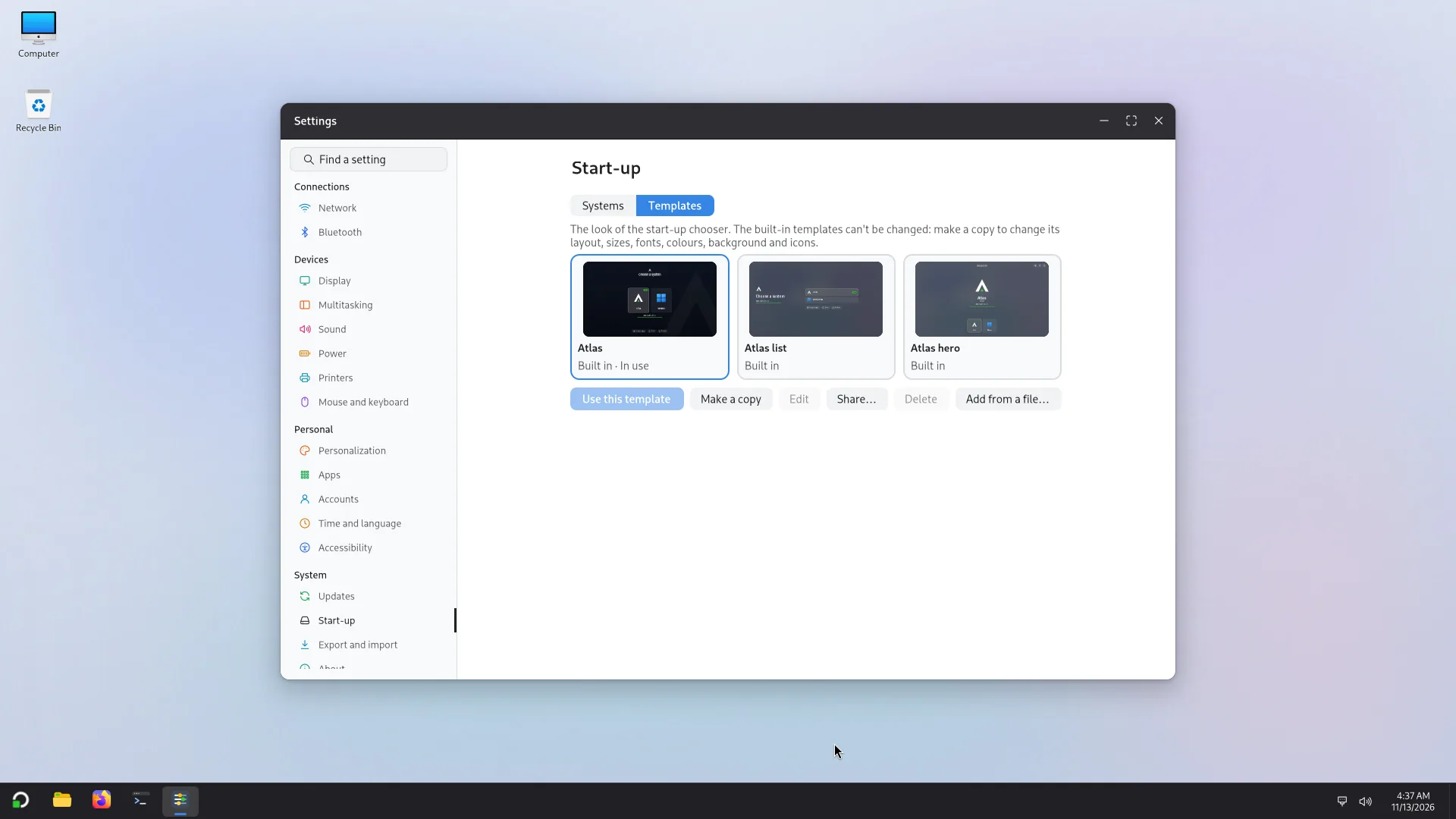
Select a template and use:
- Use this template: the chooser uses it from the next start.
- Make a copy: the built-in templates cannot be changed, so make a copy first (it is named "... copy").
- Edit: opens the template editor, for your own templates.
- Share…: saves a template as a
.zipfile to give to someone. - Add from a file…: adds a template from a
.zipor.tar.xzfile. Nothing is added before it is checked: it must have a validtheme.iniat its top, hold only images and texts, keep every path inside its own folder, and not be too big. - Delete: removes your own template. This cannot be undone; if the chooser was using it, it goes back to the Atlas template.
The template editor
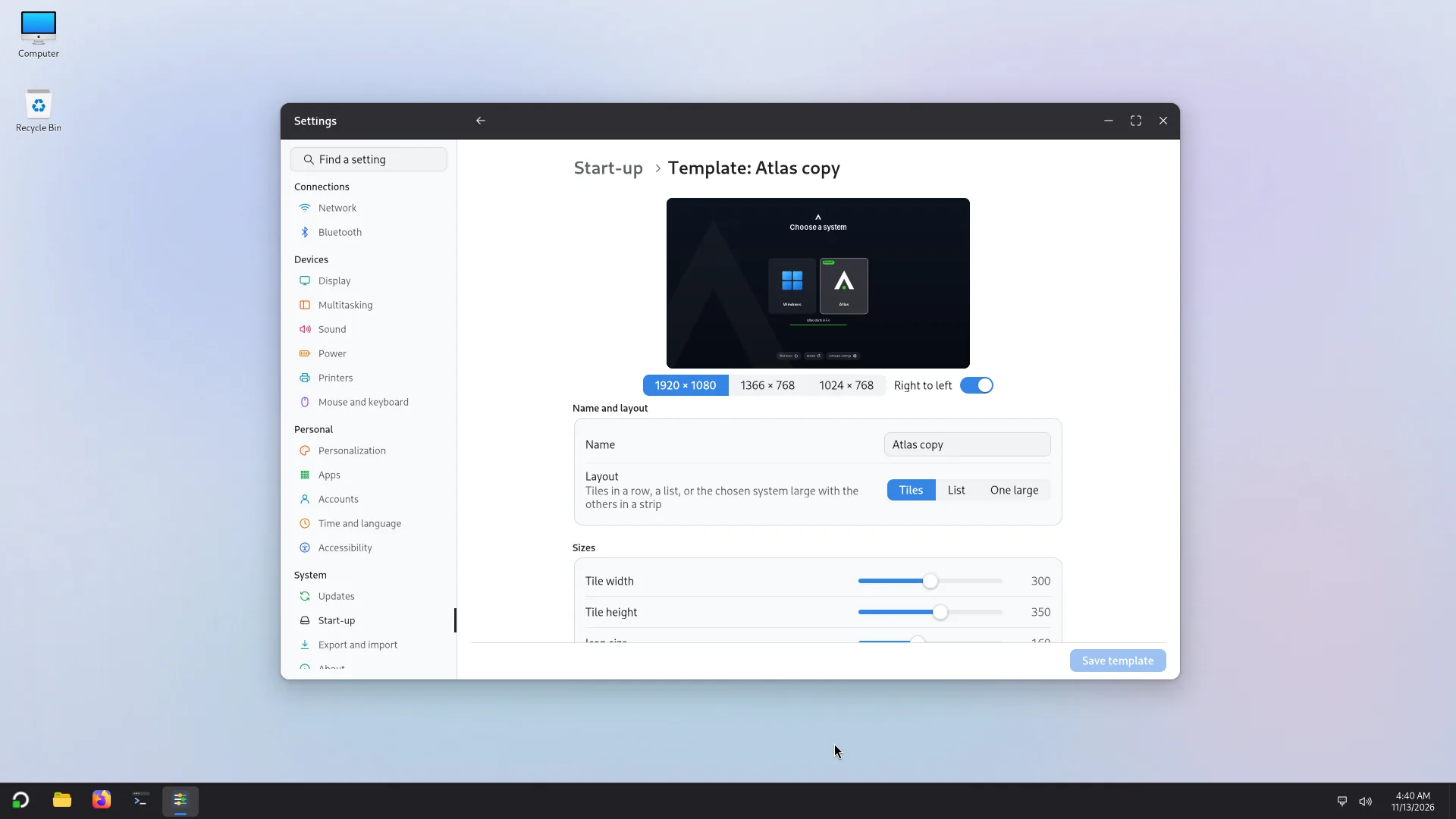
The editor works on a copy of a template. Its preview is not a drawing of the chooser: it is drawn by the chooser's own code, from the template you are editing and the systems of this PC. Preview it in 1920 x 1080, 1366 x 768, 1024 x 768, or right to left.
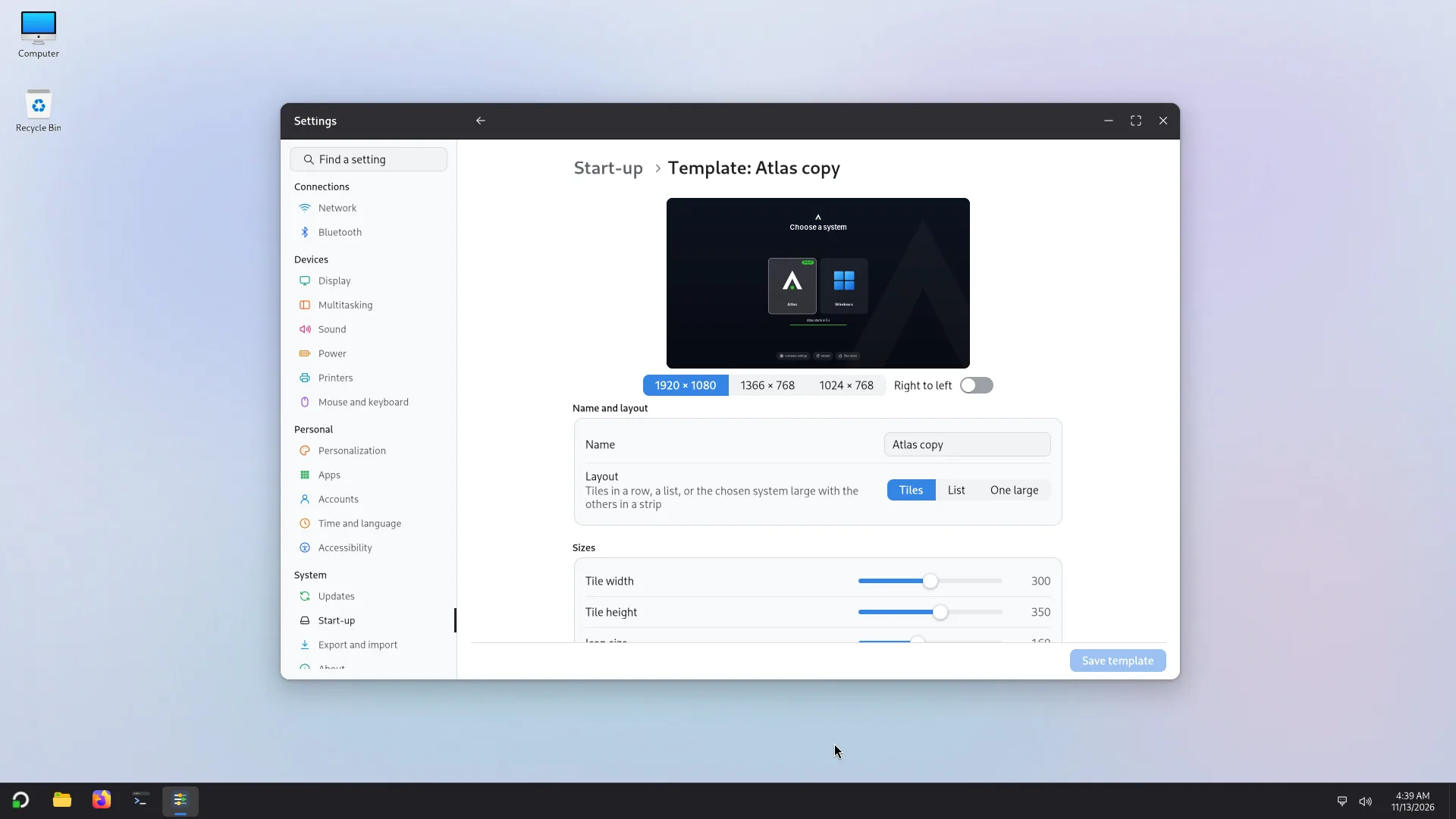
- Name and layout: the name, and the layout: Tiles, List or One large (the chosen system large with the others in a strip).
- Sizes: tile width and height, row height, icon size, space between, corner radius, margin, button size, and the sizes of the title, the system name and the small text.
- Font: the font and its boldness.
- Colours: the accent, the text and the dimmed text, the tile and how strong the tiles and the chosen tile are, the lines and the outline of the chosen one, and the text on the accent.
- Background: a colour and a second colour, or a picture of your own (Choose a picture…, No picture), with blur, tint strength, and the logo faintly behind.
- Icons: one for Windows, macOS, Linux and other systems. An icon named after a system (for example
ubuntu) wins over the icon of its type, and a Linux system that has its own icon (Ubuntu, Fedora…) keeps it. An icon is an SVG or a PNG of at most 1 MB. Back to the original undoes a choice.
Nothing is saved until you press Save template, which asks for an administrator's password. The line "Not saved yet: the start-up chooser keeps using the saved template." reminds you of that. After saving, the chooser uses the template from the next start if it is the one chosen with Use this template.
The boot screens
The screens of start-up, restart, shut-down and update have their own page, Settings > Personalization > Boot and shutdown: see Appearance. Like the chooser, changing them asks for an administrator's password.