Icons and the pack builder
Install icon packs, add or share one, and build a new pack from several, with every licence kept.
Settings > Personalization > Icons has three parts, chosen at the top of the page: Installed packs, Get more packs and Build a pack. An icon pack changes the icons of the whole desktop at once.
Installed packs
Every icon pack found on the computer is listed, with a strip of its icons and its licence. Search the list with Search installed packs.
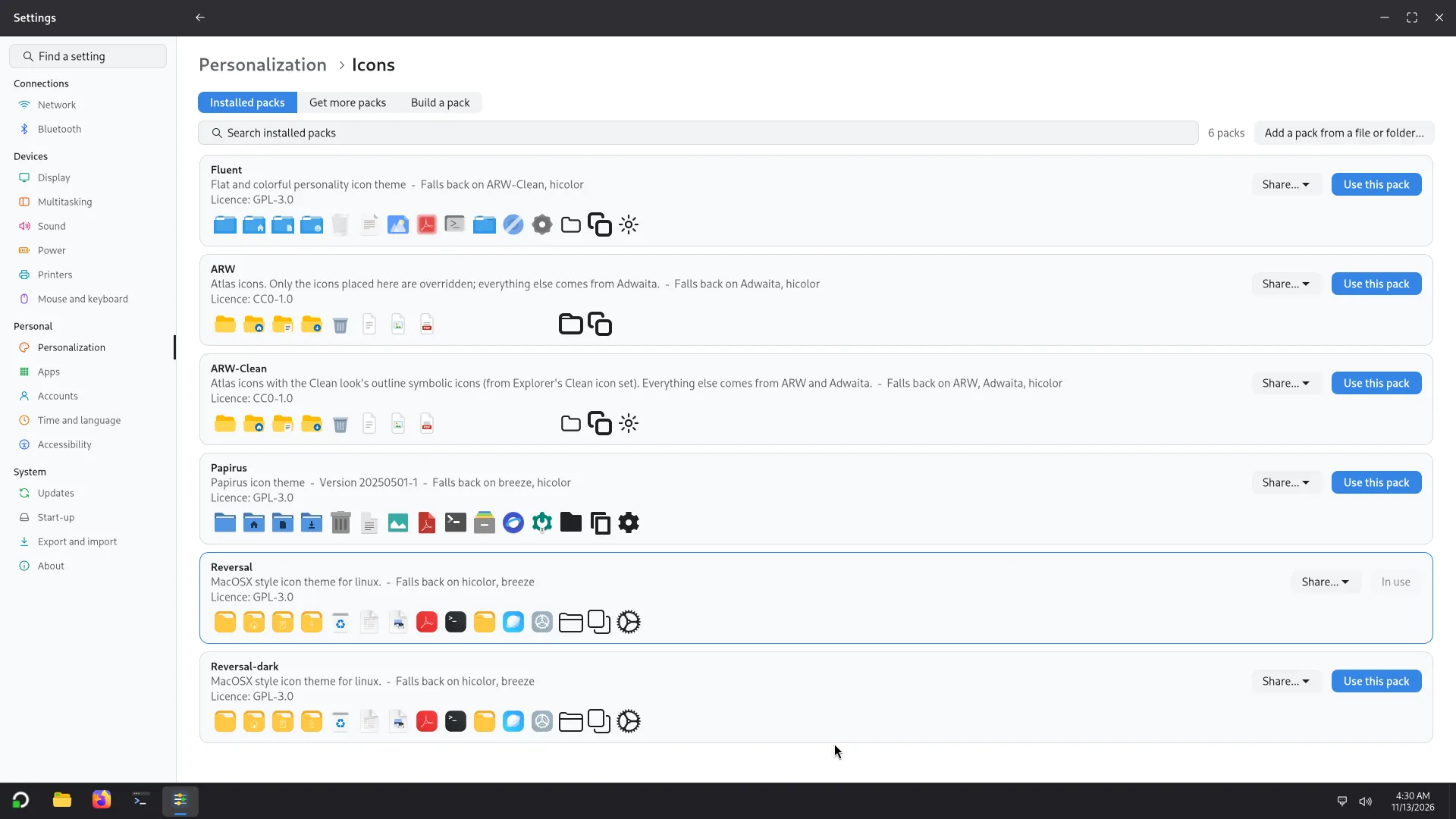
- Use this pack switches the desktop to it. The pack in use says In use.
- The licence is read from the pack's own files. A pack that is not free to pass on says (not free to pass on); one with no licence file says No licence file found.
- Share... saves the pack, with its licence, as a
.zipfile or a.tar.xzfile to give to someone. - Remove takes a pack away: from your account only, or for every account (the administrator's password is asked).
Add a pack from a file or folder
Add a pack from a file or folder... takes a pack someone shared with you: a .zip, .tar.xz or .tar.gz file, or a folder. Nothing is added before it has been checked. A pack is refused, with a sentence that says why, when:
- it has no
index.themeat its top; - a path leaves the pack's own folder, or a link points outside it;
- it holds a file that is neither an image nor one of the theme's texts;
- it is over 300 MB once unpacked.
If it passes, choose For me or For everyone... (an administrator's password). If a pack of that name is already there, choose Replace or Keep both. A pack that came with Atlas is never replaced.
Get more packs
Get more packs offers Papirus, Reversal, Fluent (the Windows look), WhiteSur (the macOS Big Sur look), Qogir and We10X (the Windows 10 look; icons that show Microsoft's logos are left out). Each shows its licence, version, download size, the room it takes on the disk, and a link to its home page, where its source and licence text are.
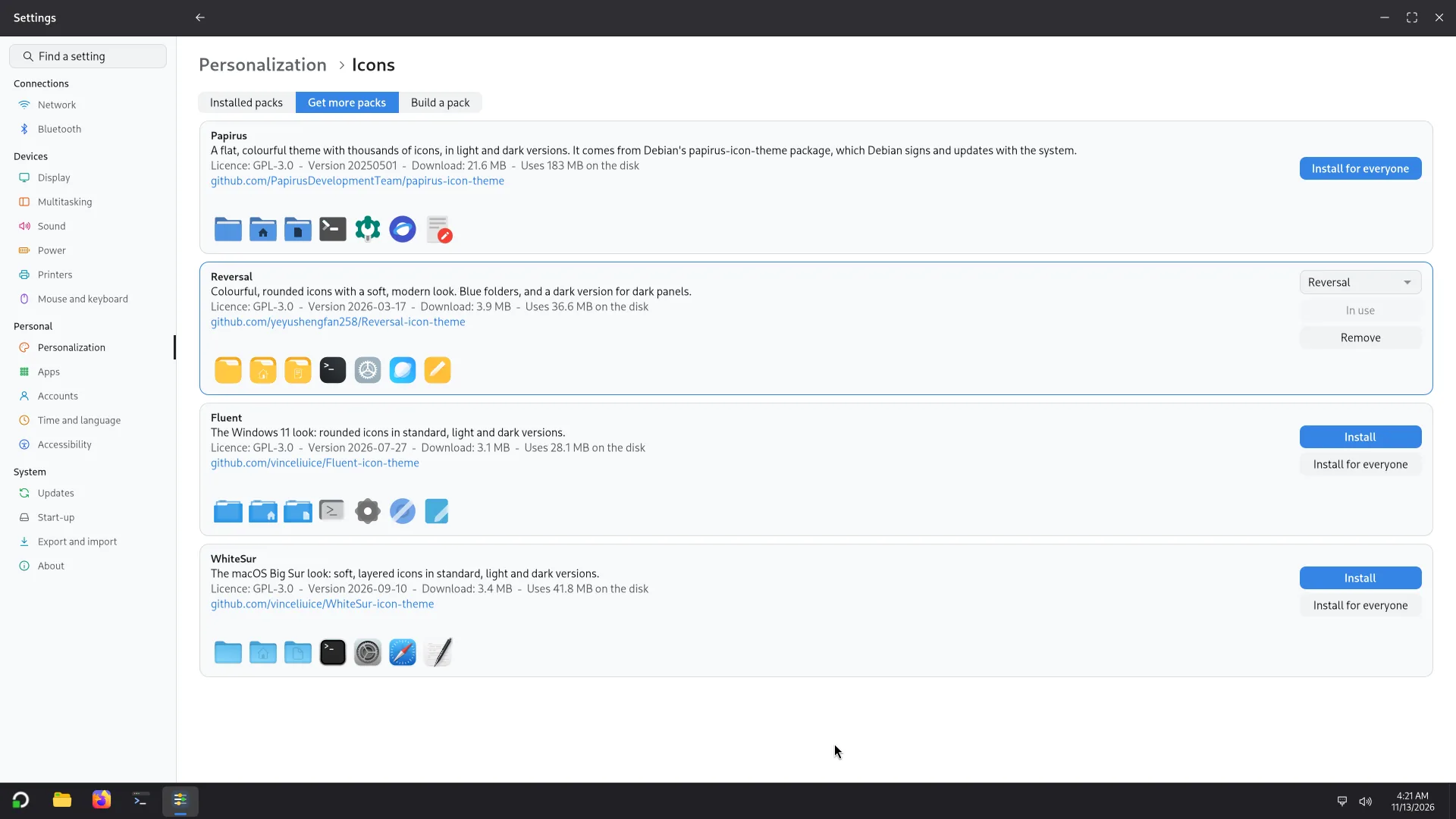
- Press Install (for you) or Install for everyone (an administrator's password is asked first).
- When Atlas says the pack is installed, press Use this pack.
- Remove takes it away again.
How it is made safe:
- Papirus comes from Debian's own package
papirus-icon-theme, which Debian signs and updates with the system. - The other packs come from the gallery at icons.arw-labs.com. The download is checked, and a damaged or changed download is not installed.
- Atlas looks at the free memory and disk room before installing, and says so when there is not enough ("There isn't enough free memory to install this now. Close some windows and try again.") instead of slowing the PC down.
If the PC is offline, the page says the online packs can't be reached and offers Try again. Papirus can still be installed, and the packs you already have can still be used and removed. If online packs are switched off, the page offers Turn on.
Build a pack
The builder makes a new pack from the packs already on the PC and from your own images. You see the result before you make it.
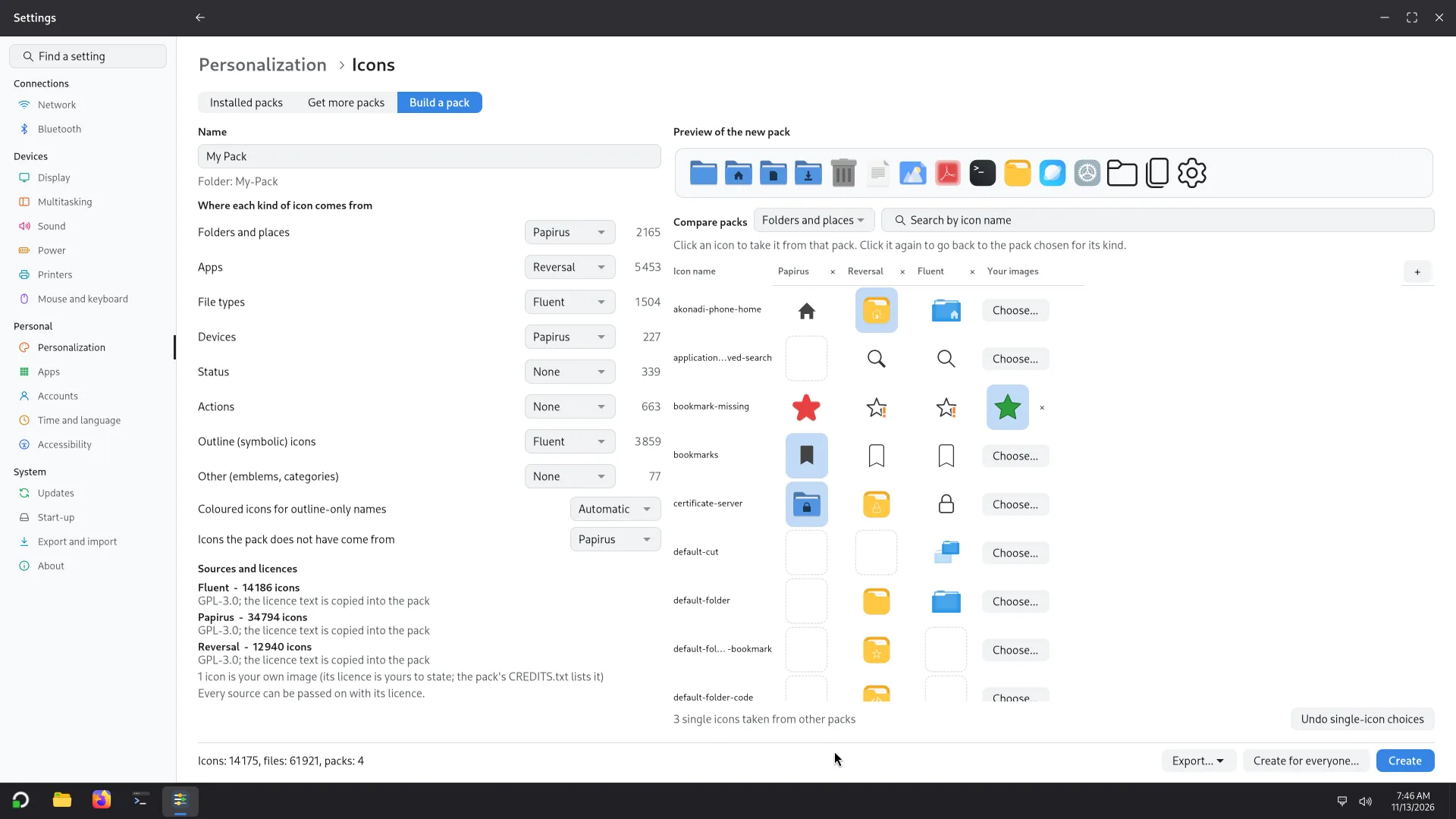
Name it. Type the name of the new pack. Its folder name is made from the name (letters, digits, - and _).
Choose where each kind of icon comes from. Under Where each kind of icon comes from, pick a source pack for Folders and places, Apps, Devices, File types, Outline (symbolic) icons and Other (emblems, categories). Choose a pack for at least one kind.
Compare packs, and pick single icons. Under Compare packs, packs sit side by side. Add one with Add a pack to compare, and search by icon name. Click an icon to take it from that pack; click it again to go back to the pack chosen for its kind. A dashed square means that pack does not have the icon. Undo single-icon choices clears them all.
Add your own images. Under Your images, choose an SVG or PNG for an icon that no pack has, or drop one on the cell. Atlas checks it: a real image, square, at most 8 MB. A small PNG is accepted with a warning that it will look blurry at large sizes; an SVG fits every size. Atlas keeps its own copy, so the original can move or be deleted.
Say what fills the gaps. Icons the pack does not have come from sets the pack used for missing icons. Coloured icons for outline-only names sets which pack gives coloured icons for names that a source only has as outlines.
Check the licences. Sources and licences lists every source with its licence; the licence text is copied into the new pack. Your own images are listed in the pack's CREDITS.txt, and their licence is yours to state. The preview line tells you the number of icons, files and packs.
Licences
If a source is not free to pass on or to change, the builder says so: "The new pack could not be shared." If a source has no licence file, it says "Without a licence the new pack must not be shared." Where terms are unknown, check them before sharing. Atlas keeps every licence it finds with the pack, but it does not decide for you whether you may share it.
Then make it
- Create: the pack goes into your own icons folder. Use this pack now switches to it.
- Create for everyone...: the pack is installed for every account on the PC, after an administrator's password.
- Export... > Export for the Atlas repo...: the pack's folder, ready to be built into an Atlas image. To give a finished pack to a person, use Share... under Installed packs.
A pack you made shows under Installed packs like any other.