Software and updates
Installing and removing apps with Software, Flathub, automatic updates and where they come from.
Software
Software installs and removes apps. Open it from Start.
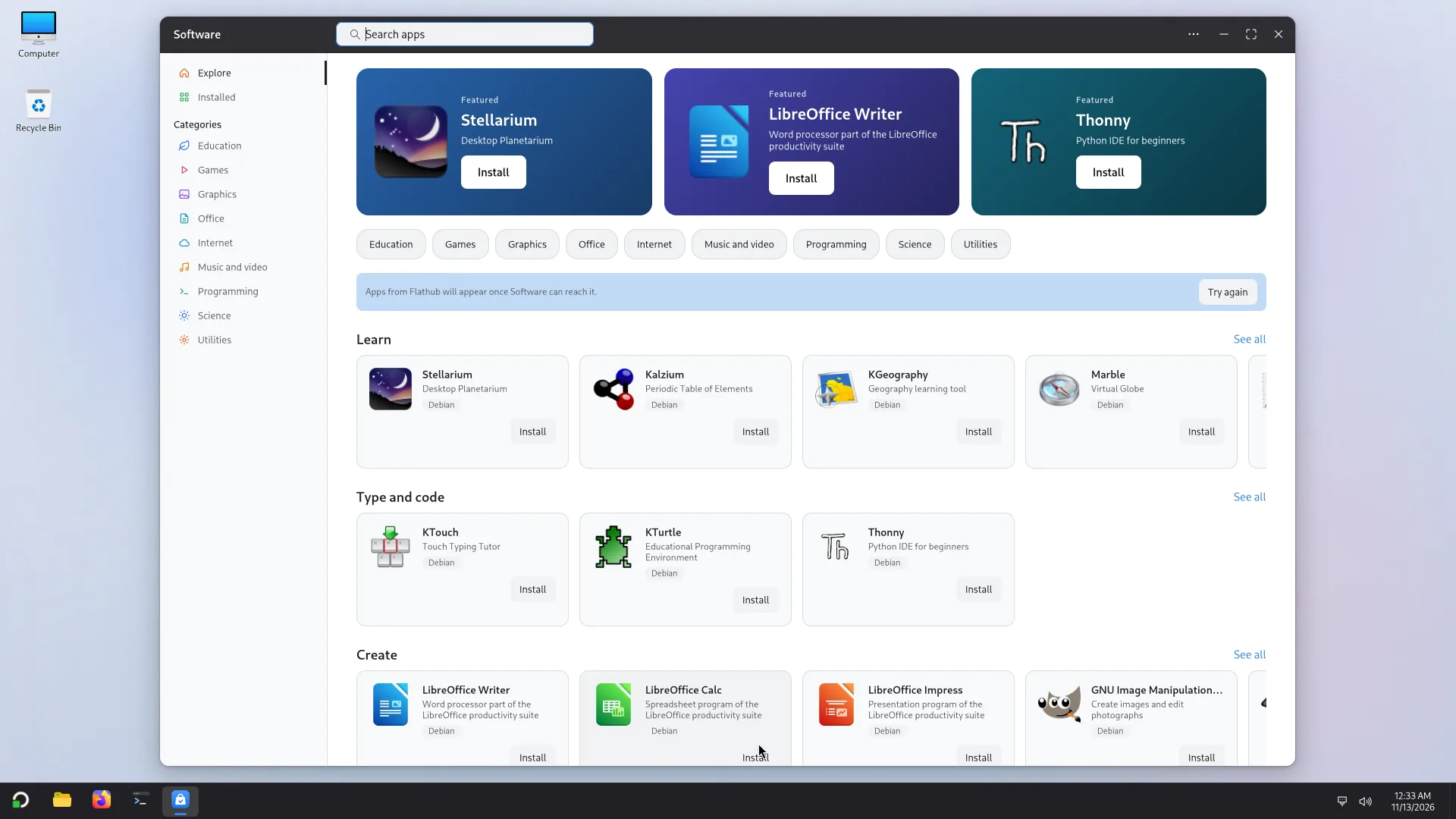
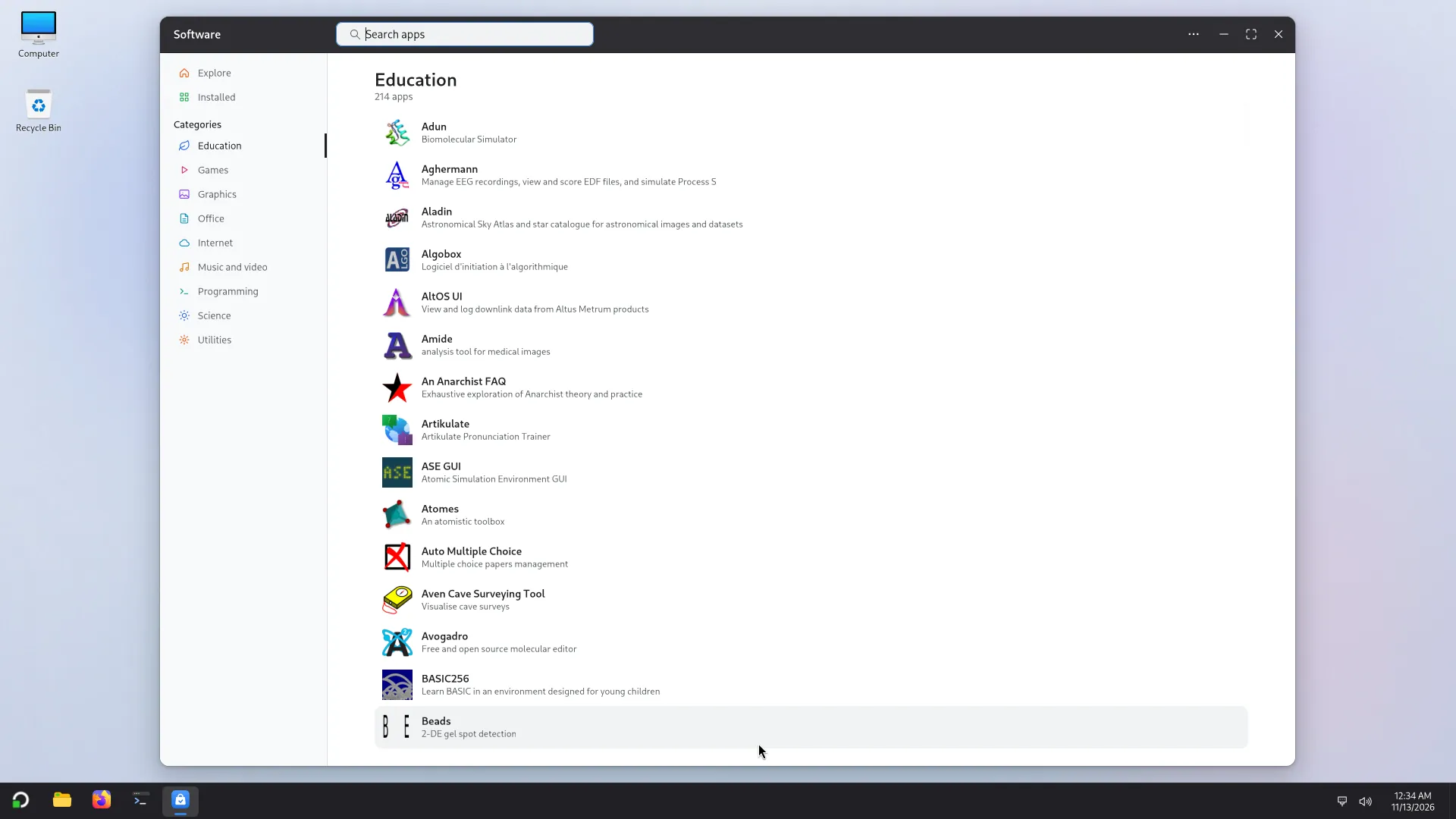
- Explore: featured apps, by theme (Learn, Type and code, Create, Play), and the categories: Education, Games, Graphics, Office, Internet, Music and video, Programming, Science, Utilities. See all opens a theme's complete list.
- Search: the field at the top (Ctrl+F) searches names and descriptions. If nothing comes up, try another word, or fewer words.
- Installed: the apps installed for everyone on this computer.
- The Layout button offers two presentations, Store and Simple.
LibreOffice, for example, is not installed with Atlas: it is one click away in Software (search for "LibreOffice").
An app
Its page gives the description, the source, the size of the Download, the space On disk, the Version, the Licence, the Website and, for Flathub apps, the Permissions.
- Click Install. For an app from Flathub, Atlas first asks you to confirm (Install ... from Flathub?) and says the size of the download, including the runtime it needs if this PC does not have it yet.
- Type an administrator's password when Atlas asks for it: the app is installed for everyone who has an account on this computer.
- Follow the progress (Downloading..., Installing...). Cancel stops it.
- Open it with Open.
Remove removes it for everyone; everyone's own files stay. An app that is part of the system cannot be removed.
In a sub-account, Software opens from the sub-account's tab in Start, or with Open as (only for your own sub-accounts, never as administrator). It installs Flathub apps only, into that account, with no password, and downloads the runtime they need into that account if the PC does not have it. The PC's apps show For the whole computer. Debian's apps are installed from an administrator's own account. See Sub-accounts.
Where apps come from
Each app says its source:
- Atlas: the apps Installed with Atlas;
- Debian: Debian's packages, signed by Debian;
- Flathub: a store of apps that run in a sandbox (Flatpak). The app's page says what its sandbox lets it do: Can use the internet, Can read and change your Documents folder, and so on. An app that is allowed nothing is described like this: Runs in a closed sandbox: no internet, no files, no devices.
If an app exists in two places, its page says so (Also from Debian, Also on Flathub (newer: ...)) and you choose the source.
Atlas needs a list of apps. If the screen says there is none yet, connect to the network, then Update the list. Without a connection you cannot install anything new.
Install a file
Software also opens files you already have: a package (.deb), a Flatpak file (.flatpakref, .flatpak), a source of apps (.flatpakrepo) or an AppImage. There are four ways:
- double-click the file in Explorer;
- open it from Firefox's downloads;
- choose Install a file… in Software's side list, or in its … menu;
- drop the file on Software.
A page always comes first, and nothing installs when the file opens. The page says what the file is (A package file, A Flatpak file, An AppImage file, A source of apps) and always carries this warning: This file comes from outside Atlas's sources. Install it only if you trust where it came from.
A .deb package
- Installing asks for an administrator's password: the package is installed for everyone on the computer.
- Also installs lists the other packages it needs.
- A package for the wrong kind of processor is refused: the page says what the package is for and what this computer is.
- The page also says if this version is already installed, if a newer one is, or if the file would update the version that is.
- On a PC where the package lists have not been read yet, the page says Not known yet. The list of apps is read first when installing, which needs the network. Installing then takes a moment longer.
A Flatpak file
For a .flatpakref or .flatpak, you choose Just for me (no password) or For everyone on this PC (an administrator's password). The page lists the runtime the app needs, if it is not on the computer yet.
A source (.flatpakrepo)
It adds a source of apps, whose apps are then installed and updated from there. It carries its own warning and, if the file has no signing key, says that what comes from the source cannot be checked. Add only sources you trust.
An AppImage
An AppImage is always installed just for this account: Software copies it to the Applications folder in your home, and you start it from Start. The page shows the app's own name and icon when the file gives them, and the file's name when it does not. Nothing is run to read the file. If the computer lacks FUSE 2, which AppImages need to start, the page says so.
Removing, and the limits
- Open Installed, then Installed from files, and choose Remove.
- That list is kept for each account: you see what you installed, not what other accounts did.
- A
.debshows a generic package icon.
In a sub-account, a .deb is only explained: an administrator installs it for the whole PC from their own account. Flatpak files and AppImages install into the sub-account. See Sub-accounts.
Updates
Settings > Updates.
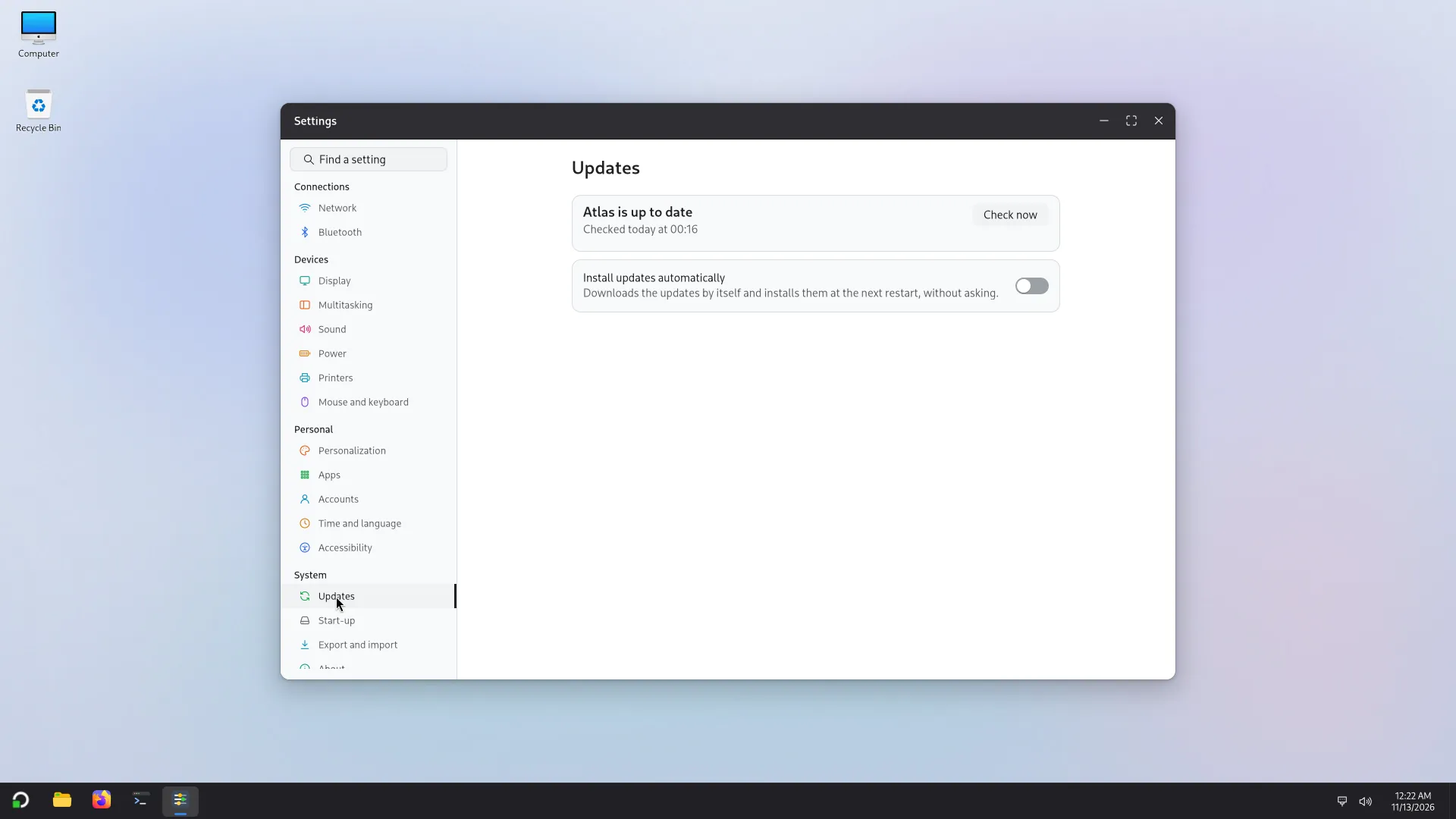
- Check now looks for updates. The state says Atlas is up to date, or what is waiting to be downloaded, with the time of the last check.
- Download and install at restart: Atlas downloads, then installs at the next restart. Restart now does it right away; Cancel the update cancels. Only an administrator can install updates.
- Install updates automatically: Atlas downloads the updates by itself and installs them at the next restart, without asking. It is off by default, unless you turned it on during installation.
- System updates are Atlas's and Debian's packages; Apps from Flathub have their own Update apps button.
- Firmware: if the maker publishes any, the devices that can be updated are listed with an Update button. Do not switch the PC off during the update, and plug in the charger.
- On a metered connection (a phone's shared connection, for example), Atlas does not look for updates by itself.
Where they come from. Atlas's updates come from Atlas's archive; Debian's come from Debian; Flathub's, from Flathub. You need an Internet connection.