Updates
Where Atlas's updates come from, how to install them or make them automatic, firmware, and what is signed.
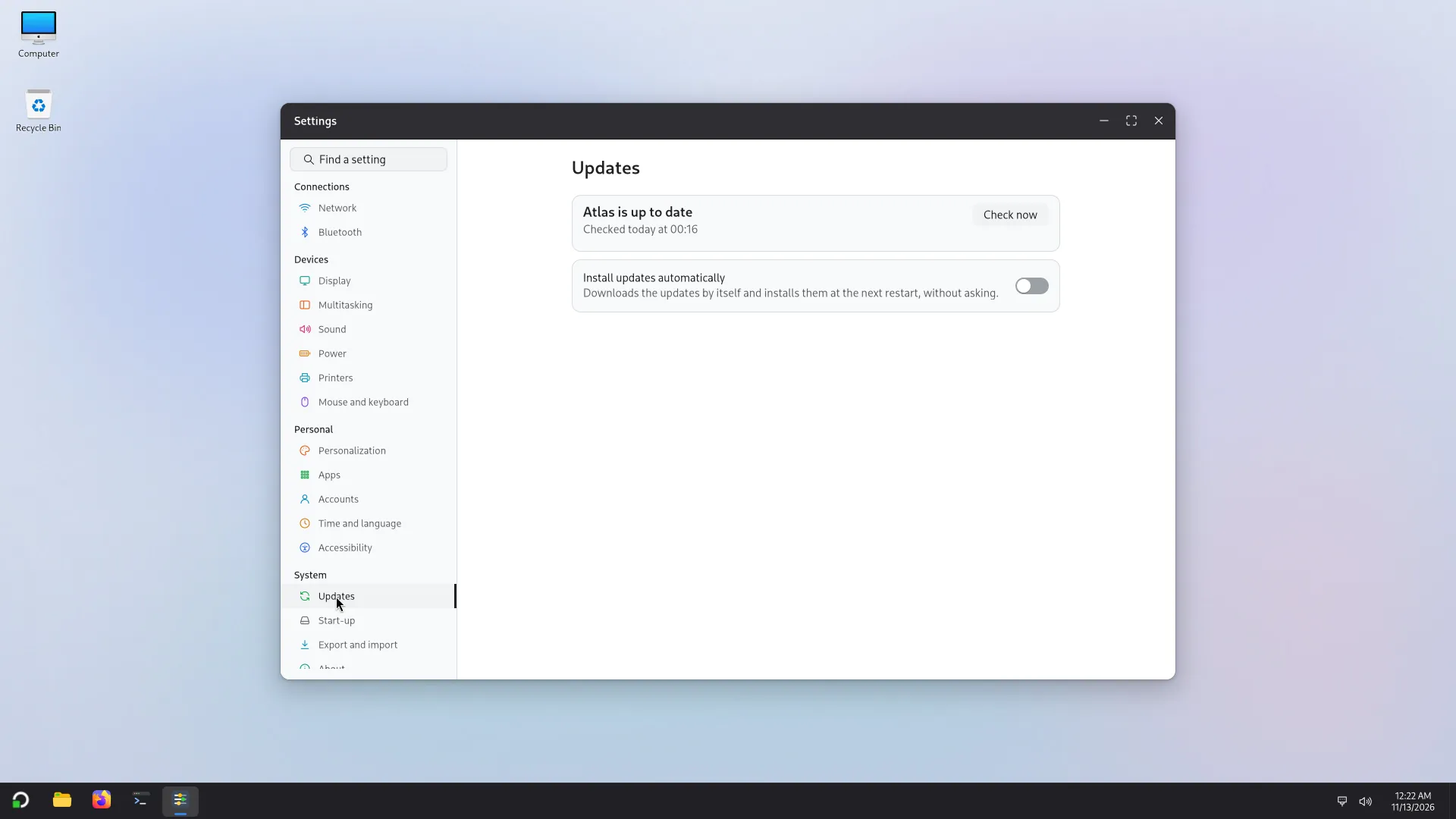
Updates are in Settings > Updates. They are listed and announced; nothing installs unless an administrator says so, or turns on automatic updates.
Where updates come from
- Atlas's archive,
packages.arw-labs.com: Atlas's own packages, which are the apps (Explorer, Settings, Start, the taskbar and the others) and Atlas's own builds of the window manager and of GTK. A fix to one of Atlas's apps reaches an installed PC this way, one component at a time, with no new image. - Debian: every other package of the system, straight from Debian's archive.
- Flathub: apps installed from Flathub, if any, update through Flatpak. They have their own heading on the page, Apps from Flathub, and their own button, Update apps.
- Firmware: for devices that support it, through fwupd. It has its own heading, Firmware.
Where the same package exists in both, Atlas's build wins: a Debian update never puts Debian's version of a package Atlas rebuilt over Atlas's own.
Some of Atlas's own system files (the settings files that live under /etc) are not part of packages yet. Until they are, an update cannot change them: a fix to one of them comes with a new image.
Looking for updates
A small check runs every day, and asks only what is new: it downloads nothing. It does not run on a metered connection ("This connection is metered, so updates are not looked for by themselves."). When it finds updates, a notification says how many and opens the page; it goes to accounts that can install them, not to standard accounts. Check now looks again at once. The page says when it last looked ("Checked today at ..."), then Atlas is up to date or Update available.
Installing
An administrator opens Settings > Updates. The list is sorted with security updates first.
Press Download and install at restart. Atlas asks for an administrator's password, then downloads the updates. "The updates will be installed when you restart." Cancel the update takes it back before the restart.
Restart (Restart now). The computer installs the updates during the restart, with a "Working on updates" screen. Do not turn it off.
Only an administrator can install updates: for anyone else the page says "Only an administrator can install updates."
Automatic updates
Install updates automatically "Downloads the updates by itself and installs them at the next restart, without asking." It is off by default, unless you turned it on in Atlas Setup. It suits a PC that nobody looks after; on a PC you look after, you may prefer to read the list first.
Firmware
Firmware updates (a laptop's UEFI, a dock, an SSD) come from fwupd and its vendor firmware service. They are never part of the main button and never automatic. Each device that can be updated has its own Update button with a confirmation. Atlas shows what stops an update right now ("Plug in the charger first", "The battery is too low", "Open the lid first") instead of the button. Some updates are written on a firmware screen at the next restart, which can take several minutes: do not turn the computer off. Only administrators can update firmware. The page lists the last results under Last firmware updates.
What is signed
- Atlas's packages: signed with the Atlas archive key, which the PC holds as the package
atlas-archive-keyring. The archive's entry in the PC's sources names that key (Signed-By). The key's fingerprint isC79F 57F5 E46D AFB8 01C1 4680 6952 0BA2 736B 71FC. A renewed key reaches PCs as an ordinary update. - Debian's packages: signed by Debian, which the system checks as it does for any Debian system.
- Installing from the page uses signed packages only: an unsigned package is refused.
- Firmware: fwupd's metadata is signed.
- Icon packs from Settings: Papirus is a Debian package, so Debian signs it. The other packs come from icons.arw-labs.com and are checked against a size and a checksum (see Icons).
- The installation image is not an update: its
SHA256SUMSfile is signed with a separate release key. See Download and check.
In this version, the Updates page can say "Up to date" while the computer is offline, instead of saying it could not check. See Known issues.