The desktop
Start, the taskbar, quick settings, the calendar, the desktop menu and the lock screen.
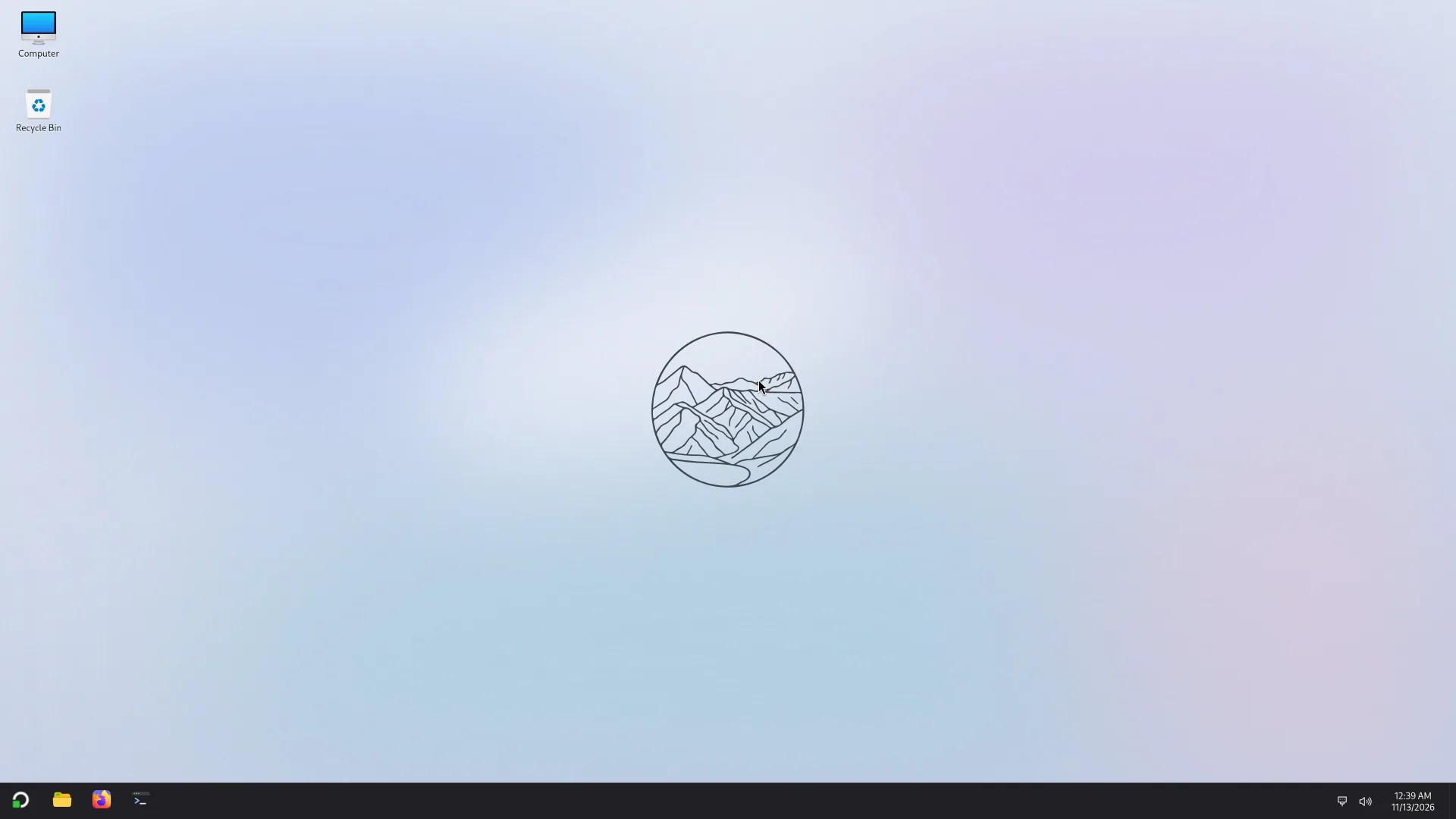
The desktop shows your wallpaper, the Computer and Recycle Bin icons, and the taskbar at the bottom of the screen.
Start
Press Super (the Windows key) or click the Start button at the left of the taskbar. Super+R opens it too.
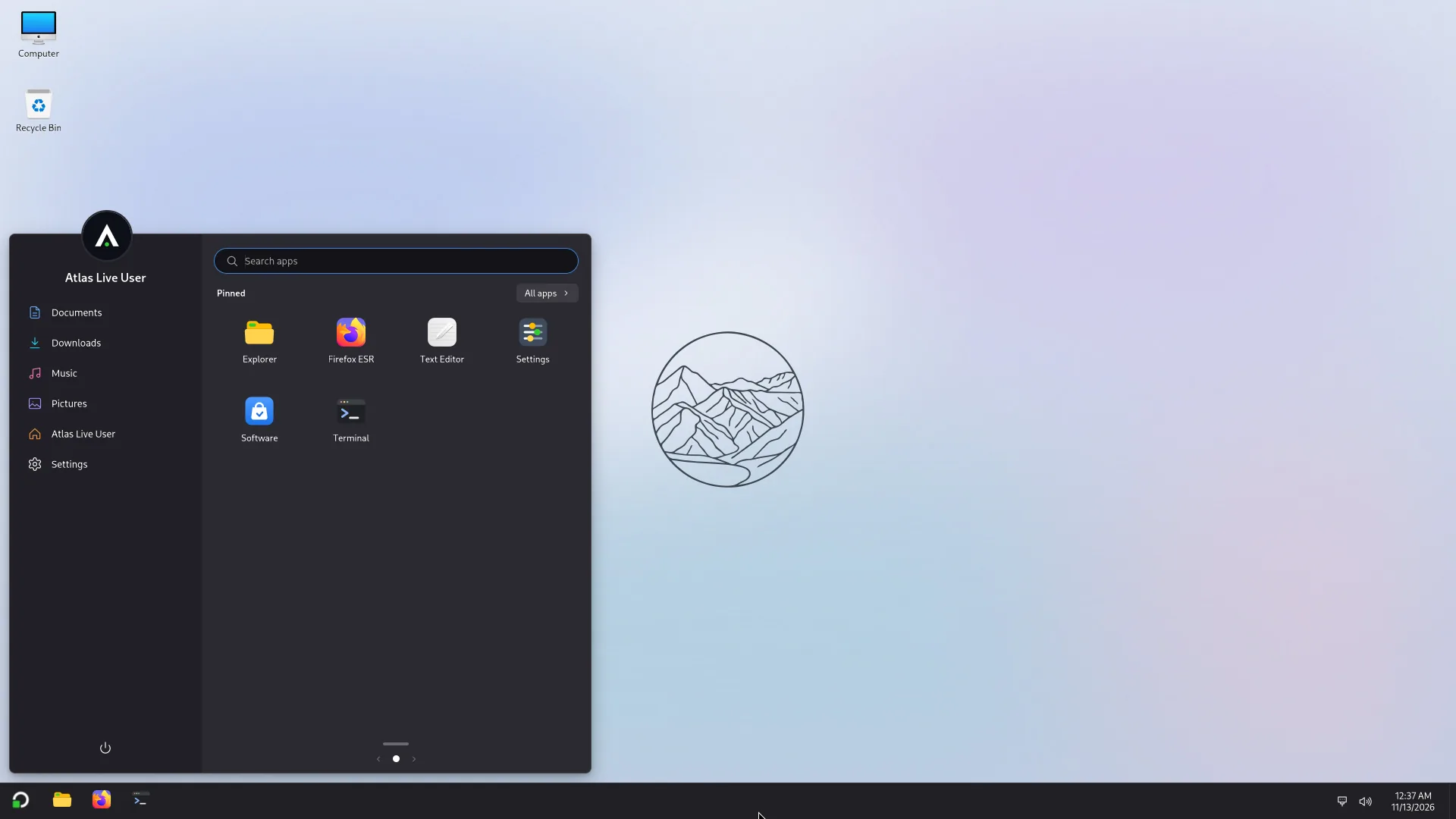
- Search: type as soon as Start is open, in the Search apps field.
- Pinned apps: the grid of icons. If there is more than one page, the dots and arrows at the bottom change page.
- All apps: the button at the top right of the grid. The list is arranged by letter.
- Right-clicking an app offers Pin to Start (or Unpin from Start), Pin to taskbar, Move to front, App info, and Open as (see Open as).
- The left panel shows the account's picture and name, shortcuts to your folders (Documents, Downloads, Music, Pictures, your personal folder) and Settings. Clicking the account's picture opens the account menu: Change account settings, Lock, Switch user, Sign out.
- Power (the button at the bottom of the panel): Lock, Sign out, Sleep, Shut down, Restart.
How Start looks (its layout, its size, the folders in the panel) is changed in Settings > Personalization > Start.
The taskbar
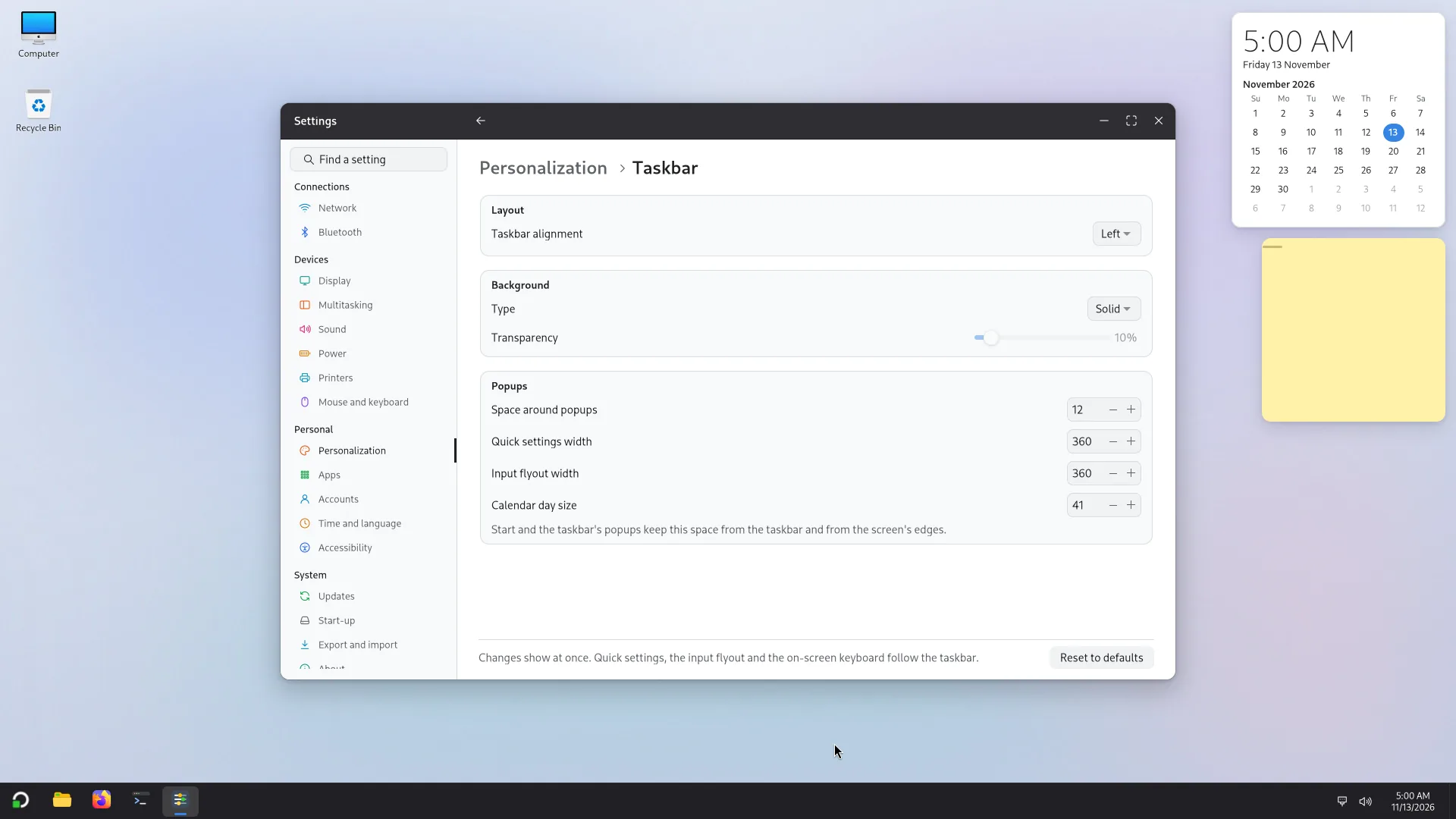
- On the left: the Start button, then the apps. A running app has a small dash (the active window) or a dot (the others); an app that is pinned but closed has no mark.
- One button per app. If the app has several windows, a click shows their list. A click on its only window, when it is active, minimizes it, as in Windows.
- Right-clicking a button opens the app's actions, New window, Pin to taskbar or Unpin from taskbar, then Close window (or Close all windows).
- Right-clicking the bar itself offers Task Manager and Taskbar settings.
- On the right: the keyboard layout button (when there are two or more layouts), the status button (network, sound, battery), which opens quick settings, the clock, which opens the calendar, and at the far right a thin strip, Show desktop.
To centre the Start button and the apps, or to change the bar's size: Settings > Personalization > Taskbar.
Quick settings
Click the status button (network, sound, battery), or press Super+A.
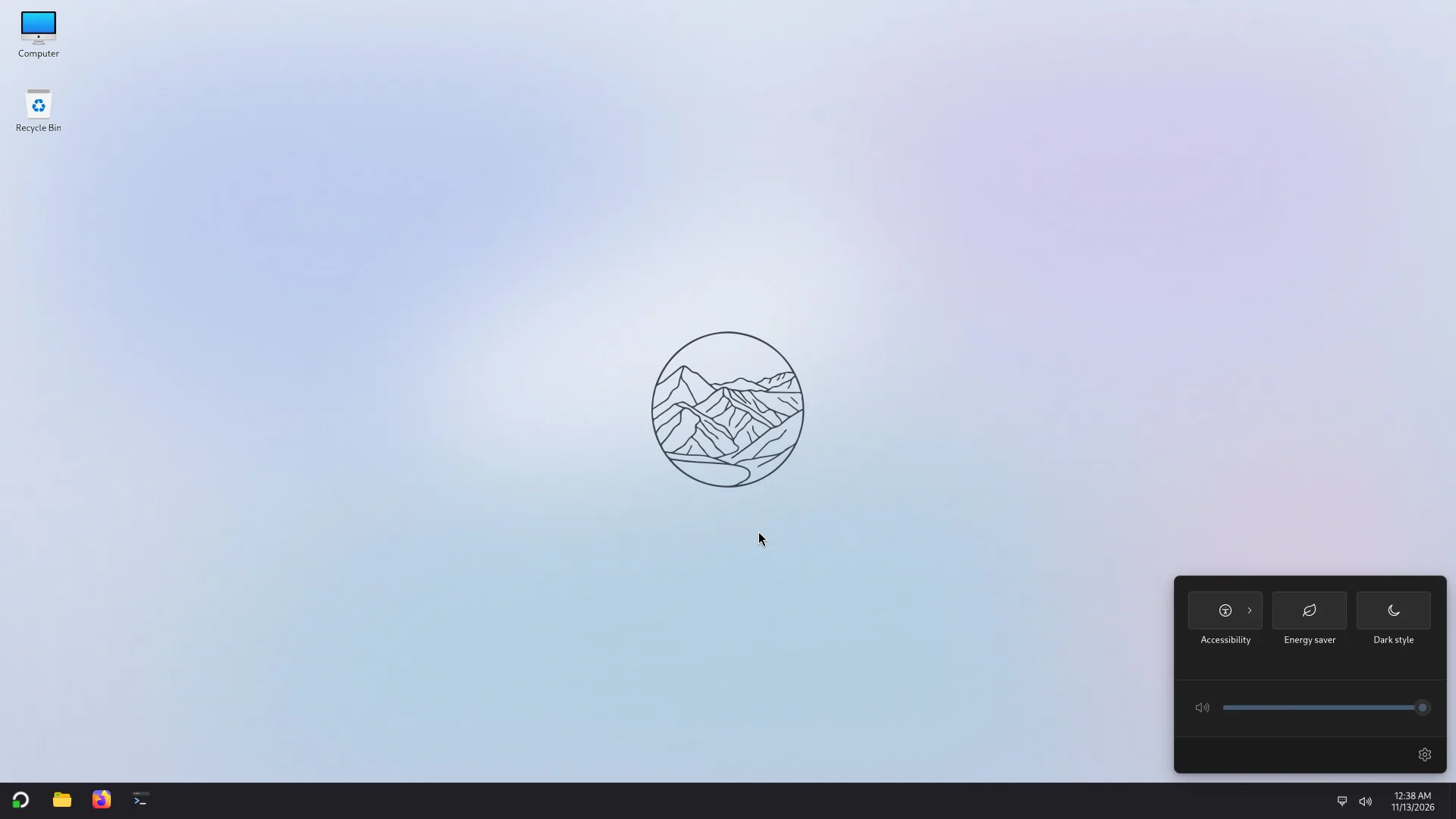
Tiles: Wi-Fi, Bluetooth, Airplane mode, Accessibility, Energy saver, Dark style, Keyboard and Project (see Network and devices). A tile the PC cannot have (no Wi-Fi, a single keyboard layout) is not shown. Tiles with an arrow open a list: the Wi-Fi networks, the Bluetooth devices. The Project tile opens the Super+P panel. On a PC with a wired network card only, the Wi-Fi tile is replaced by Wired network (or Not connected), which opens Settings > Network. Below them, the volume and brightness sliders (when the screen can be adjusted) and the Settings button. Settings > Personalization > Quick settings chooses the tiles and their order.
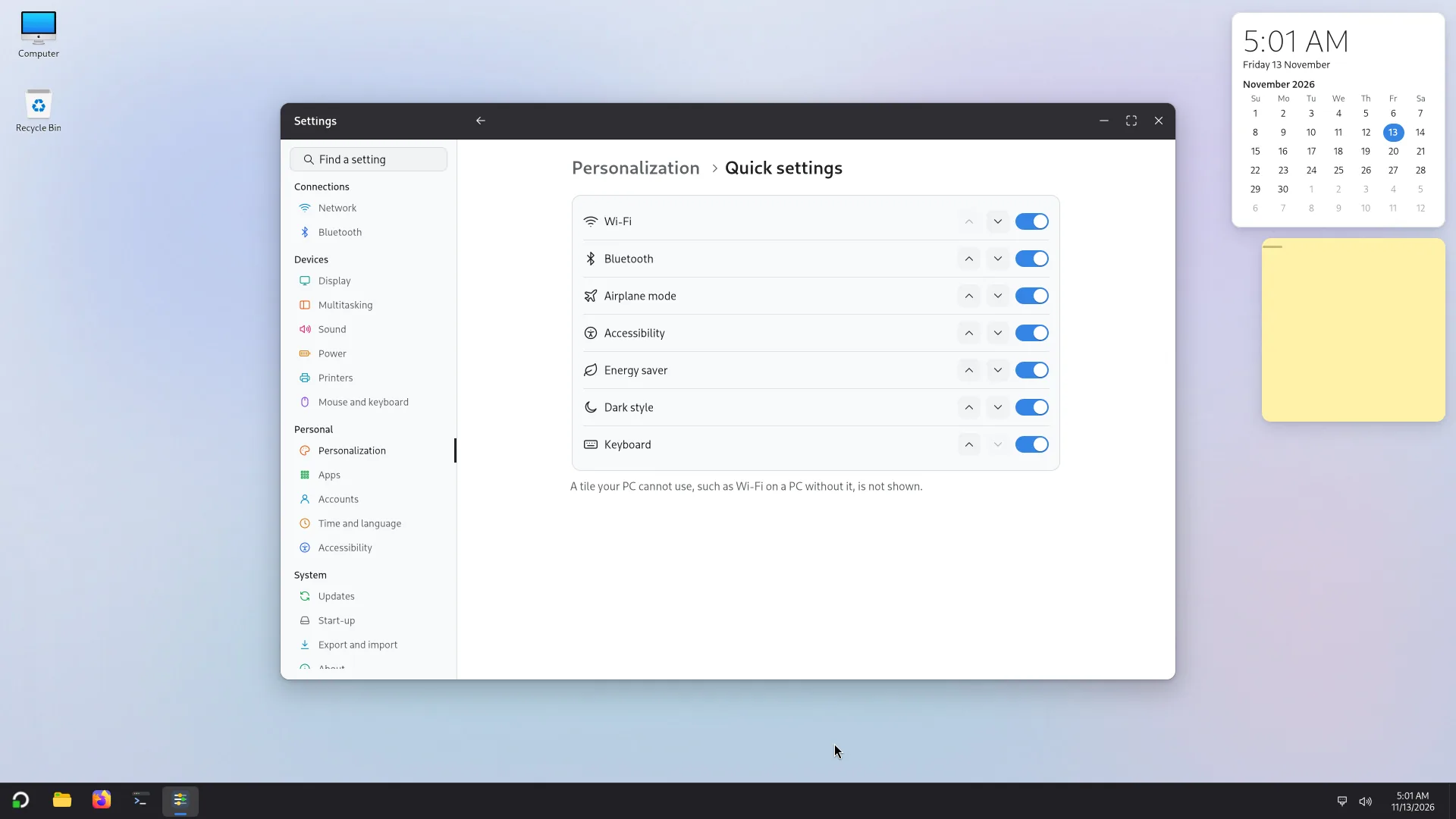
The calendar
A click on the clock opens the month's calendar, with Previous month, Next month and Today. File transfers between accounts (see Several accounts) appear above it.
Notifications
Apps show their notifications as pop-ups. In this version, the taskbar has no bell and no notification panel.
The desktop menu
A right click on the desktop opens a menu: View (icon size, Auto arrange icons, Align icons to grid, Show desktop icons), Sort by (Name, Size, Item type, Date modified), Refresh, New (a folder, a text document), Add applets, Open in Terminal and Display settings. The wallpaper and the special icons are set in Settings > Personalization > Background and Desktop.
The lock screen
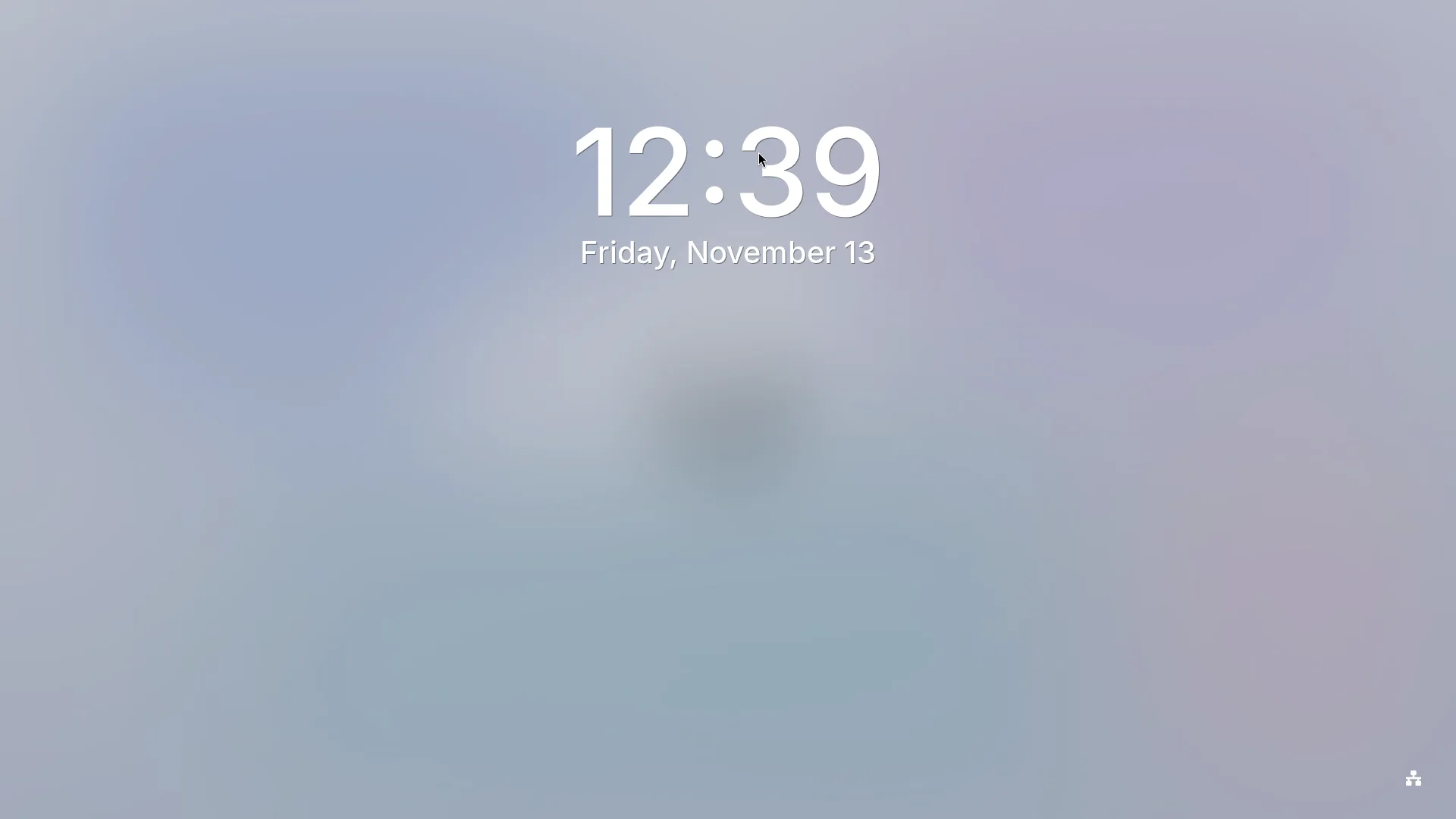
Super+L locks the session; Lock in Start's menu does the same. The screen first shows a picture, the time and the date, then the password field. Your apps keep running.
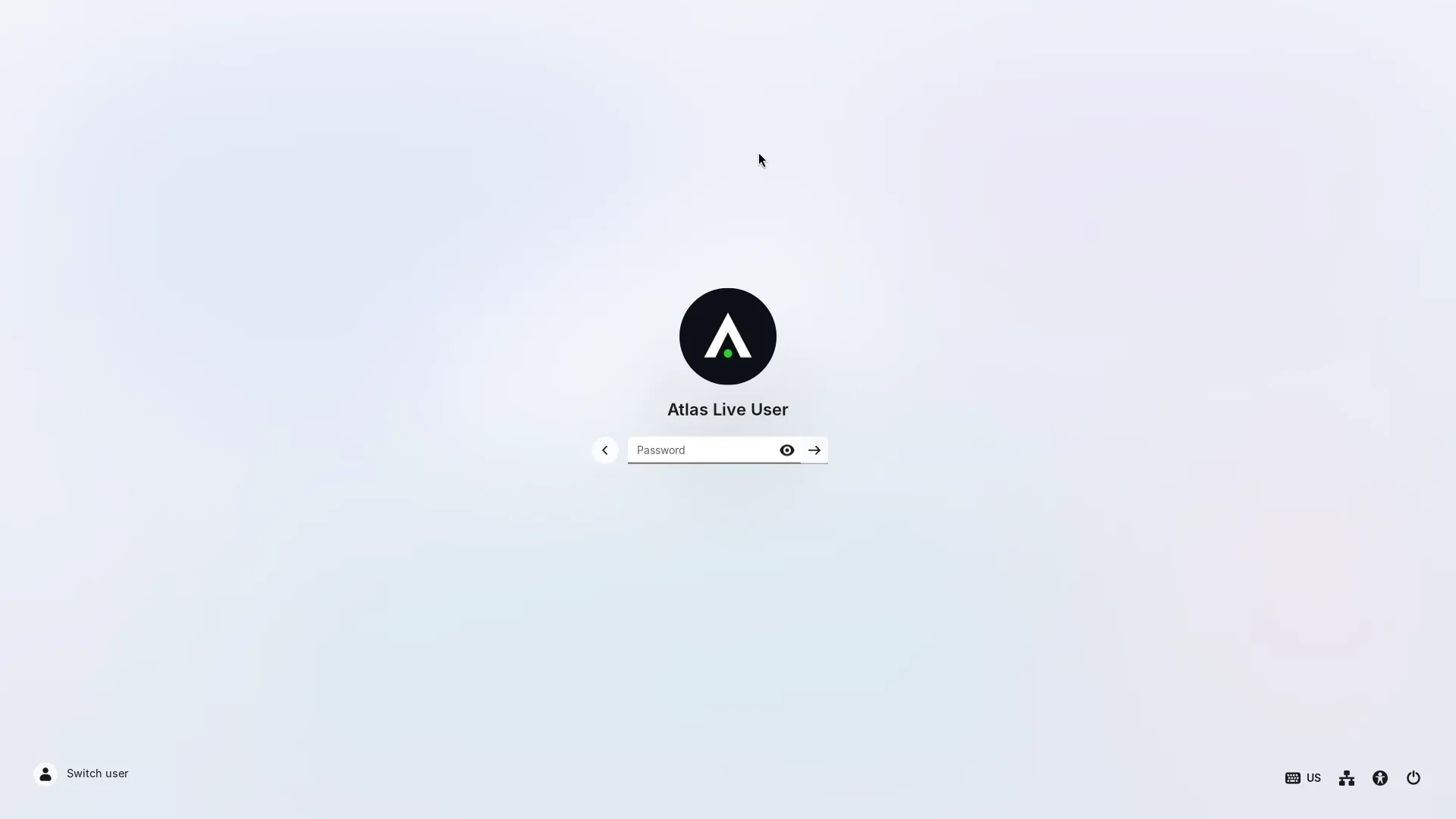
- After too many wrong passwords, the screen tells you to wait a moment (5 tries, then 2 minutes).
- If several accounts are open, Switch user opens the sign-in screen without closing your session.
- Settings > Accounts chooses when the screen locks by itself: never, when the PC wakes from sleep, or when the screen turns off. Settings > Personalization > Lock screen sets the picture, what is shown, and Skip the lock screen (go straight to the password).
Shutting down, restarting and signing out
Shut down, Restart and Sign out first ask every open app to close, as its close button would, apps opened with Open as included. Apps with nothing to save just close.
When nothing else is going on, Atlas goes straight on. A USB stick or disk that is plugged in doesn't hold it up: Atlas writes what is pending to the drive and puts it away first.
When something is still going on after a few seconds, a list shows it first, in three groups:
- Apps still open, usually because they are asking whether to save: Still open. It may be asking to save. The app's window comes to the front so you can answer it. Close asks the app again.
- Operations: a copy in Explorer, a copy between accounts, an install in Software, an update, a drive repair. Cancel stops the ones that can be stopped properly. For Sign out, only your own operations are listed.
- People signed in (Shut down and Restart only): another account still open on this PC.
Then:
- Wait: each item leaves the list when it is done, and Atlas goes on by itself once the list is empty.
- Cancel goes back to the desktop.
- Shut down anyway (or Restart anyway, Sign out anyway) first cancels the operations properly, then closes the apps that are left, then goes on. An operation that can't be stopped says Couldn't be stopped, and going on anyway May leave a partial copy. If other people are signed in, signing them out loses what they haven't saved, and it Needs an administrator's password.
- There is no "anyway" for an install or an update, a firmware update or a drive repair: Wait until it finishes: stopping it now could damage the system or the drive.