Appearance
Light or dark, colour schemes, the taskbar and Start, the background, the lock and sign-in screens, and the boot screens.
Open Settings > Personalization. Its pages are: Background, Styling, Icons, Desktop, Taskbar, Start, Quick settings, Lock screen, Sign-in screen, Boot and shutdown and Password prompts. Changes apply at once; apps that are already open may need to be closed and opened again.
Light or dark, and the theme
Styling is the page for the overall look.
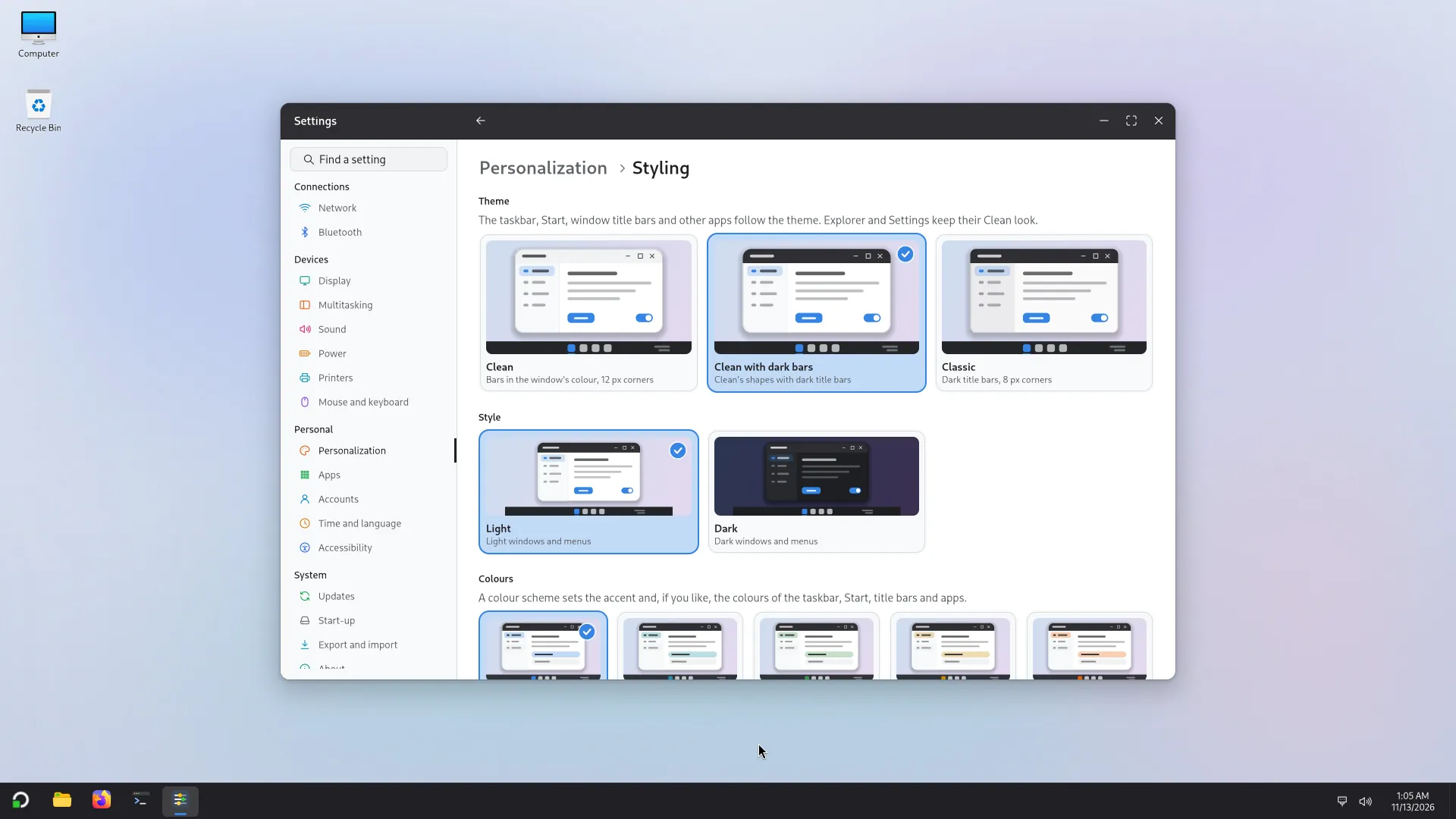
- Theme: Clean (bars in the window's colour, 12 px corners), Clean with dark bars (Clean's shapes with dark title bars) or Classic (dark title bars, 8 px corners). The taskbar, Start, title bars and other apps follow the theme; Explorer and Settings keep their Clean look.
- Style: Light or Dark. Click the one you want.
- Details: the taskbar's own look (Automatic, Dark or Light), Glass effects (off makes the taskbar, Start, the flyouts and the keyboard solid: turn them off on a slow computer), Glass blur (Low, Medium, High), Window shadows, Title bar size (Compact, Medium, Default or Large: the height of every title bar, with its buttons, tabs and fields; apps already open may need to be opened again; GTK 3 apps stop at about 39 px, and apps that draw their own title bar, such as Chrome and Firefox, keep theirs), the interface Font and its size, and a button to the Icons page. Back to the defaults resets the page.
The accent colour and colour schemes
A colour scheme sets the accent colour and, if you like, the colours of the taskbar, Start, title bars and apps. On Styling, under Colours:
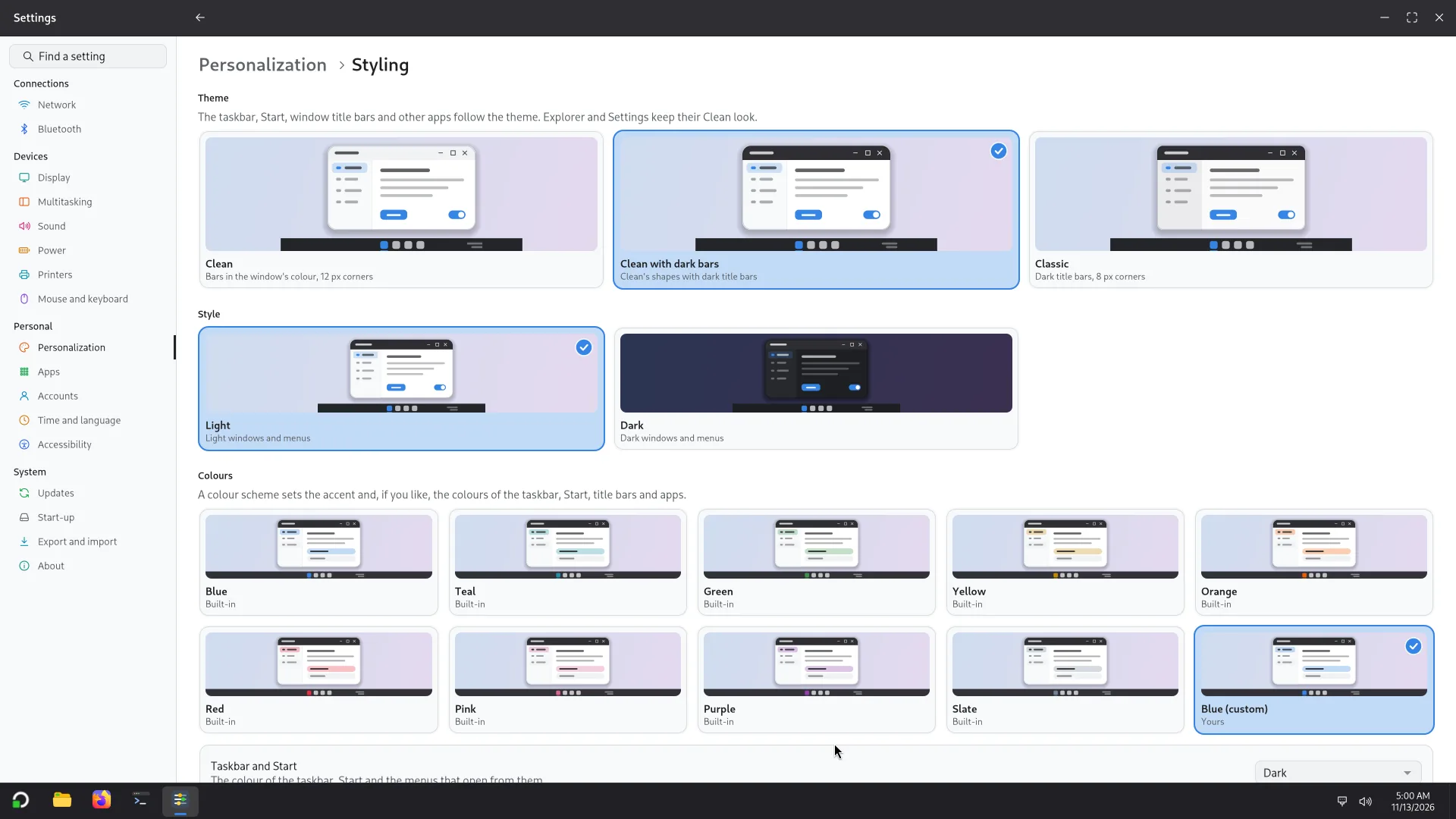
- Nine schemes are built in: Blue, Teal, Green, Yellow, Orange, Red, Pink, Purple and Slate. Click one to use it.
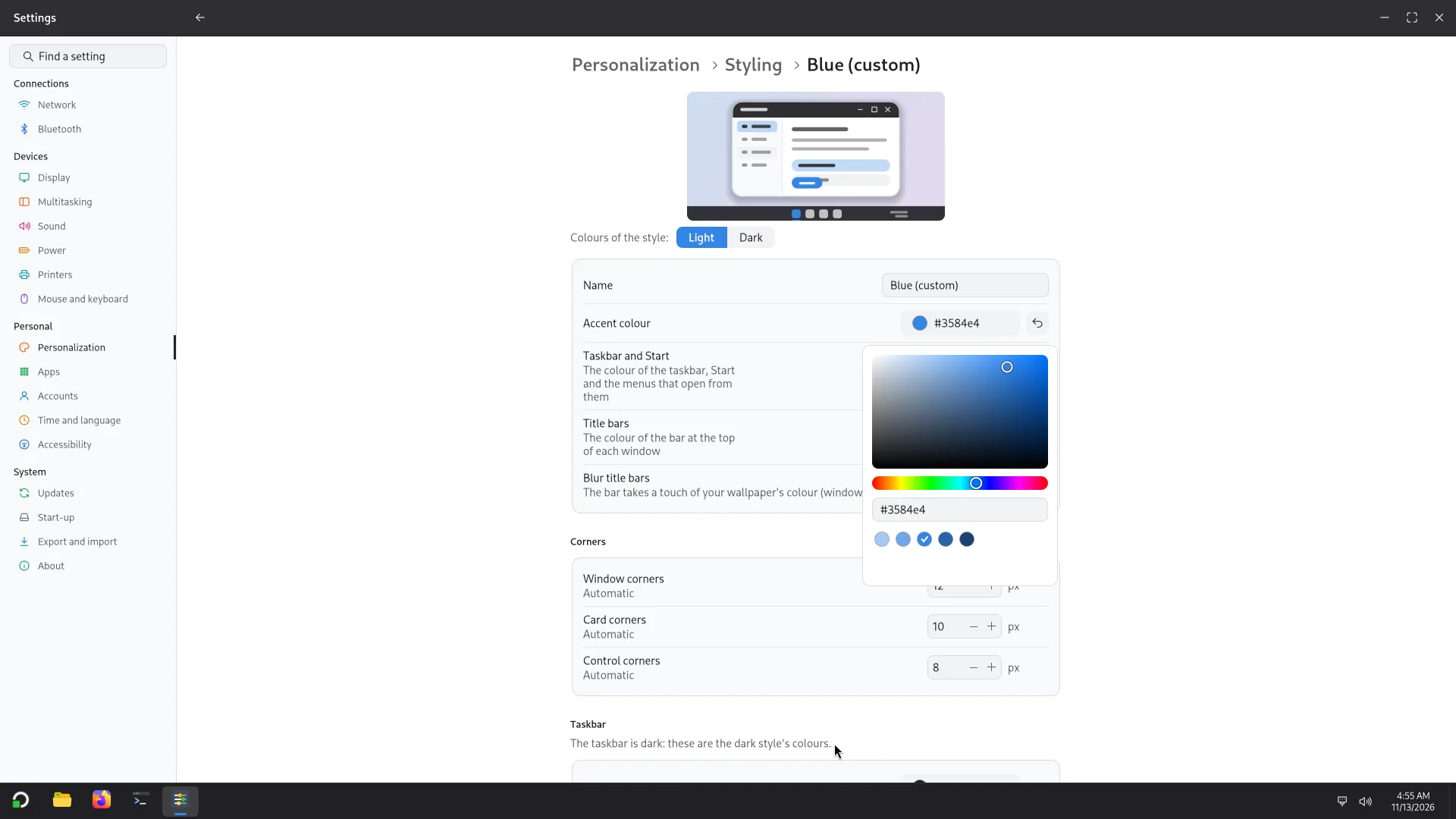
- Customize makes your own from the scheme in use. You can set the accent, the title bars (dark, the window's colour, the accent, or a colour you pick), text, window borders, selection, hover, the corners of windows, cards and controls, the sidebar and the menus, each for light and for dark. The taskbar and Start have a colour, a blur and a transparency of their own.
- Your schemes are listed under Yours. Export saves a scheme as a
.jsonfile; Import a scheme adds one from such a file, on this PC or another. Delete removes a scheme (this cannot be undone, but an exported copy still works); the built-in scheme with the nearest accent is used instead.
The background
Background: choose Picture or Solid colour.
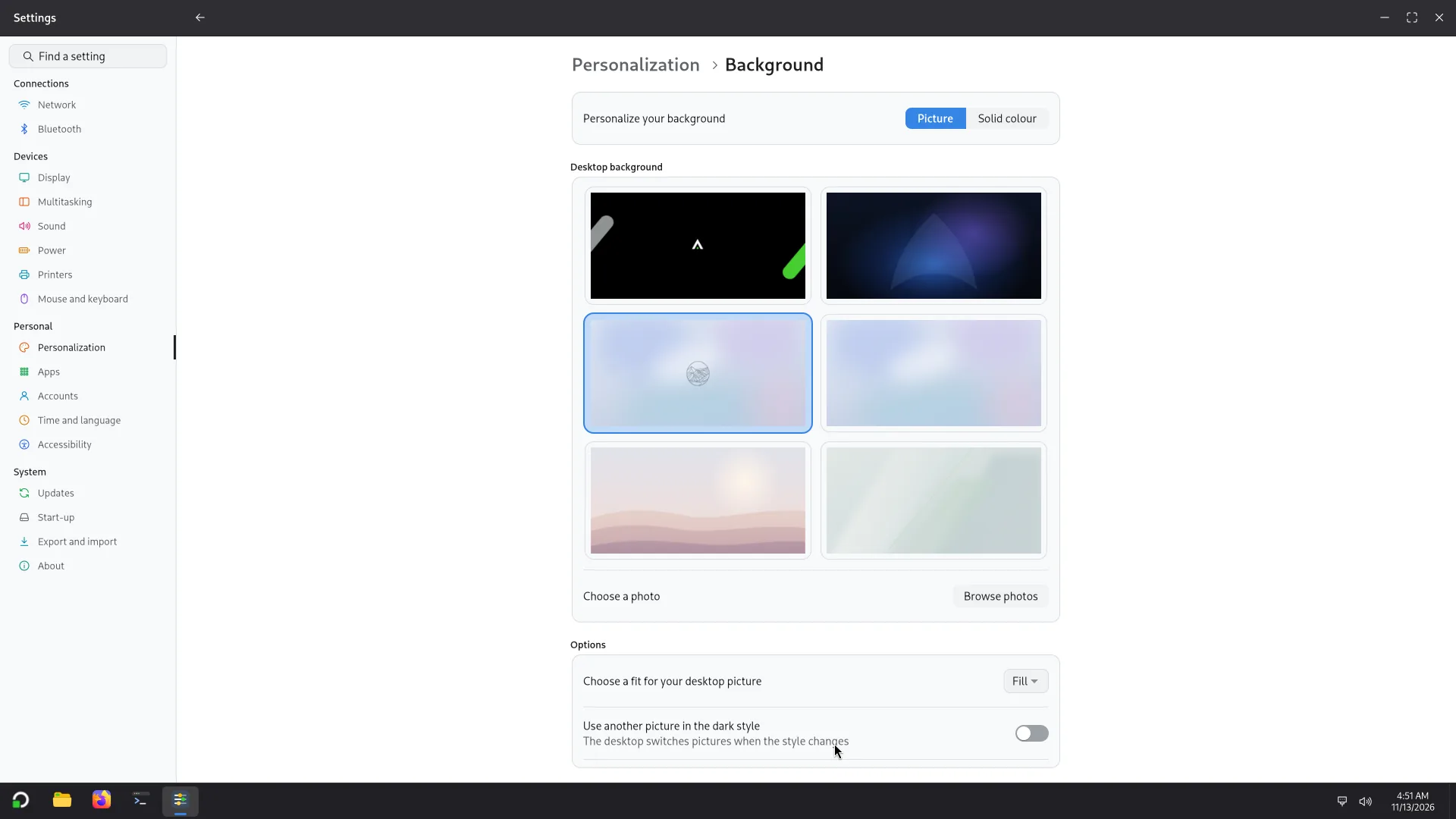
- Picture: Browse photos or Choose a photo, then how it fills the screen: Fill, Fit, Stretch or Centre.
- Use another picture in the dark style: the desktop switches pictures by itself when the style changes. Light style and Dark style choose which of the two pictures you are setting.
- Solid colour: pick a colour, or a Custom colour.
The taskbar
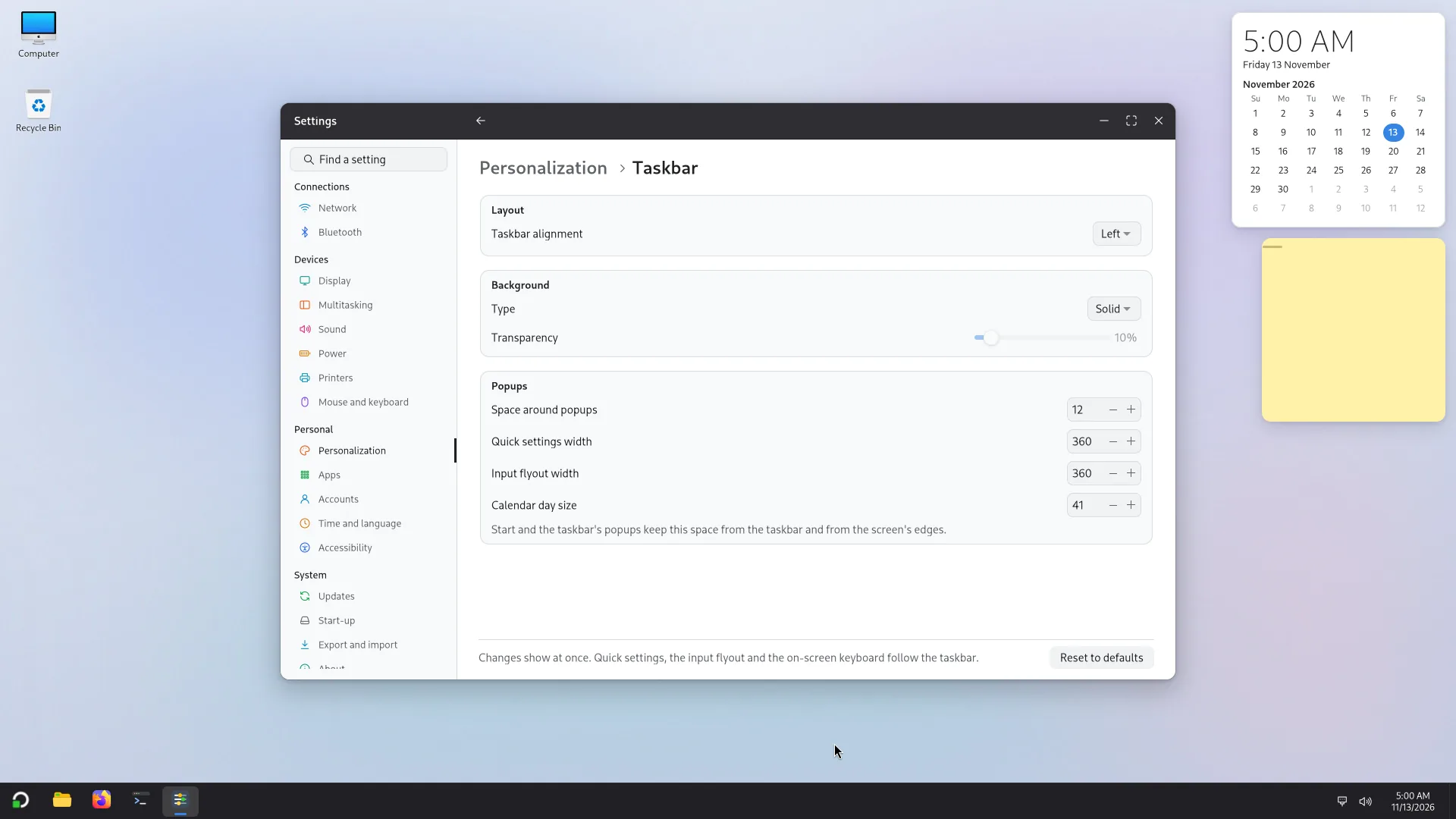
Taskbar: under Size, Taskbar height (36 to 72 px), Icon size (16 to 40 px; a line says the largest icon the height holds, and icons are drawn at that size if you ask for more), Open app markers (Line, Dot or Wide line) and Space between apps (0 to 12 px). Then its alignment (to the start of the bar, or Centre), and under Popups the space around the popups (Start and the taskbar's flyouts keep this space from the bar and from the screen's edges), the width of Quick settings and of the input flyout, and the size of a day in the calendar. Reset to defaults puts them back. Quick settings, the input flyout and the on-screen keyboard follow the taskbar.
Start
Start has two layouts:
- Classic: search, pinned apps, all apps and a footer.
- Side panel: pinned apps in pages, with you and your places at the side. It can be on the left or on the right.
The size is set for each layout, in percent of the screen or in pixels. You can also change the places on the side panel, the buttons in the footer, how all apps show (Grid, List or By category) and the opening animation (Fade, Slide and fade, the default, which moves like Quick settings and the other taskbar menus, or Slide up from the taskbar). All values lists every size of the layout in use, in pixels, with a reset for each one; Reset this layout puts the whole layout back. Changes show at once, even in a Start that is open. Places and buttons whose program is not installed are left out.
The rest of the desktop
- Desktop: the size and arrangement of the icons, which special icons show, and the applets you switch on.
- Quick settings: choose the tiles of the panel and move them up or down.
- Lock screen: yours. The picture, the time and date, the network and battery, or skipping it to go straight to the password.
- Sign-in screen: the administrator's, for everyone: its picture, a dark look, a clock, where the list of accounts is. Changing it asks for an administrator's password.
- Password prompts: how the windows that ask for a password look (light, dark or like the taskbar, in three sizes), and the marks on another account's windows.
- Settings > Accessibility: the focus rings, the outline that shows where the keyboard is.
The boot screens
Boot and shutdown is for the screens shown at start-up, restart, shut-down and update: the loader (Dots, Progress bar, Pulsing logo, Ring around the logo, Ring of dots, Spinning arc), the layout, the colours, the logo (Atlas mark, Letter A or none), a background picture or the desktop picture, and a message for each screen, with a second line and the percentage if you want it. A preview shows the result before you press Apply.
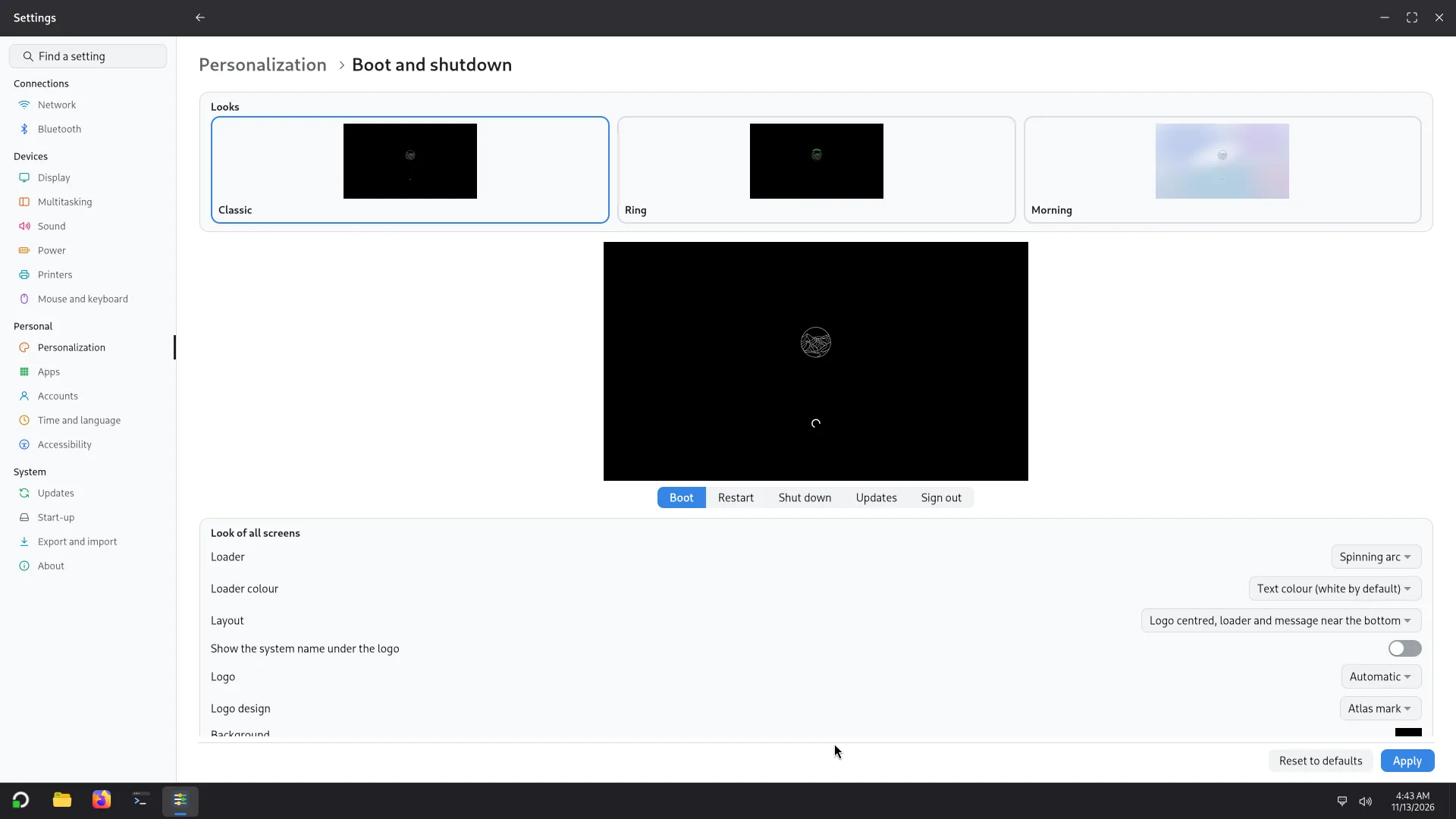
Changing the boot screens needs an administrator's password, and the computer takes about a minute to prepare them. They show from the next start.