Sub-accounts
Turning sub-accounts on, making one, opening apps in it, and what is sealed off and what is not.
A sub-account is a real account that belongs to you: work, personal, a test, one per AI agent. It has its own files, its own keyring of saved passwords and its own app data. It never appears on the sign-in screen and nobody can sign in as it: it only exists inside your session, and only you can open it.
Turning them on
In this version, sub-accounts are off by default. An administrator turns them on, and sets how many each person may have.
While they are off, the page says: "Sub-accounts are turned off on this computer." If Atlas runs with one account at a time (the Several accounts at once setting is off), sub-accounts are not available either.
Making one
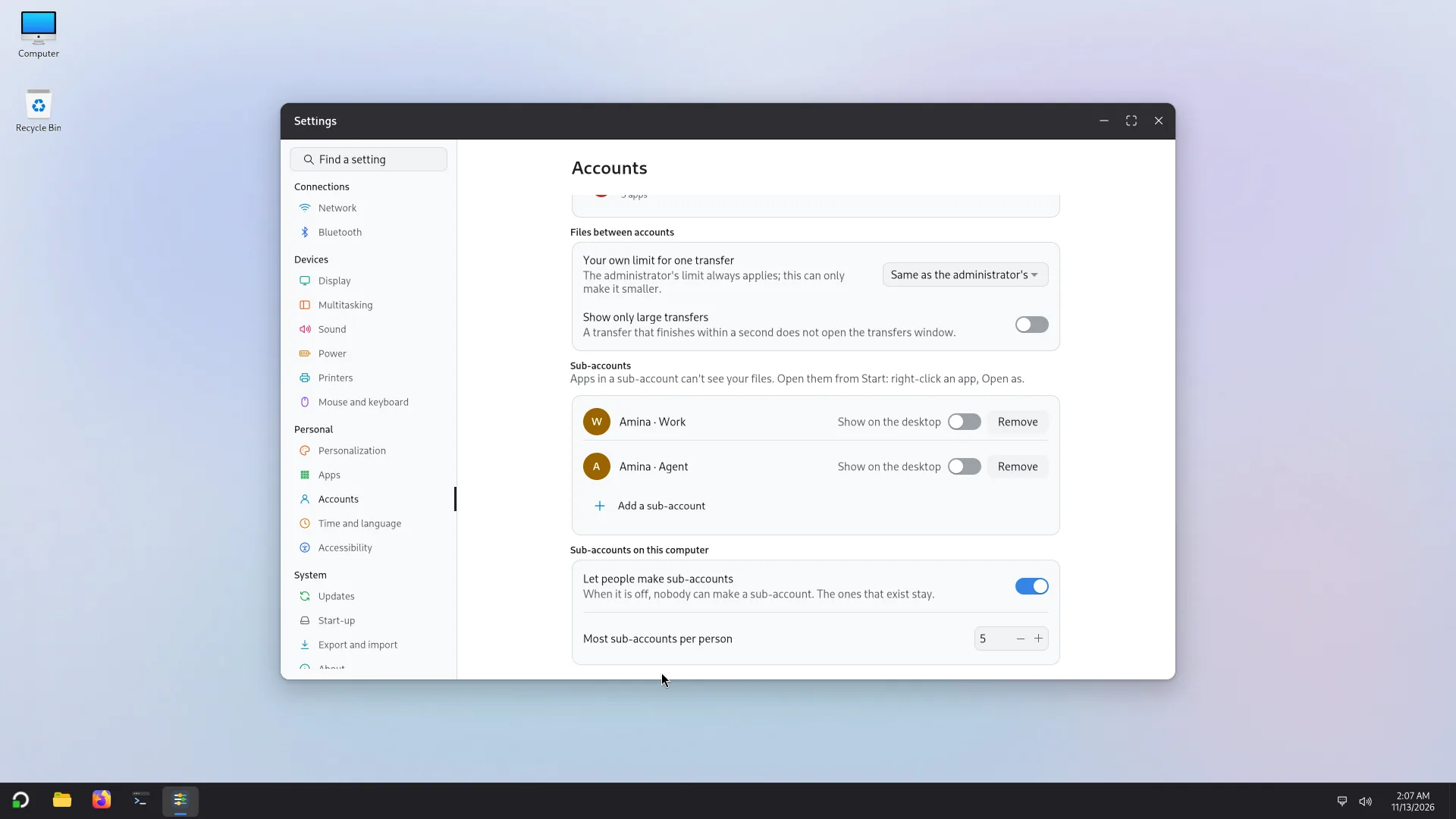
The sub-account is a real system account: its login name is yours, a hyphen and its name in lowercase ASCII (for example amina-work), or a number (amina-2) if the name has no Latin letters. You never use it to sign in: that name only matters for files and processes. A sub-account cannot make others: there is one level only.
Opening apps in it
- From Start: each sub-account has its own tab in Start, with its apps (the PC's, and those installed only for it). An app in that tab opens as that account.
- Right-click any app, then Open as and the sub-account: see Open as.
- On the desktop: in Settings > Accounts, each sub-account's Show on the desktop switch puts an applet on the desktop with its apps.
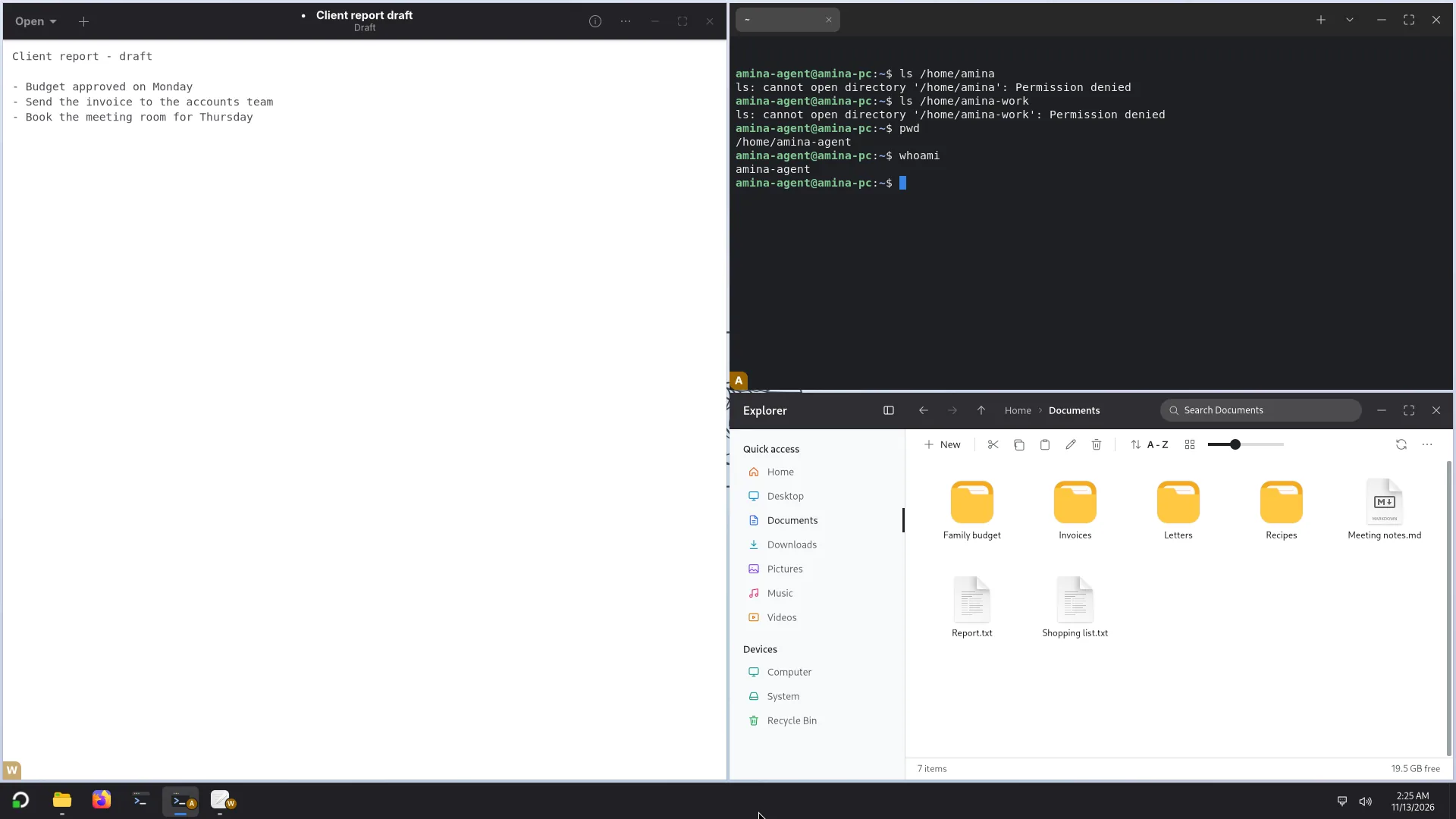
- Its files: open Explorer as that sub-account. Its window carries its mark, and it has that account's permissions, no more. There is no shared folder, and you have no direct access to its files.
Opening a sub-account for the first time asks for no password. The app's window carries the account's mark.
Software in a sub-account
Software opens in a sub-account in two ways: from the sub-account's tab in Start, where it is listed with the other apps, or with Open as and your sub-account (see Open as). It is offered only for your own sub-accounts: never with Open as administrator, never for another person's account.
There, Software installs Flathub apps into that sub-account only, with no password: It is installed in this account only. No password is needed. Removing one removes it from that account, and its own files stay. The apps of the PC show For the whole computer.
Files: in a sub-account, Software also opens files (see Install a file). Flatpak files and AppImages install into the sub-account. A .deb is only explained there: an administrator installs it for the whole PC from their own account.
Apps that need X11
Nothing to set. Every app opened in a sub-account is told to use Wayland first. An app that only knows X11, the older display system (FurMark, for example), uses the sub-account's own X server, never yours: an app in a sub-account cannot see your windows. That server starts by itself the first time such an app opens, and stops when the sub-account is closed. A sub-account that never opens an X11 app never runs one. An app that cannot use Wayland falls back to X11 by itself.
When an app does not start
- If an app closes as soon as it opens, Atlas says so: Text Editor closed as soon as it opened. (with the app's own name). The notice has a Details button, which shows the app's last error lines, and a Copy button.
- If an app stops later, on its own, the notice says Text Editor stopped unexpectedly. with the same Details.
- A normal exit, an error code, closing the app yourself or ending it in Task Manager gives no message. There is at most one notice a minute for each app.
- An app started from a Terminal opened as the sub-account behaves the same way: it is on your screen, with the account's mark, its files and its X server, it shows in Task Manager and it is closed with the sub-account. Its errors are printed in the Terminal, not shown as a message.
The limits of apps in a sub-account
- Software installs Flathub apps only there. Debian's apps are installed from an administrator's own account (see Software and updates).
- An app installed in a sub-account downloads the runtime it needs into that sub-account if the PC does not already have it. Nothing is shared between accounts.
- An app that names none of its windows (FurMark) shows no icon in its title bar. The taskbar still shows its icon.
- Apps opened with Open as administrator never get X11: they use Wayland only.
- If a sub-account's X server ever failed, an X11 app started from a Terminal in that sub-account will not open until you open any app from Start, or with Open as, in that sub-account. That repairs it.
Removing them
In Settings > Accounts, remove the sub-account: its files are deleted with it. Removing the account of the person who owns them removes their sub-accounts too, after asking. An administrator can remove anyone's sub-accounts, typing their password for another person's.
What is sealed off
- An account cannot read another account's files: each home folder is private.
- A sub-account cannot read its parent's files, nor another sub-account's.
- An app opened as another account cannot capture your screen, read your clipboard or type into your other windows (tested in a virtual machine).
- Each account has its own keyring: passwords saved in one are not available in another.
- A sub-account has no way in of its own: no sign-in screen, no terminal login, no SSH (unless its owner turns that on for it, and only with the keys they choose).
The limits: what is not sealed off
Read this before you rely on a sub-account.
- A parent can open its sub-accounts, so whatever runs as you can also open them. A sub-account protects you from the app inside it, not the other way round.
- Accounts share the PC's network and its ports: a server one account starts on
localhostcan be reached by the others. A network for each account is planned, not built. - Services that run once for the whole PC (printing, Docker if you install it) are shared. Docker's engine, if you give an account access to it, is as powerful as an administrator.
- Memory and the processor are shared. Atlas limits what one account can take so that it can't starve the others (past a share of the PC's memory it is slowed down, and its biggest app is ended before the PC stalls), but a small PC is still a small PC.
- Wrong passwords are limited: 5 in 15 minutes lock that account's checks for 2 minutes.
A sub-account therefore suits what you trust less (a game, a downloaded app, a second browser) or keeping work apart from the rest. It does not replace a separate account, with its own password, for another person.