Explorer
Files and folders, views, the Computer page, USB sticks and Windows drives, archives and the Recycle Bin.
Explorer is Atlas's file manager. Open it with Super+E (it opens on your personal folder), from Start or the taskbar, or by double-clicking the Computer icon on the desktop.
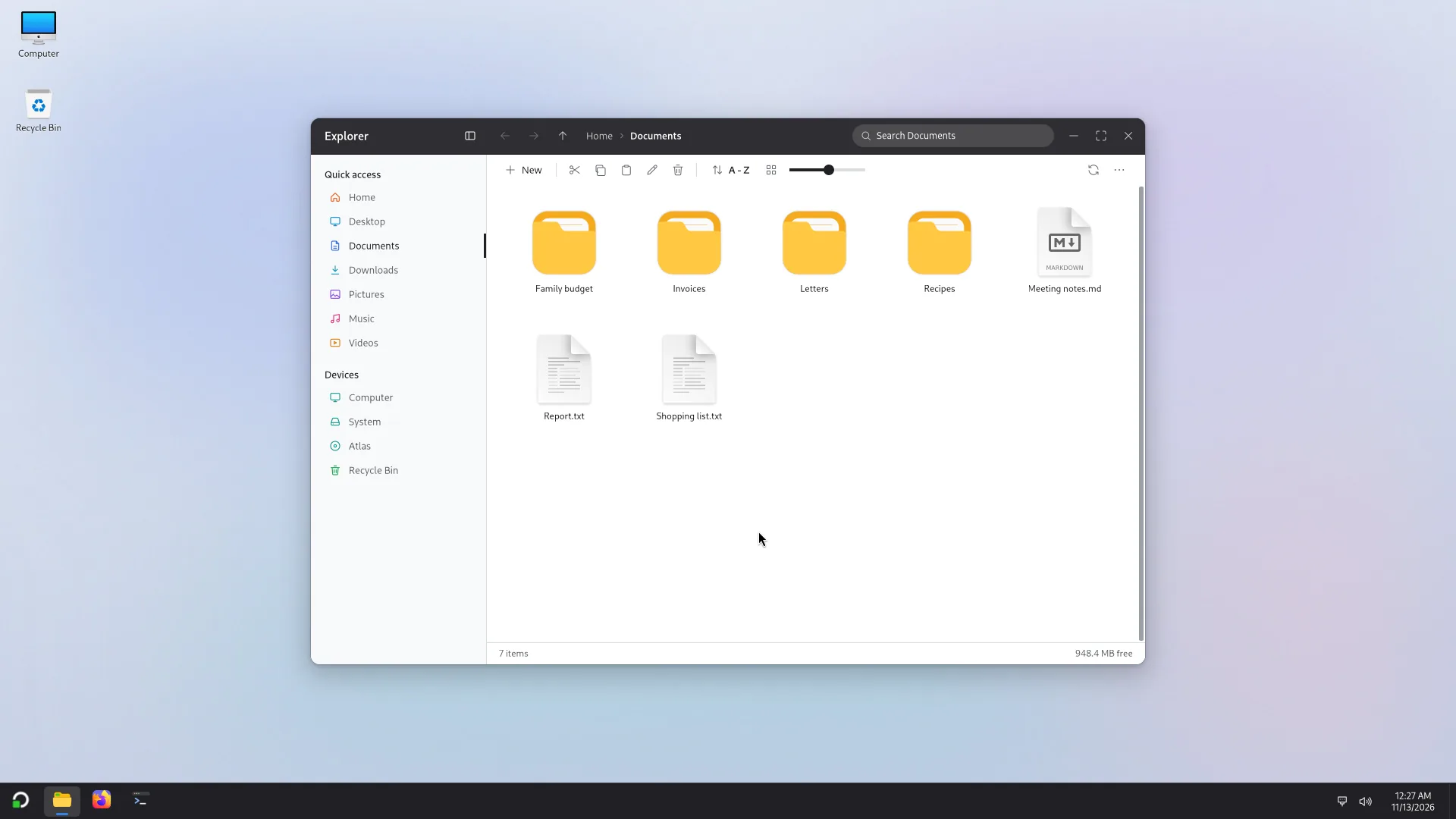
The window
- On the left, the navigation pane: Quick access (Home, Desktop, Documents, Downloads, Pictures, Music, Videos, and the folders you pin there) and Devices (Computer, the disks, the Recycle Bin). Ctrl+B shows or hides it.
- At the top: Back (Alt+←), Forward, Up (Alt+↑), the path (Ctrl+L or F4 to type it) and the search field (Ctrl+F), which searches the folder by name.
- The toolbar: New (folder, text document), cut, copy, paste, rename, delete, Sort by, the view and the icon size, Refresh, then More.
- At the bottom: the number of items, the selection, and the free space.
- Tabs: Ctrl+T opens a tab, Ctrl+W closes it, Ctrl+Tab goes to the next one. Ctrl+N opens a new window.
Views
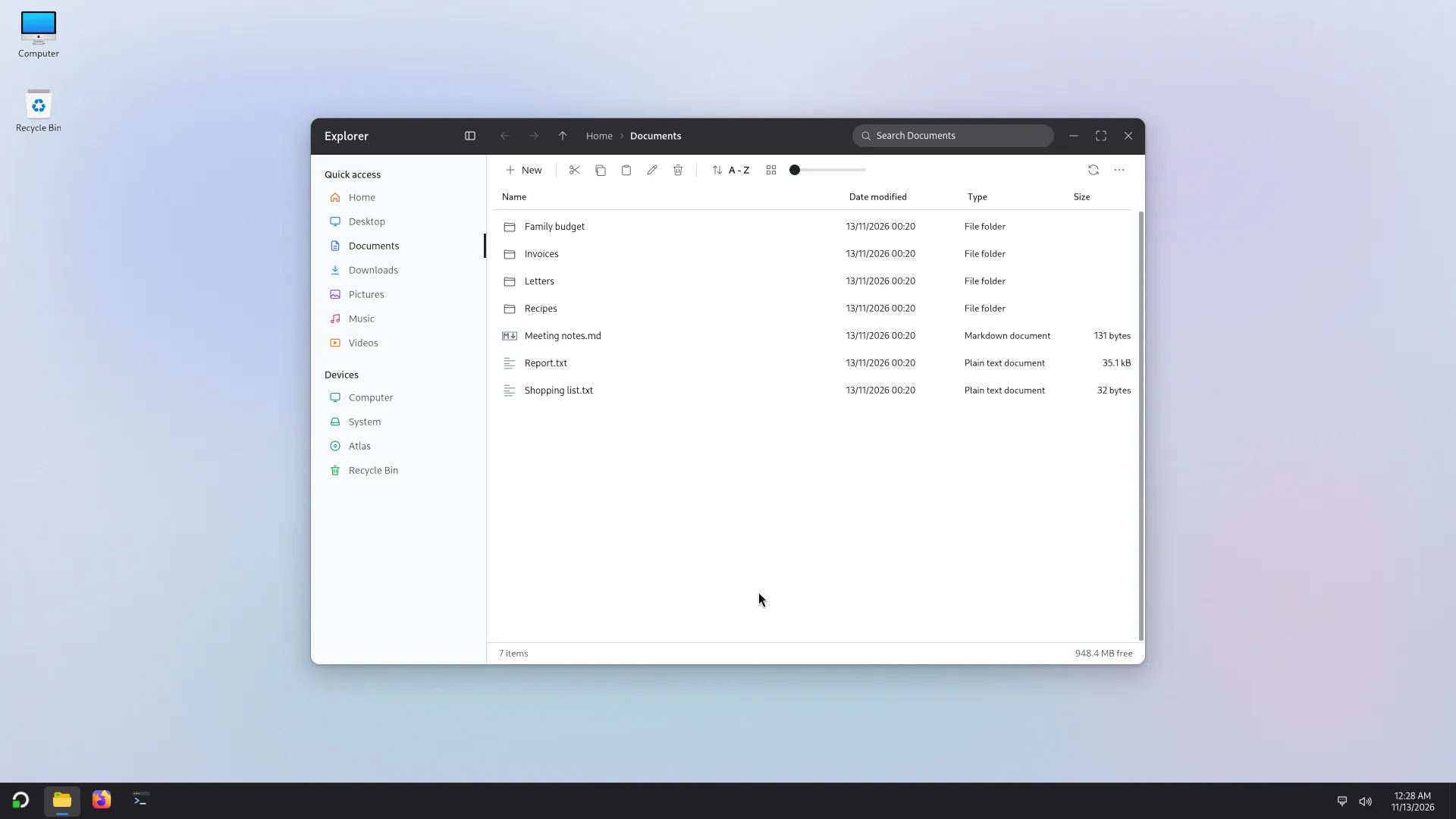
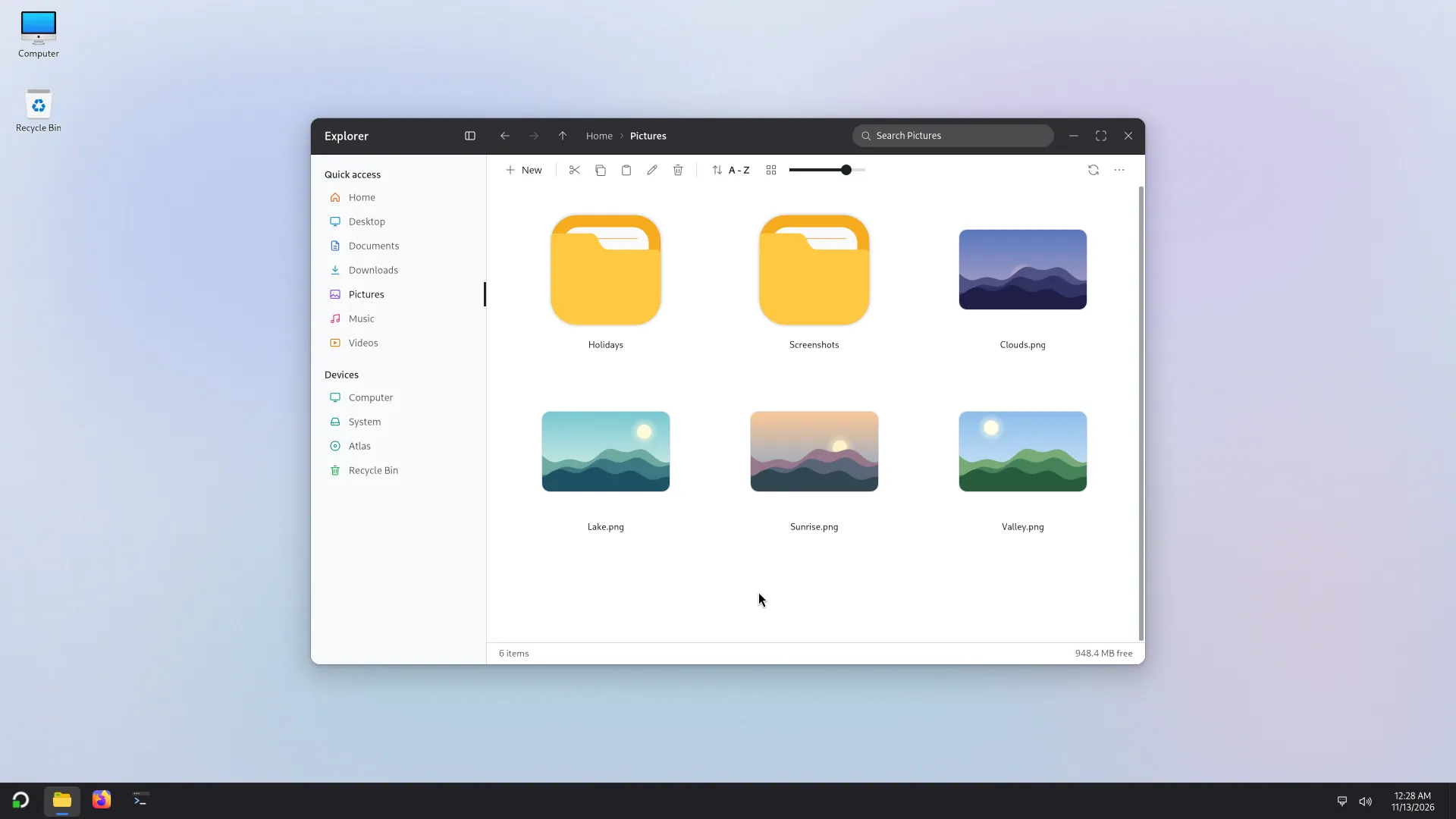
The toolbar's slider sets the icon size (Ctrl++ and Ctrl+- too, Ctrl+0 to go back to the original size). From Small icons to Extra large icons, and Details (name, date, type, size). Sort by chooses Name, Date, Type or Size, ascending or descending. Ctrl+H shows or hides hidden items (those whose name starts with a dot).
More > Settings sets the look: the pane's style (clean panel, icon rail, flat list), its position, the title bar, tabs, the default view, check boxes, opening with one click, asking before deleting, and previews (pictures, videos, PDF).
Files and folders
- Opening: double-click (or one click if you chose opening with one click). Open with and Choose another app are in the right-click menu; the box Always use this app for this type of file changes the default app.
- Open as: right-click a file, then Open as to open it as one of your sub-accounts, another account or Administrator. See Open as.
- Copy, cut, paste: Ctrl+C, Ctrl+X, Ctrl+V, or by drag and drop: when you drop, the menu offers Move to, Copy to or Create link in. F2 renames.
- A name already exists: the Replace or Skip Files window offers to replace, skip, keep both, or Let me decide to choose file by file.
- Long copies show in a progress window with the speed, the time remaining, Pause and More details.
- Properties (right-click) shows the size, the dates, the location, and the permissions (owner, group, others; only the owner can change them). A file's checksums can be calculated from that window.
Archives
A zip, 7z, tar, rar or iso file opens like a folder. Extract here or Extract all... (which asks for the destination folder) take the files out; Compress to makes a zip or a 7z. A password-protected archive asks for the password. An archive is not changed in place: Archives cannot be changed here. Extract the files first. RAR files can be read but not created; an encrypted RAR asks you to Install RAR support.
The Computer page
Click Computer in the pane, or the icon on the desktop.
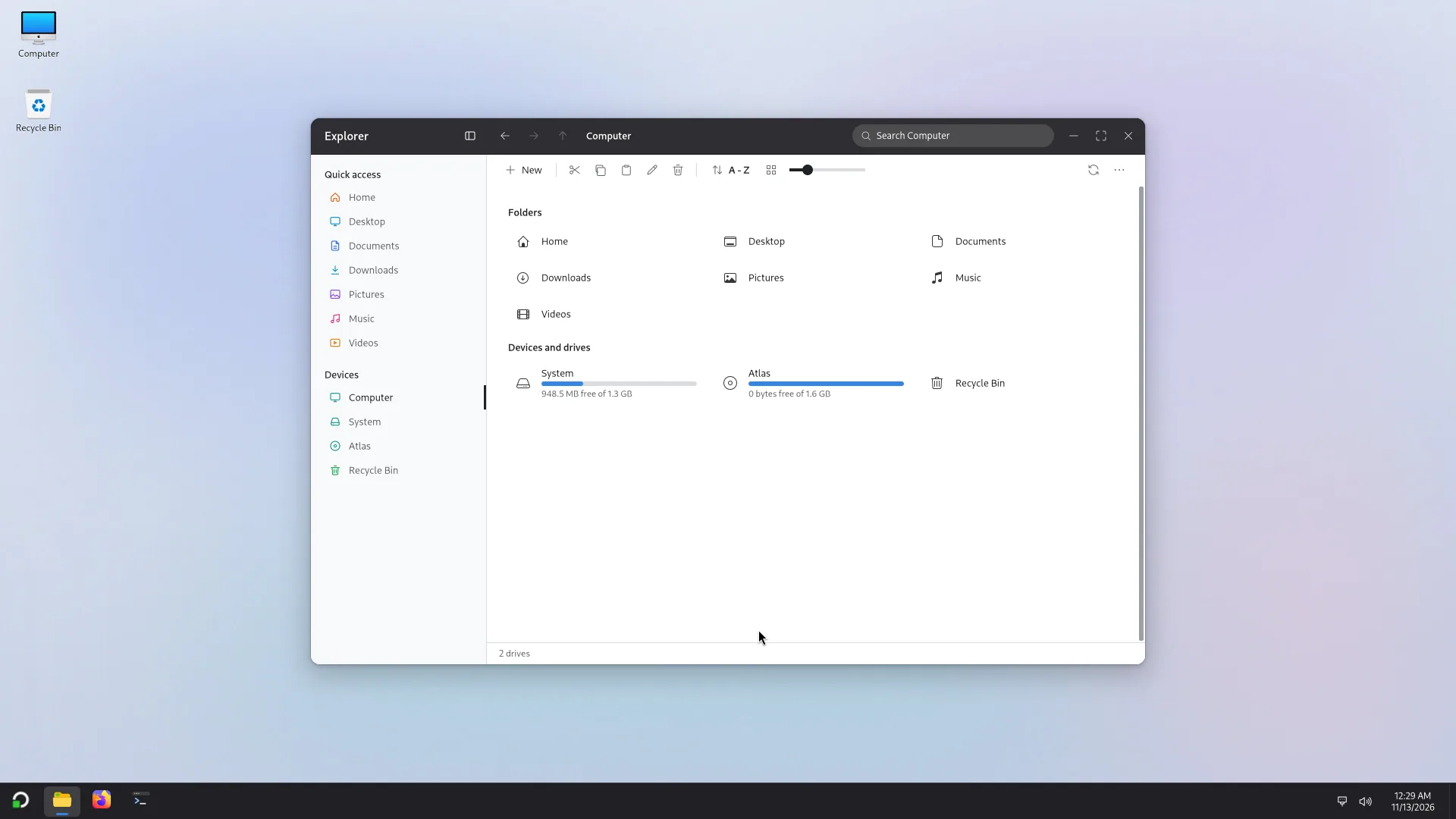
It shows your folders, then the devices and drives: each disk with a used-space bar and the free space, and the Recycle Bin. A disk's Properties give its capacity, the free space, its file system and where it is mounted.
USB sticks and Windows drives
A USB stick or disk you plug in opens by itself: a notice says Drive connected., and the drive appears in Explorer's Devices and on the Computer page.
- Removing a stick: in the navigation pane, the drive's button or menu offers Safely remove, Eject or Unmount. Wait for the message "can be removed safely" before unplugging it.
- Shutting down or restarting with a drive plugged in is fine: Atlas writes what is pending to the drive and puts it away first. A copy still running is listed before the PC shuts down (see The desktop).
- A Windows disk or partition (NTFS) opens the same way. If Windows was shut down without really switching off (fast start-up, hibernation), the drive opens read-only: Windows is hibernated or uses Fast Startup. Shut Windows down fully to write to it. You can read and copy the files. Start Windows, choose Restart (not Shut down) or turn off fast start-up, then come back.
- An encrypted drive (BitLocker, for example): opening it in Explorer asks you to unlock it. The Unlock window says This drive is encrypted. Type its password to open it., with a Password or recovery key field and an Unlock button. A drive's menu then offers Lock. A notice for an encrypted drive plugged in says This drive is encrypted. Open it in Explorer to unlock it.
- A disk whose file system is not supported gives the message The drive's file system isn't supported, or the disc can't be read.
- If a drive cannot be opened, the message is This drive couldn't be opened., with a Repair… button (see below).
Mount at start-up
For an internal drive that should always be there, an administrator can choose Mount at start-up... in the drive's menu. The window asks for a name; the drive then appears in the folder of that name under /mnt every time the computer starts, for every account. It asks for an administrator's password. The name has up to 32 characters: letters, digits, spaces, - and _ only, not starting or ending with a space, not already used, not a name kept for the system. Atlas refuses:
- a removable drive (Removable drives are opened when they are plugged in.);
- an encrypted drive (Unlock it first; it can't be mounted at start-up.);
- the drive Windows is installed on, and the start-up (EFI), recovery and other partitions Windows keeps for itself;
- a swap partition, a drive that already has a place in the list, a partition with no identifier, and file systems other than NTFS, exFAT, FAT32 and ext4.
A Windows left hibernated is mounted read-only at start-up too.
Repairing a drive
A drive that was not closed properly the last time (removed without Eject, for example) opens read-only: Opened read-only: it wasn't closed properly the last time it was used. The files can be read and copied, and nothing is written to it.
- Repair… is on that notice, on the bar over the drive in Explorer, and in the drive's menu. It is also on This drive couldn't be opened.
- Copy anything important first.
- FAT and exFAT (most USB sticks and SD cards): the drive is checked and repaired.
- NTFS: the most common problem is fixed (a drive removed without Eject). The last changes made just before it was removed may be lost. If the drive is really damaged, it stays marked so that Windows checks it the next time it is used there: only Windows can check it fully.
- The drive is unmounted for a moment and mounted again when it is done. After a repair it opens normally: Repaired. The drive is open. If it cannot be repaired, it opens read-only again and the files stay readable; Details says why.
- There is no repair for a Windows left hibernated or in Fast Startup (Shut Windows down fully to write to it.), nor for a locked encrypted drive (unlock it first).
- A removable drive needs no password; an internal drive needs an administrator's.
The Recycle Bin
Deleting a file (Delete or the toolbar button) moves it to the Recycle Bin; Atlas first asks for confirmation if Ask before deleting is on. Delete permanently erases it without going through the Recycle Bin.
Open the Recycle Bin from the pane, the Computer page or the desktop. Restore puts an item back in its Original location (shown in its properties); Empty the Recycle Bin erases everything for good, after confirmation. A right click on the desktop's Recycle Bin icon also offers Empty Recycle Bin.