Install next to Windows
Keep Windows and install Atlas next to it: Setup shrinks Windows to make room. Backup, BitLocker and Windows' Fast Startup.
Back up first, and do not do this on the PC you depend on
Shrinking a disk always carries some risk: a power cut or a fault while it is shrunk can lose files. Copy your important files to another device before you begin. This method has been tried in virtual machines, on disks made to look like a Windows PC's. It has not yet been tried on real Windows PCs (real BitLocker, real hibernation...), and we have not yet checked that Windows starts normally afterwards on all of them. Try it on a spare PC first.
What Setup does
Atlas Setup shrinks Windows' partition, C:, to free some room, and installs Atlas in the freed space. It leaves Windows' other partitions alone (recovery, data, EFI); the existing EFI partition is reused and is never formatted. Atlas gets at least 16 GB; Windows keeps what it needs, plus room for its updates.
Before you begin
Back up your files to another disk or device.
Shut Windows down completely. If Windows was hibernated or starts with "Fast Startup", its disk is not in a safe state to change. Start Windows and choose Restart (not Shut down), or turn Fast Startup off: Control Panel > Power Options > Choose what the power buttons do > Change settings that are currently unavailable, and untick Turn on fast startup. Setup refuses to go on until this is done, and says why.
Find out whether BitLocker is on. See below: if it is, Setup cannot shrink Windows.
Keep your BitLocker recovery key at hand, even if you think you won't use it: after the installation, Windows may ask for it once.
BitLocker
Many recent Windows PCs encrypt their disk by themselves with BitLocker, sometimes without you asking. A disk encrypted with BitLocker cannot be shrunk from Linux: the Install Atlas alongside Windows card is then greyed, with this message: This Windows is encrypted with BitLocker. Turn BitLocker off in Windows first (Settings > Privacy and security > Device encryption) and keep your recovery key at hand.
Turn it off in Windows, wait until decryption finishes (it can take a while), then start again. If you cannot or do not want to turn it off, do not install Atlas on that disk.
Step by step
Start from the stick (Try Atlas), choose Install Atlas, then the disk Windows is on (Setup recognizes it: "Windows is on it now").
Choose Install Atlas alongside Windows
On the page How do you want to install Atlas?, the card Install Atlas alongside Windows says: "Windows and its files stay. Some of the free space is used for Atlas, and you choose how much."
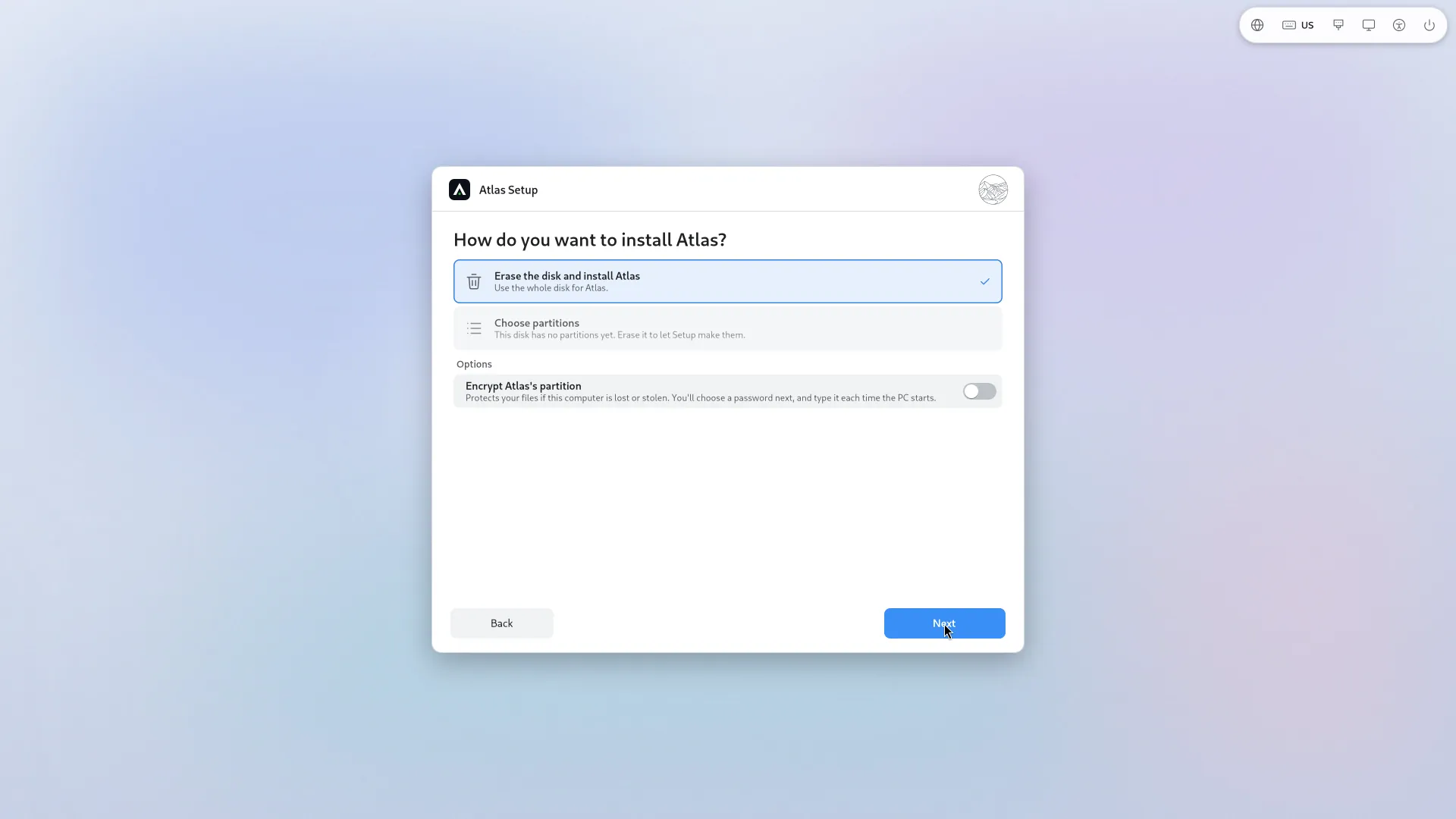
If the card is greyed, the reason is written on it:
- BitLocker: see above.
- Windows was not shut down completely: start Windows and restart it, or turn off Fast Startup.
- Windows wants to check its disk first: start Windows and restart it twice.
- Not enough free space: Windows must keep room for its updates and Atlas needs at least 16 GB. If another Windows data partition has room, Setup says so and offers Choose partitions, to take space there.
- The EFI start-up partition is too small for Atlas.
Choose Atlas's size
One bar shows the disk: Windows' part, then Atlas's, and the handle between them. Drag the handle, or use the arrow keys, or type Atlas's size in GB in the field beside it. The text says what that gives: "Windows keeps X, Atlas gets Y".
The other partitions (data, recovery, EFI) are drawn in grey, with a lock and their name: they are not touched.
Encrypt, or not
One option lets you encrypt Atlas's partition: see Encryption. Another, Keep Atlas findable after firmware resets, is on by default: it adds a backup copy of Atlas's boot loader and an "Atlas (backup)" entry, without removing Windows' own fallback file (it is kept aside).
Your account, your apps
As for the whole disk: the account, then the apps and the PC's settings.
Check and confirm
Ready to install says what will be done: "Windows will be made smaller. Its files and apps stay, but back up your files first." The confirmation is Make Windows smaller and install Atlas?.
Once the installation starts, it can't be cancelled. Do not turn off the computer or take out the USB stick.
After the installation
- On Windows' first start, it may want to check its disk, because it was shrunk: let it finish.
- If Windows asks for its BitLocker recovery key, type it: that can happen once, because the boot path changed.
- Which system starts? Atlas puts itself first in the firmware. When Windows is there, Atlas is meant to offer a choice of the two systems at start-up (see First start and Known issues). If a Windows update puts Windows first again, Atlas points it out (Atlas is not first at start-up) and offers Put Atlas first; Settings > Start-up also has Repair.
- To go back to Windows, Settings > Start-up has Restart to…, which restarts straight into Windows.
If the installation fails, Setup says whether Windows was changed: for example Nothing was written to the disk, so Windows was not changed, or Windows was made smaller and its files were not touched, so it should start as before. See also Known issues.