Open as
Open any app as another account from Start, and tell whose each window is.
Open as runs an app as another account, but on your screen, next to your own windows. The app has that account's files, settings and signed-in websites, not yours.
From Start
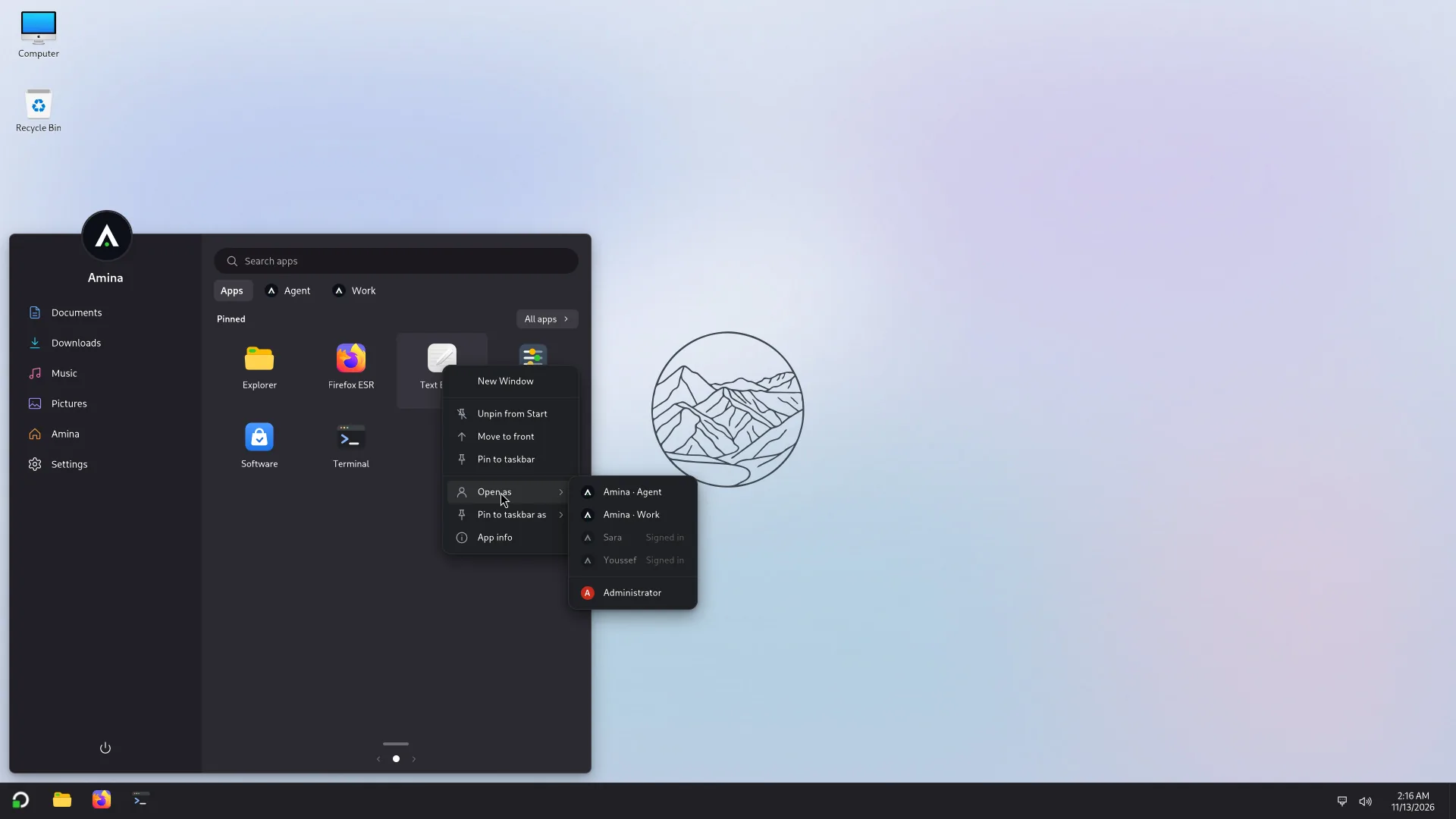
The list shows your sub-accounts first, then, if an administrator allows it, other people's accounts. You never see someone else's sub-accounts. Sub-accounts also have their own tab in Start (see Sub-accounts): an app in that tab opens straight as that account.
Opening a file as another account
In your own Explorer, right-click a file and choose Open as. The menu has a section for your sub-accounts, one for other accounts and one for Administrator, each shown only when it has something in it. A greyed row says why: Signed in, Open on (name)'s screen, or Sending files is off.
- Open as uses your default app for that kind of file.
- Open with … as, then an account, opens Choose an app for (account): the apps for this kind of file first (the PC's, then that account's own), then every other app that account may run, with a search field. Apps that do not open files are greyed (Doesn't open files), with the note An app made for another kind of file may not open this one.
- Sub-accounts and other accounts get a copy. The taskbar shows the transfer, and the message says: A copy opens in Work. Changes stay in Work's copy. Your original is never edited through another account.
- Other accounts are offered only if an administrator turned on Drag and paste files and text between you and other people's accounts in Settings > Accounts. It is off by default; until then the row says Sending files is off. Another person's own apps appear only while their account is open on your screen.
- Administrator opens the original file, and asks for the administrator's password every time.
These menu entries are not shown in a sub-account's Explorer, nor in an Explorer opened as another account.
Passwords
- Your own sub-accounts open with no password.
- Another person's account asks for its password the first time, in Atlas's password window. Administrators decide whether even that is needed.
- Open as administrator is in the menu too: it asks for an administrator's password. Administrators choose which apps may be opened that way.
- Wrong passwords are limited: 5 in 15 minutes lock that account's checks for 2 minutes.
An account is open in one place at a time: signed in on its own screen, or opened on someone else's, never both.
The marks: whose window is this?
The window of an app opened as another account carries that account's mark, and so does its taskbar button. So you always know whose window is whose. The same app opened as two accounts gives two buttons in the taskbar, never one.
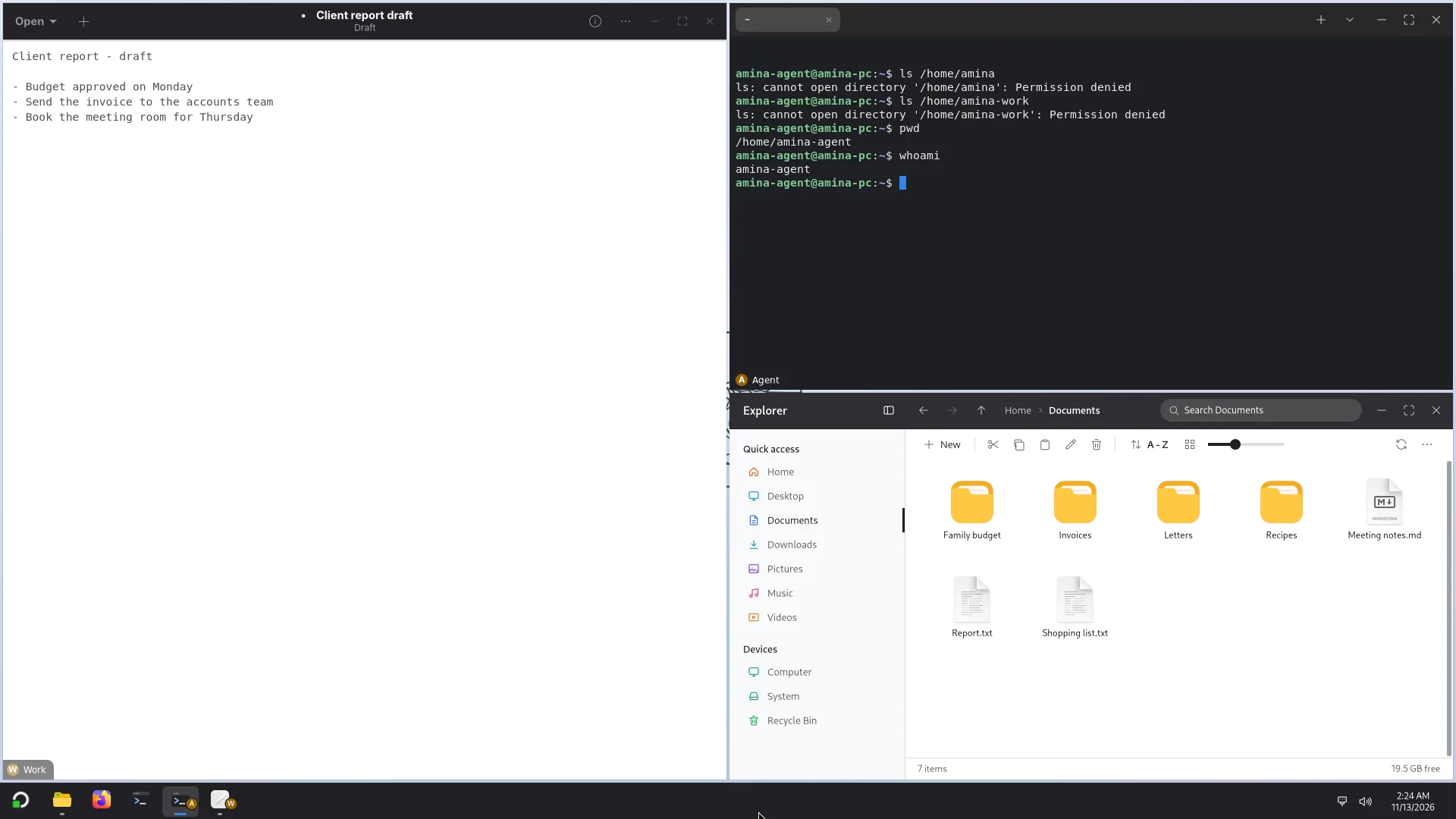
In Settings, you choose the mark's style:
| Style | What it is |
|---|---|
| Name (the default) | the account's name, in a corner of the window |
| Square | a small square with the account's initial |
| Tab | another style of mark, as a tab |
| None | no mark |
You also choose where the mark sits on the window. The mark stays inside the window.
Task Manager, by account
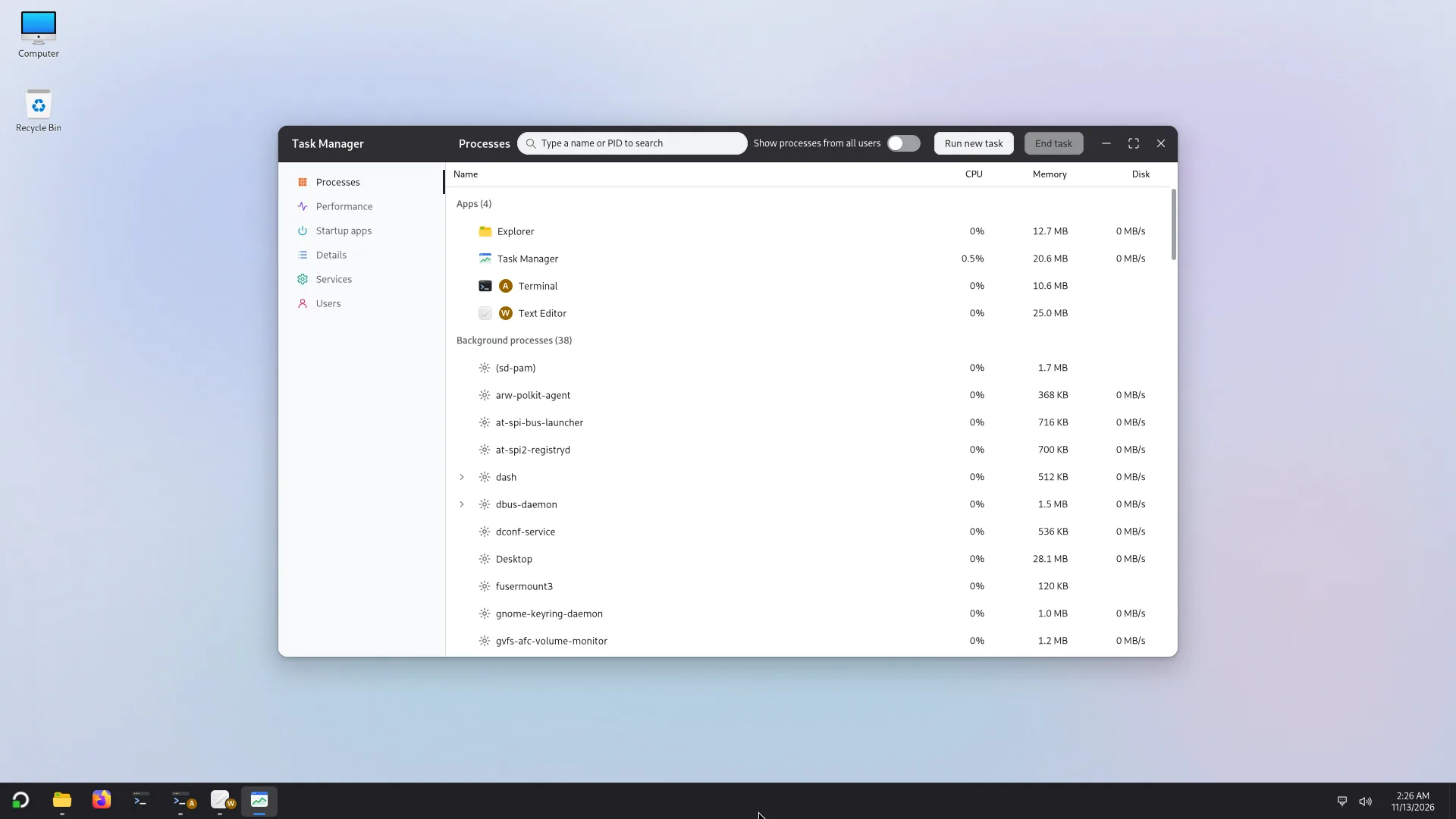
Task Manager shows your processes and the apps of the accounts opened on your screen, each with its mark, and never other people's. An administrator sees everything, has a Users page, and can end another person's process or sign them out, after typing an administrator's password.
From a Terminal
A Terminal opened as a sub-account starts apps that behave the same: on your screen, with the account's mark, its files and its X server, in Task Manager, and closed with the sub-account. Their errors are printed in the Terminal, not shown as a message.
Dragging and pasting between accounts
Depending on the administrator's settings, files and text can be dragged or pasted between you and your sub-accounts. Files are copied to the other account and the original stays; a file you cut is moved: the original goes to the Recycle Bin once it is pasted.
If something does not work
- Sub-accounts are turned off on this computer: an administrator has to turn them on in Settings > Accounts.
- An app that only runs on X11 (FurMark, for example) opens too, on the account's own X server, but not with Open as administrator, which uses Wayland only. If an app fails to start or stops, Atlas says so, with Details and Copy: see Sub-accounts.
- An Electron app, such as VS Code, is built to run under Open as, but check your own app before you rely on it.
- If the PC runs short of memory, the sign-in screen says so. See Requirements.