First start
After the installation: signing in, the keyboard, the choice of system at start-up when Windows is there, and updates in Settings.
Restart
When Atlas Setup says Atlas is installed, take out the USB stick and restart. If you encrypted the disk, a text screen first asks for the disk's password; otherwise Atlas starts directly.
Sign in
The sign-in screen shows your account, with the name you gave Setup. Type the account's password. If you chose Sign in automatically, the desktop opens without asking anything.
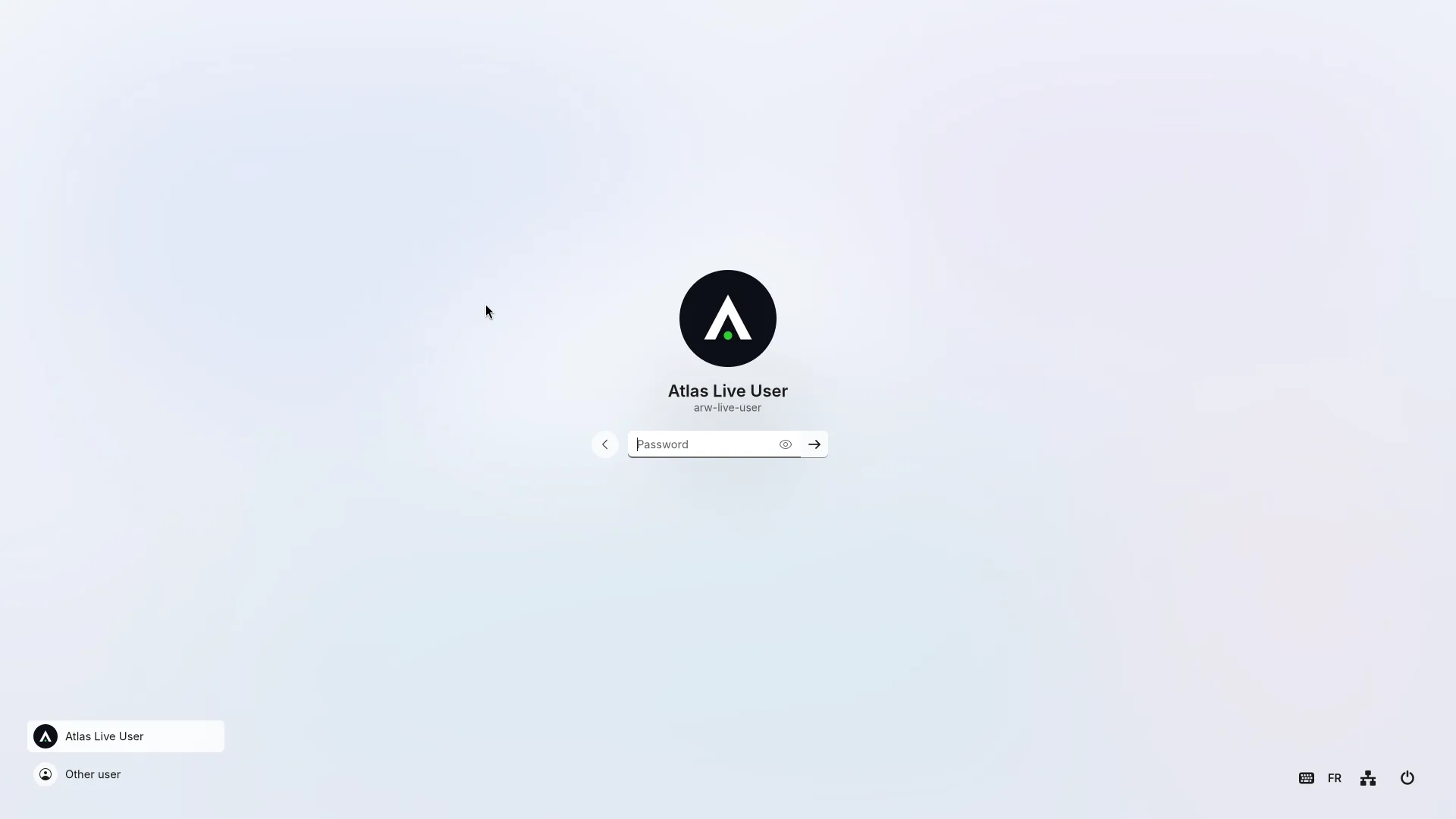
This account is an administrator: it can change the PC's settings, install updates and make other accounts (Settings > Accounts). There is no "root" account in Atlas.
Language and keyboard
The language and keyboard layout chosen in Atlas Setup are those of the sign-in screen and of your session. The first layout is the one Setup used; the others stay available and are switched with the keyboard shortcut or from the taskbar.
- Settings > Mouse and keyboard: the keyboard layouts and how to switch between them.
- Settings > Time and language: the language (it applies the next time you sign in), the time zone, the date and time.
- Settings > Accessibility: text size, the on-screen keyboard...
Choosing between Atlas and Windows at start-up
If Windows is on the same computer, Atlas shows, early in its start-up, a full-screen chooser with a tile for each system and a countdown (5 seconds at first) that then starts the default one; click Windows, or pick it with the arrow keys and Enter, to start it. The chooser also offers Firmware settings, Restart and Shut down. Settings > Start-up sets what starts first and by default, shows or hides the other systems in the chooser, renames them, and sets the countdown and the chooser's look; inside Atlas, Settings > Start-up > Restart to… restarts straight into Windows.
If another system (a Windows update, for example) puts itself ahead of Atlas in the start-up order, Atlas points it out when an administrator signs in (Atlas is not first at start-up) and offers Put Atlas first. Settings > Start-up > Repair puts Atlas's entry and backup copies back; nothing changes unless you choose it.
Updates
Settings > Updates: Check now, then Download and install at restart, and restart when asked. The state says Up to date or Update available. Automatic updates are off by default, unless you turned them on in Setup: they download updates and install them at the next restart.
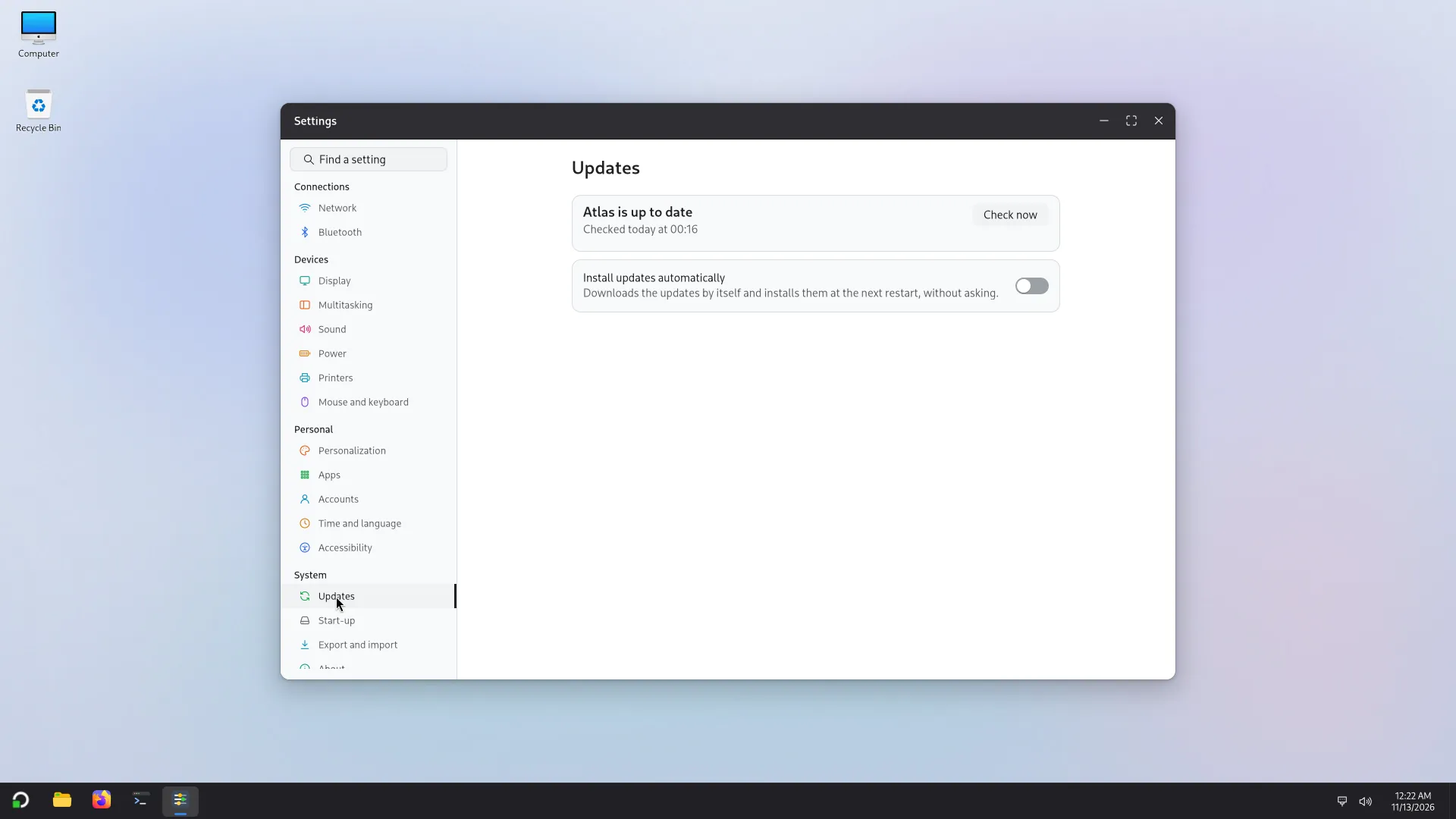
Atlas's updates come from Atlas's archive, Debian's come from Debian. You need an Internet connection: Wi-Fi is set in the taskbar's quick settings.
What next
Look around the desktop: Start, Explorer, Settings, Software (to install more apps). To try several accounts on one screen, read Several accounts. And if something is wrong, read the known issues, then write to us at contact@arw-labs.com.